

Caller ID
Who is calling, before you pick up: the customer's record on the tablet as the shop phone rings
For Android 8.0 or newer, on a tablet with USB-OTG. It runs with an active licence for that tablet: try it free for 30 days.
Get Caller ID
With your Nugezza account. One licence covers one device.
You’ll sign in with your Nugezza account first. Paid by card through Stripe. You can cancel a subscription at any time in your area.
Caller ID at a glance
The caller's record, as the phone rings
Caller ID is an Android app for a shop that takes orders by phone. A small USB caller-ID modem sits on the shop's landline and plugs into a tablet. When the line rings, the app reads the number, finds the customer and shows their record: name, address, delivery notes and recent orders, before anyone picks up.
- You answer and talk on your normal telephone, as always: the tablet only shows who is calling and keeps your customers and orders.
- A number it does not know can be saved as a new customer with one tap.
- Five home screens, six call pop-ups, five colours and four languages (Italian, English, Spanish, French).
- On an all-in-one terminal with a built-in printer it prints the customer's details and new orders.
Install and activate
Sign in with Nugezza ID
The form is already there
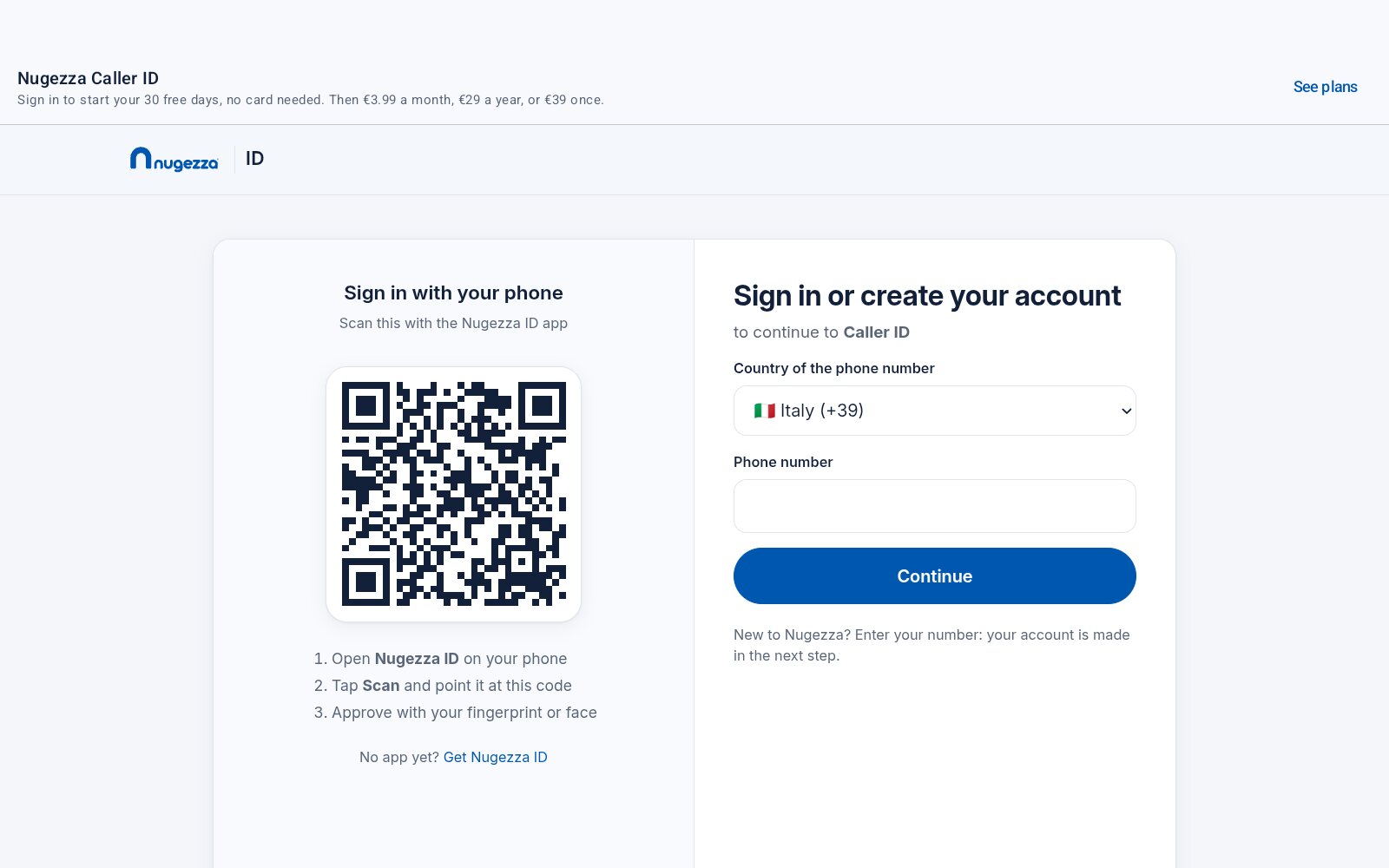
Accept the agreement, and the same Nugezza ID form every Nugezza site shows fills the screen. The app never sees your password.
With your phone
Open the Nugezza ID app on your phone and scan the QR on the tablet.
Or with your number
Choose the country code, type your phone number and password, then the second step. No account yet? Create one on the same form.
Is the licence active?
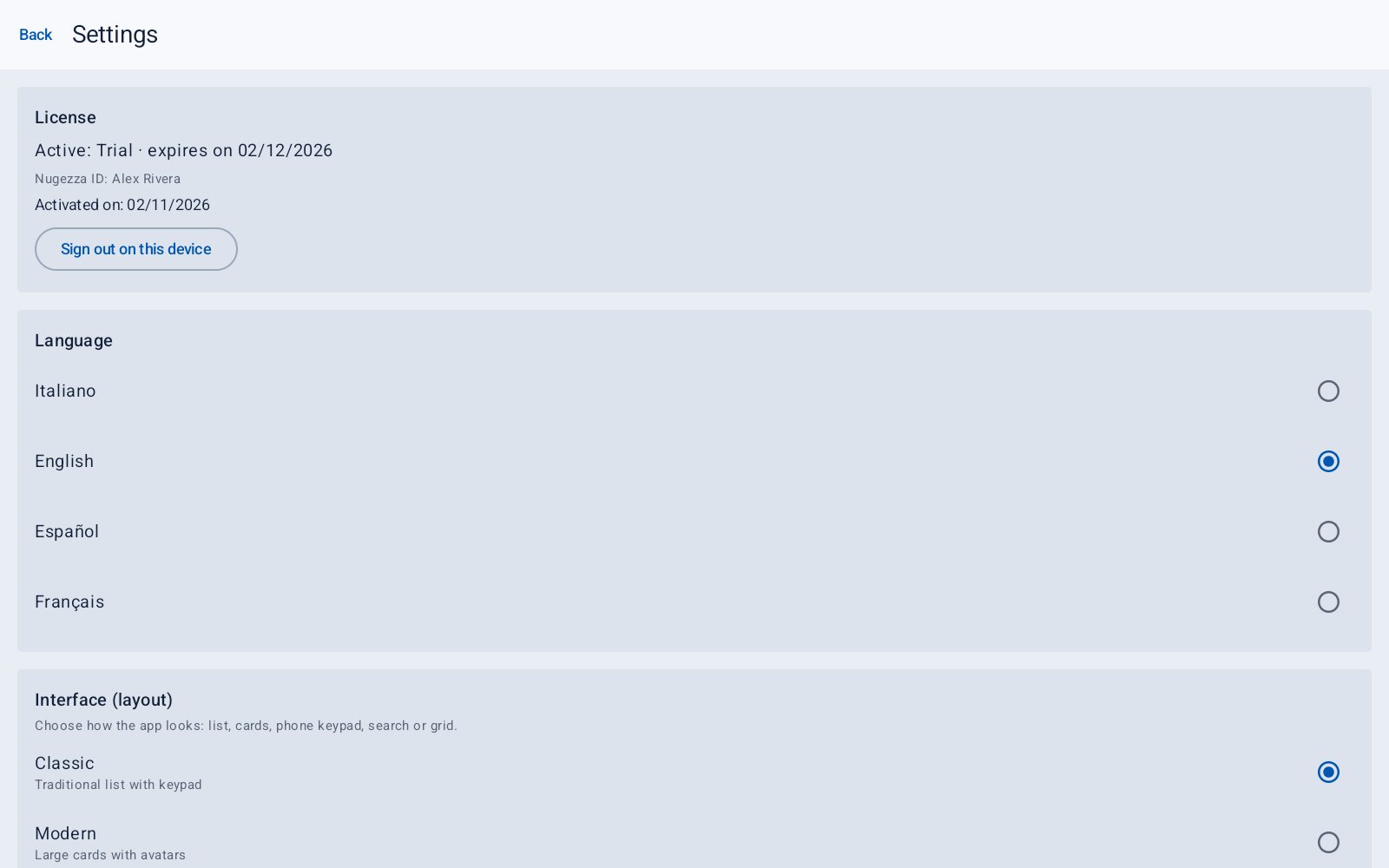
The first card in Settings says it: the state of the licence, until when, and the Nugezza ID account.
| Active · expires on … | Working, until that date. A monthly or yearly plan runs to its next payment, offline too. |
| Active · lifetime | Yours for good: offline for life, it never asks. |
| Your plan ended on … | «Waiting for your next payment». The app needs the internet, and opens by itself once the payment is in. |
| Your 30 free days are over | Choose a plan: the app opens by itself once you have paid. |
| Invalid device date | The tablet's clock is wrong: set the right date and time. |
Connect the phone line
Diagnostics: is the modem ready?
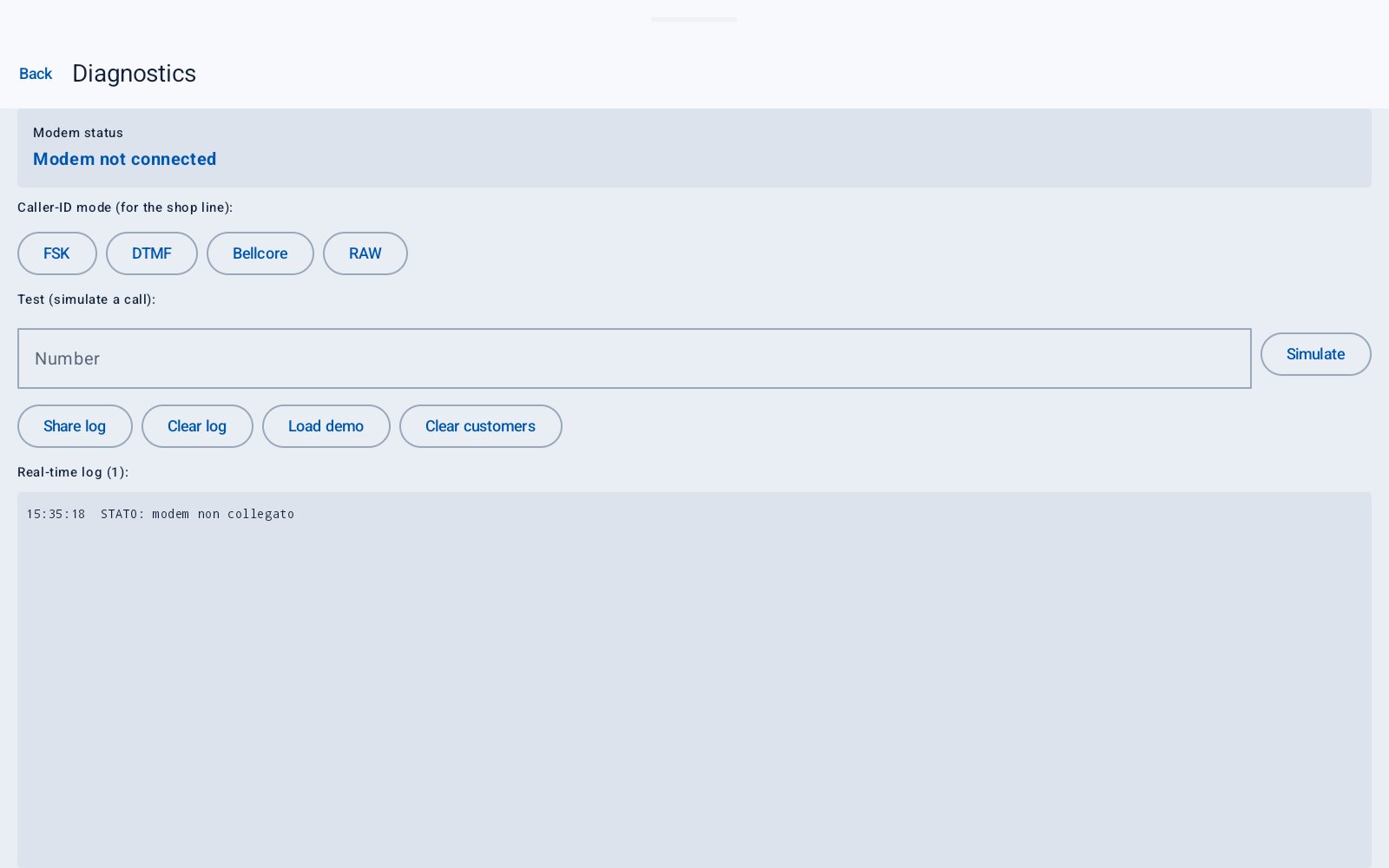
Settings › «Modem and diagnostics» › «Open diagnostics» shows everything that happens on the line.
- «Modem status» says whether the modem is ready and listening.
- «Caller-ID mode» switches how the modem reads numbers: FSK, DTMF, Bellcore or RAW.
- «Test (simulate a call)»: type a number and press «Simulate» to see the pop-up without a real call.
- «Real-time log» shows every line the modem sends; «Share log» sends it to us if something is wrong.
- «Load demo» adds five example customers to try the app; «Clear customers» deletes all customers.
Your customers
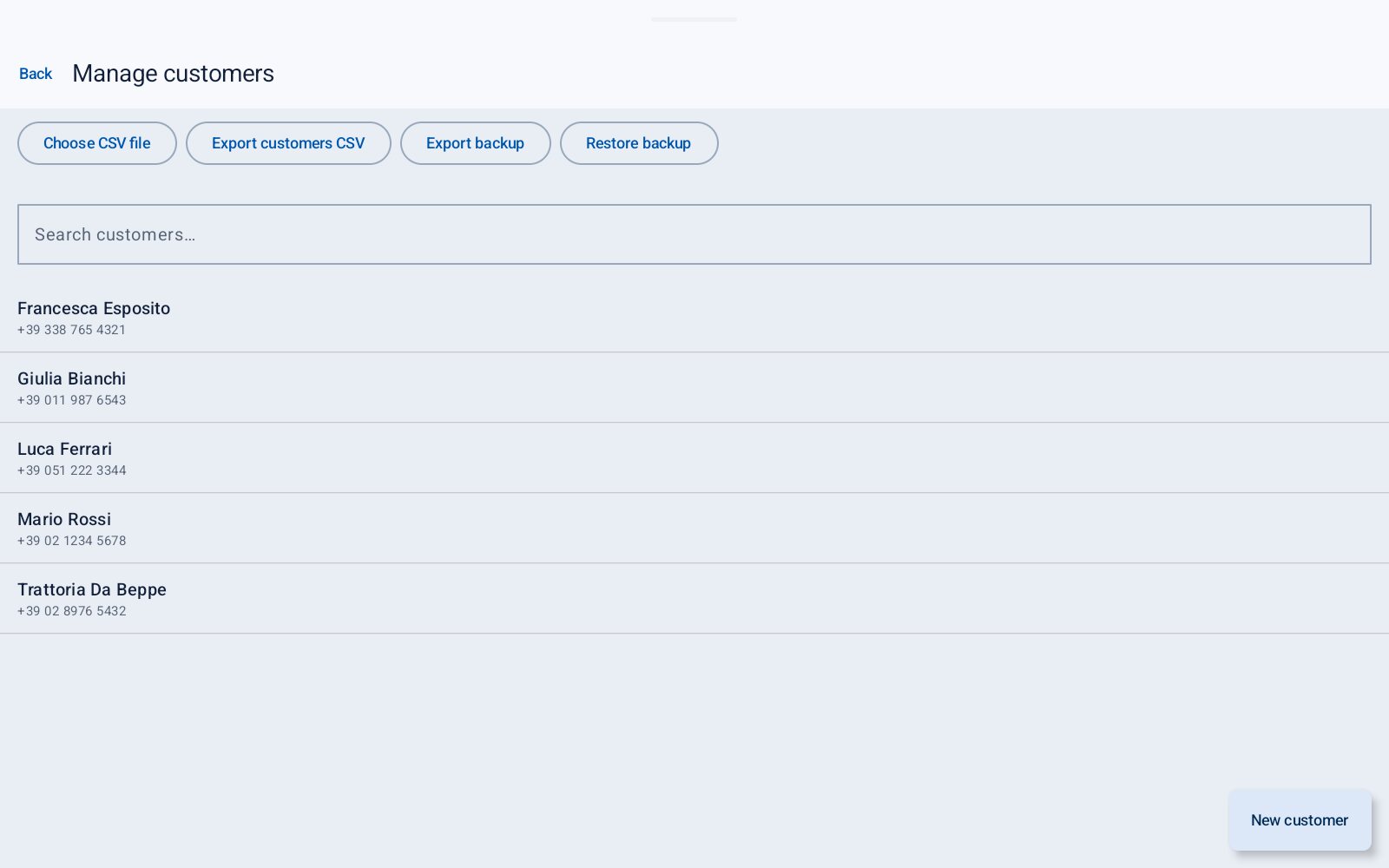
Manage customers
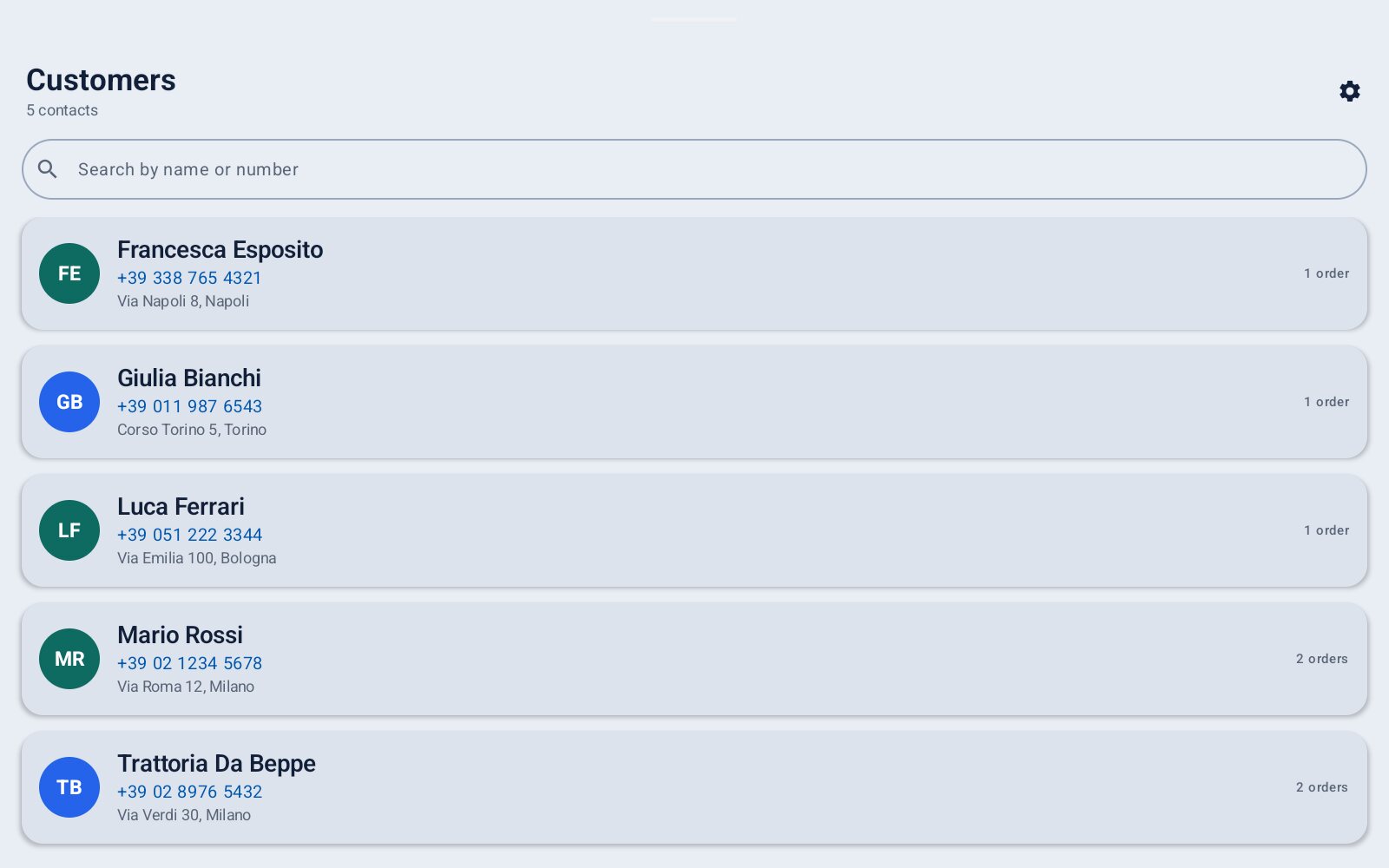
Adding, importing and backing up live in their own place, Settings › «Manage customers» › «Open customer management», so that day-to-day use at the counter is just looking customers up.
- «New customer» adds one by hand.
- «Choose CSV file» imports a list; «Export customers CSV» makes one.
- «Export backup» and «Restore backup» save and bring back everything.
- The search finds customers by name or by number.
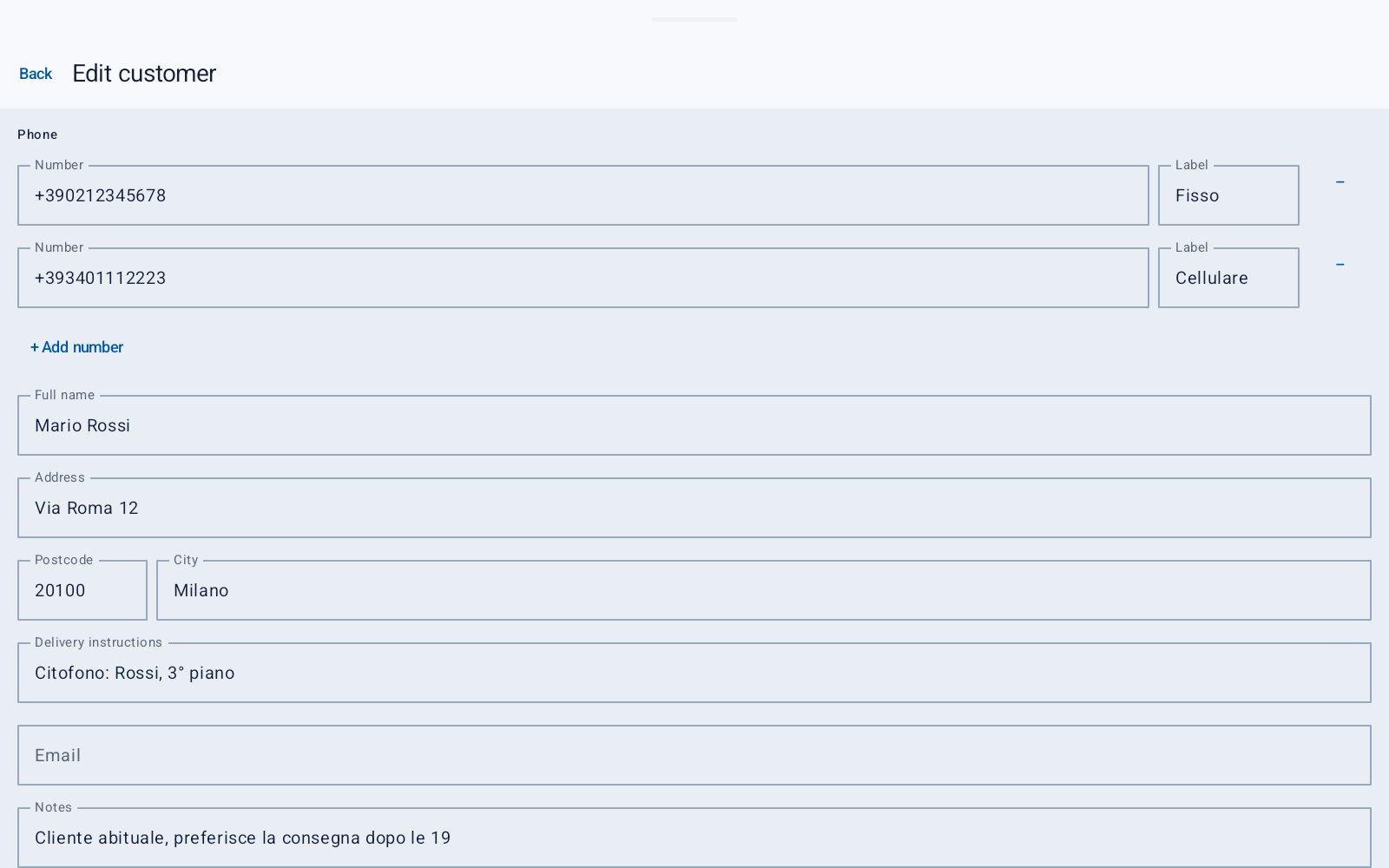
Adding or editing a customer
Phone numbers
Type the number and a label (landline, mobile, work…). «+ Add number» adds another: any of them makes the record pop when that number calls.
Name and address
Full name, address, postcode and city.
For the delivery
Delivery instructions (intercom, floor, gate), email and notes.
And the rest
Tags (comma-separated), balance in euros and birthday (dd/mm/yyyy).
Save
Press «Save». To change a customer later, open their record and press «Edit».
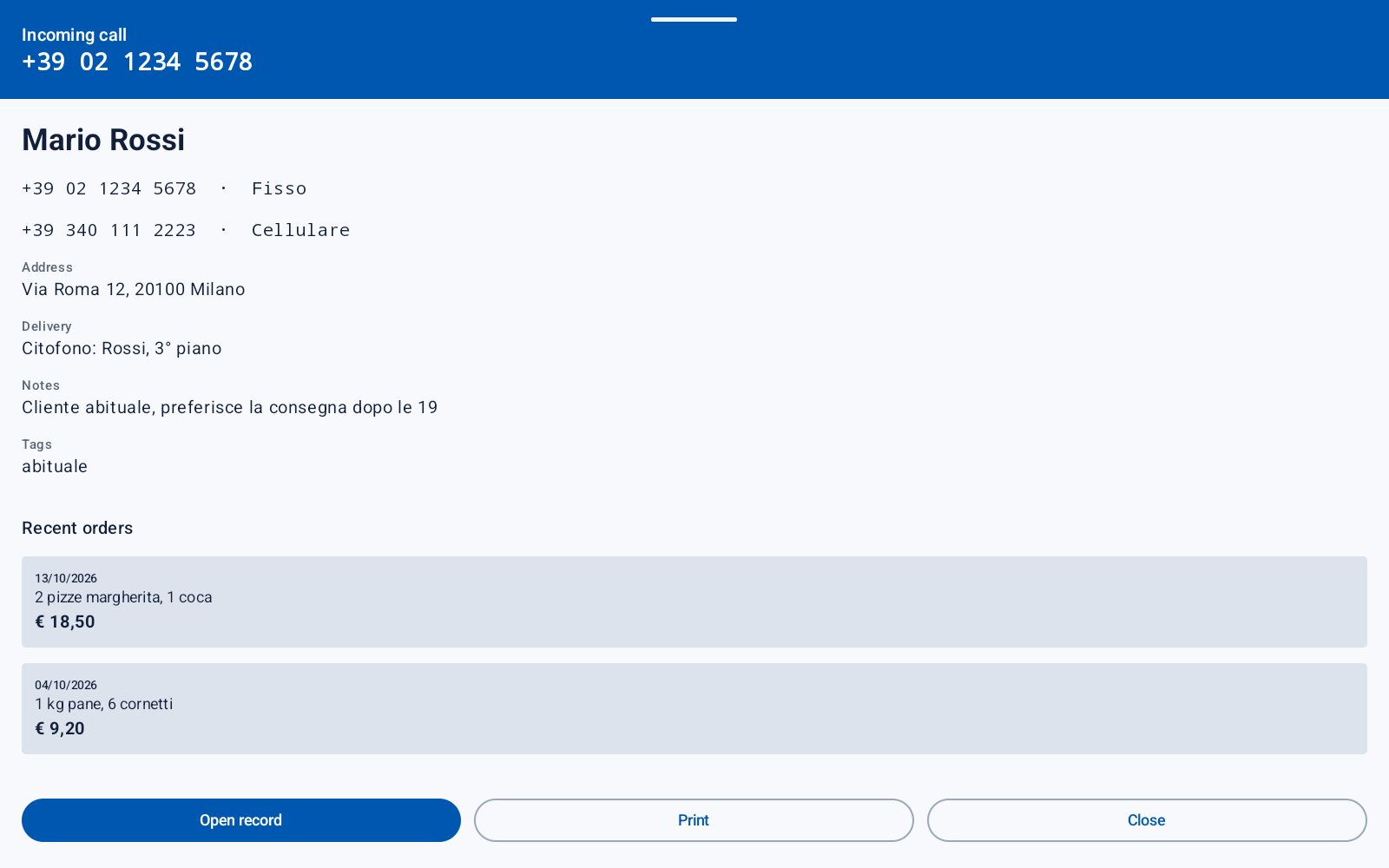
When the phone rings
A customer calls
The record opens by itself: who is calling, their numbers, address, delivery notes, notes, tags and the last orders, while you answer on the telephone.
- «Open record» opens the full record, to add the order.
- «Print» prints the customer's details and their new orders (chapter 6).
- «Close» goes back to the home screen.
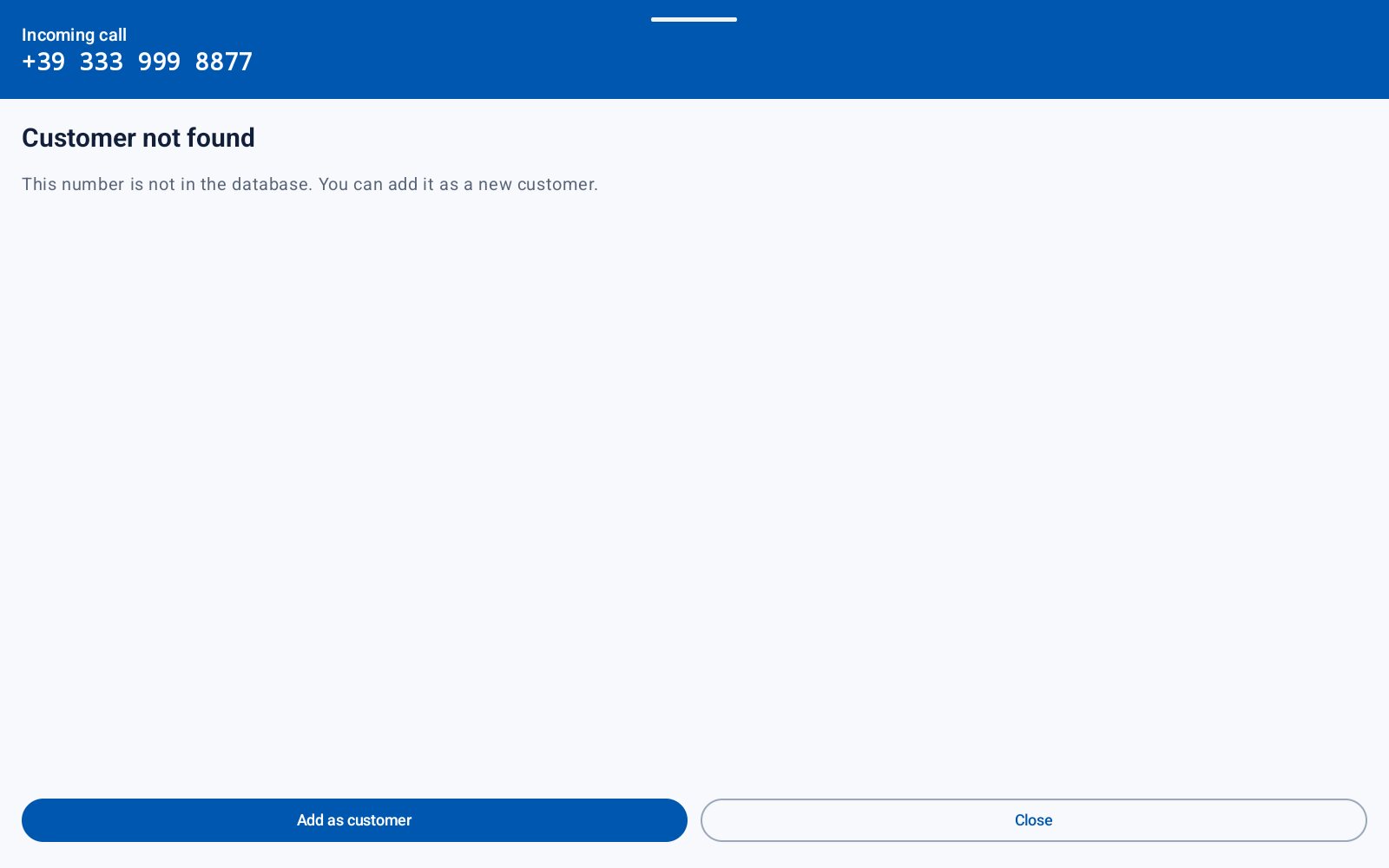
A number you don't know
«Customer not found»: the number is not in your customers yet. Press «Add as customer» and the new record opens with the number already filled in. Next time they call, their name appears.
- A withheld number shows as «Private number»: it cannot be identified.
- If a regular customer shows as not found, their number was saved differently: add the number as the line sends it (chapter 9).
Six ways to show a call
Settings › «Incoming call (style)» chooses the pop-up. «Automatic» uses the one that goes with your home screen.
| Automatic (match interface) | Follows the home screen you chose. |
| Full record | The whole record, with a coloured bar on top. |
| Center card | A card floating over the dimmed screen. |
| Phone screen | Like a phone's incoming call, with the details below. |
| Top banner | A slim banner from the top of the screen. |
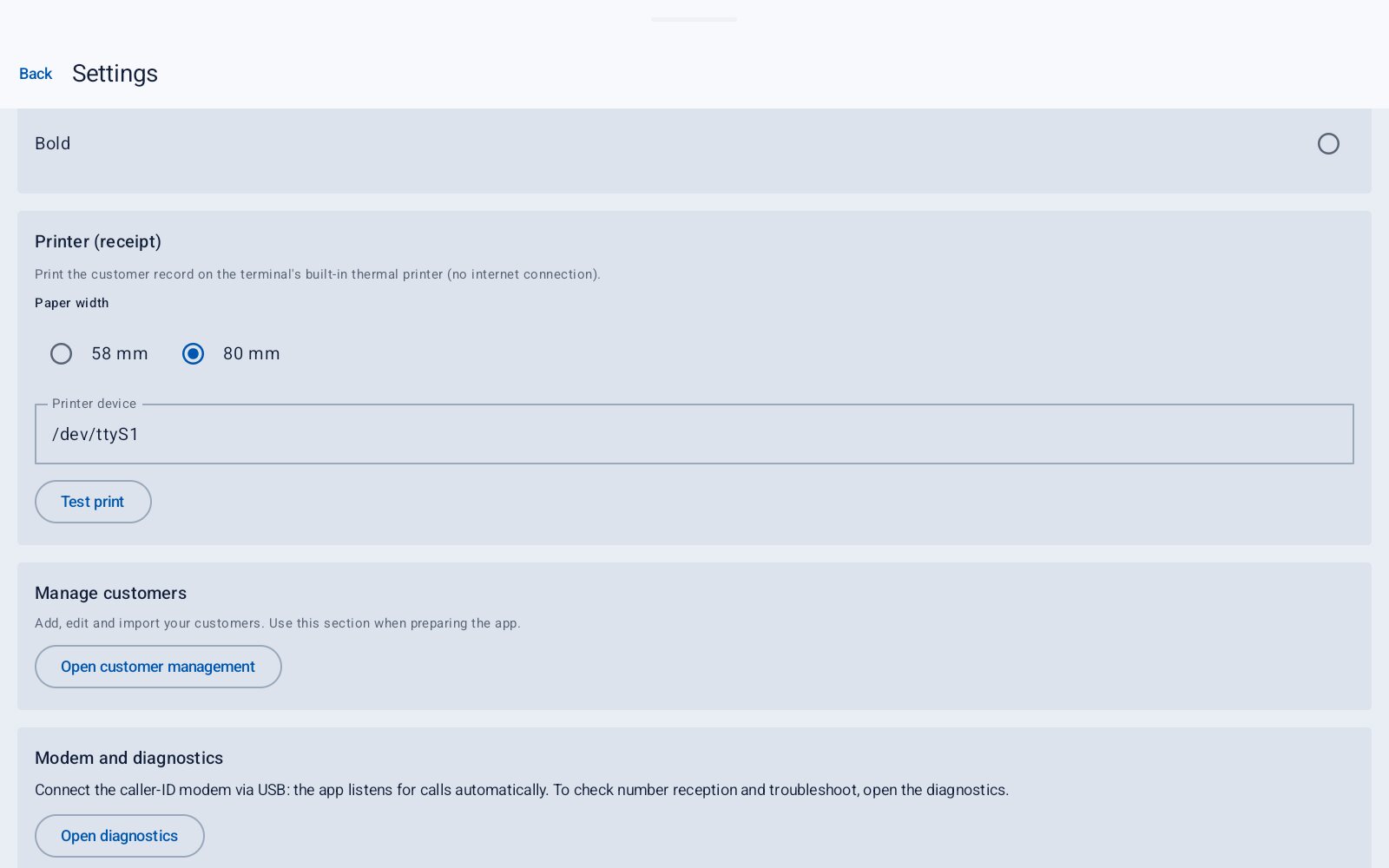
| Bold | Full screen with a big coloured header, readable from across the counter. |
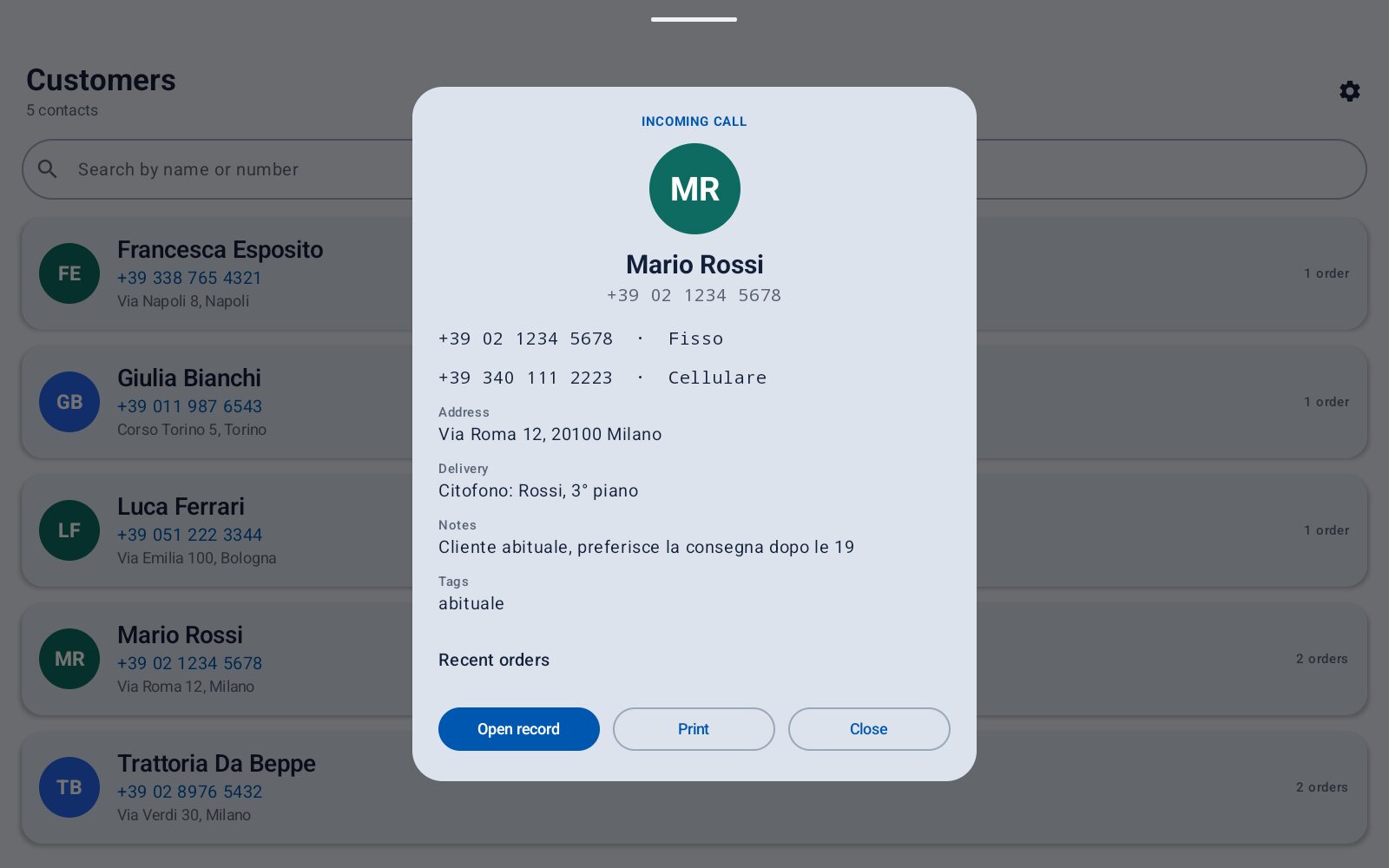
Pick the one your staff read best
Try them with «Simulate» in Diagnostics: no real call is needed. On a busy counter a large pop-up is read at a glance; the slim banner suits a tablet that stands close to whoever answers.
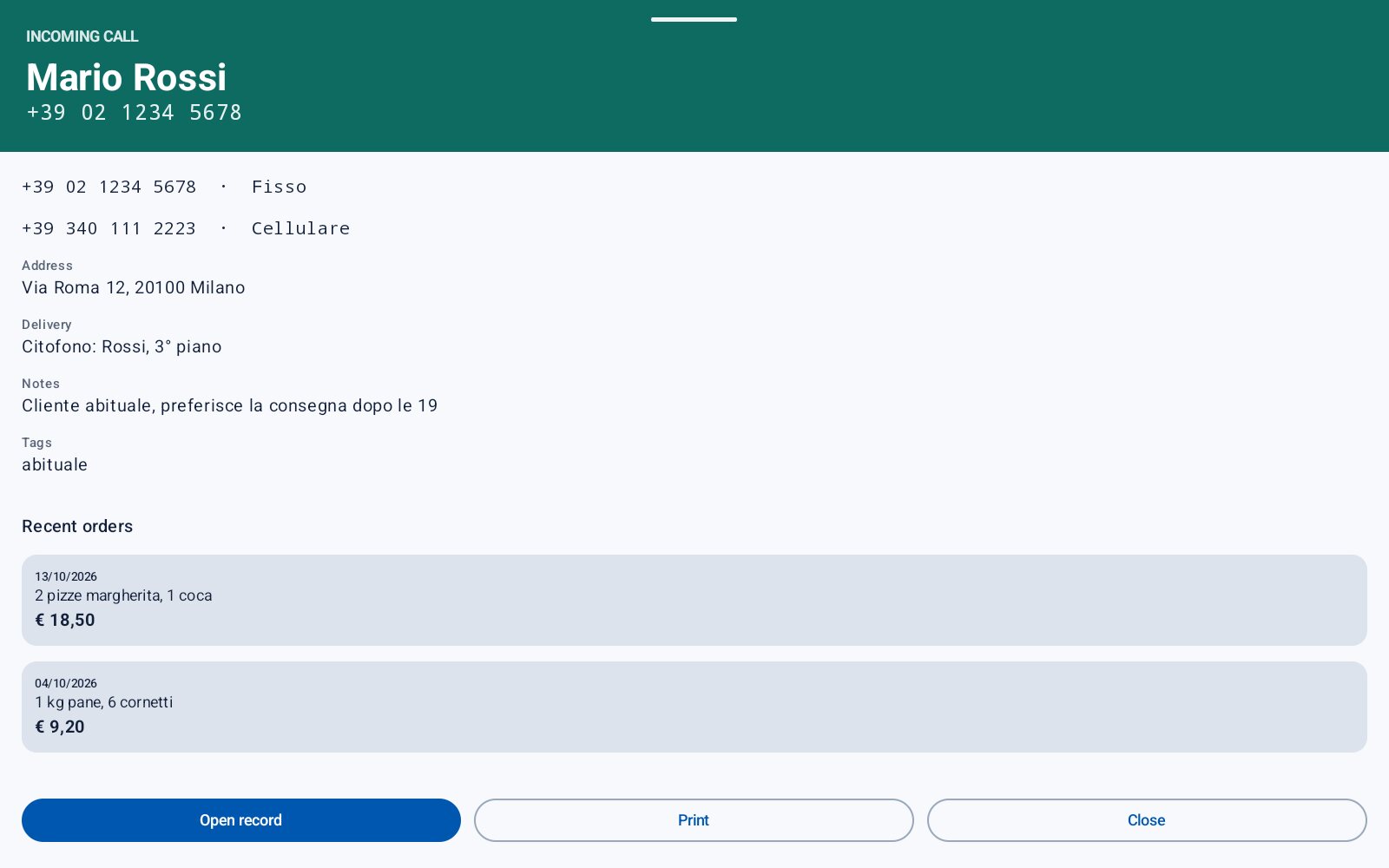
The record, orders and printing
The customer record
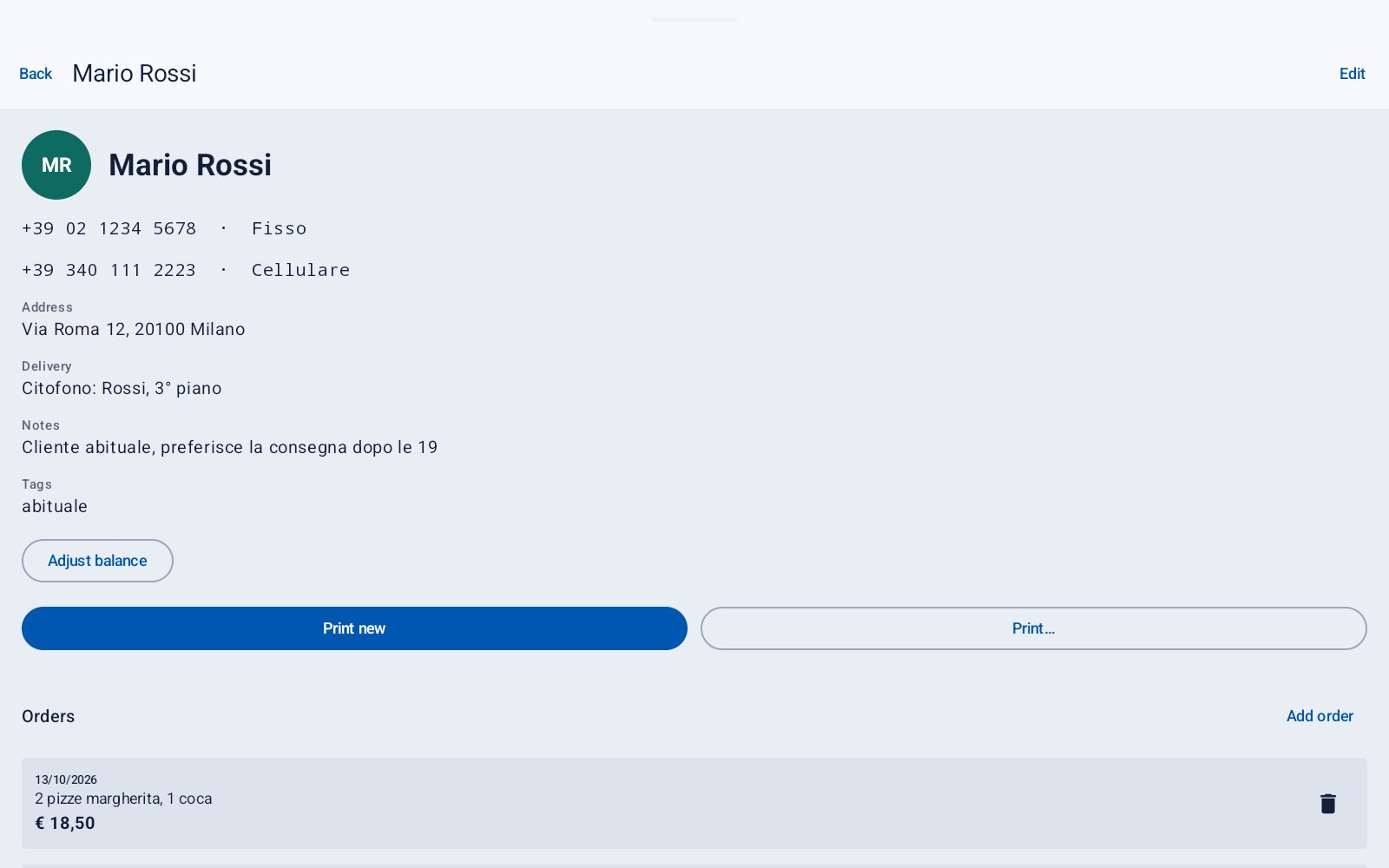
Tap a customer on the home screen, or «Open record» on a call. The record shows every number with its label, the address, delivery notes, notes and tags, then the orders.
- «Edit» changes the customer; deleting them is there too.
- «Adjust balance» changes what the customer owes or has in credit.
- «Print new» and «Print…» print the record and orders.
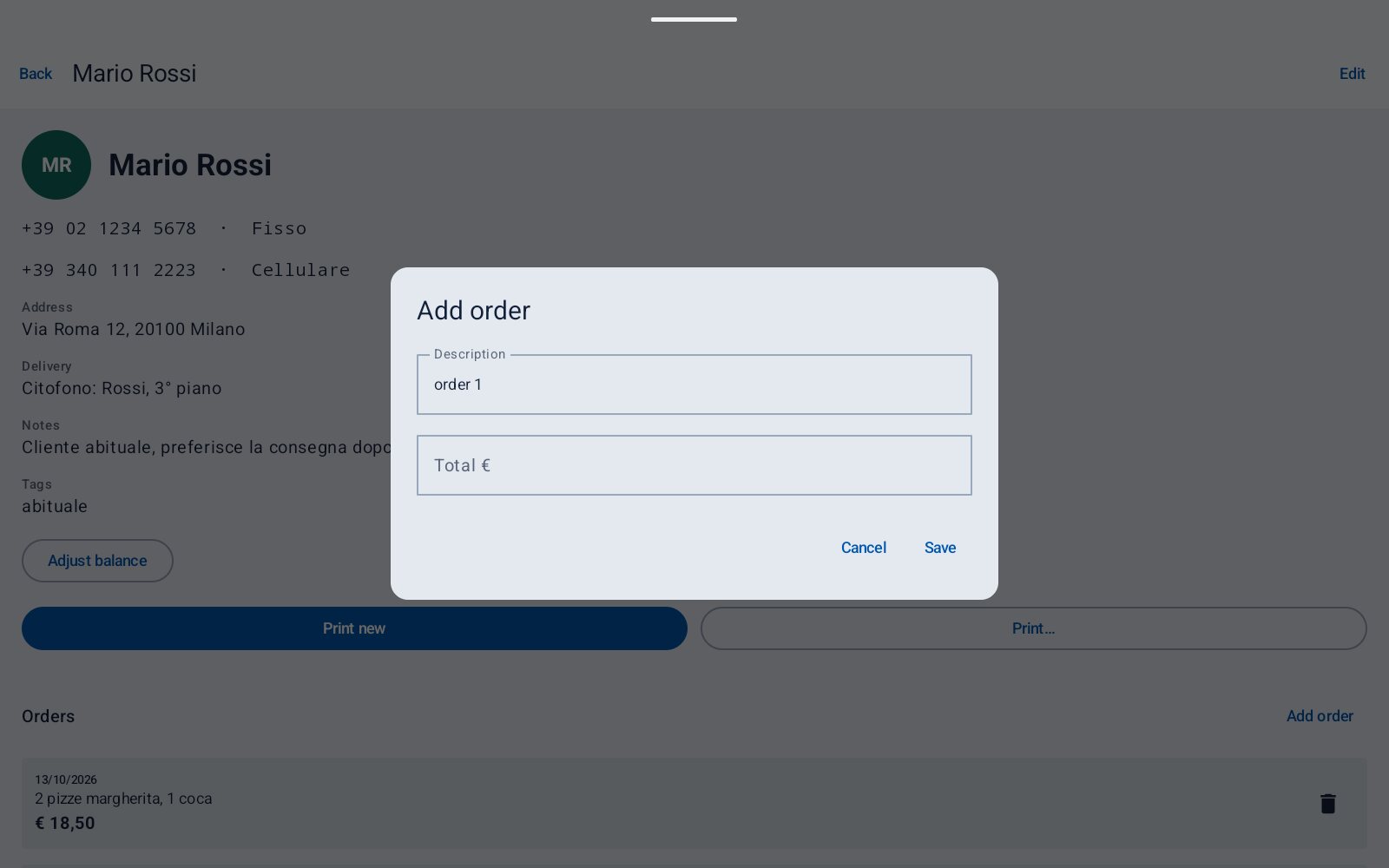
Taking an order
Add order
In the record press «Add order». The description is already «order 1», «order 2»… : write what was ordered instead, if you like.
The total
Type the total in euros and press «Save». The order goes to the top of the list with today's date.
Change or delete
Tap an order to change it; the bin deletes it.
Printing on the terminal's printer
On an all-in-one terminal with a built-in thermal printer (such as the CITAQ H10), Caller ID prints the customer's details and orders, with no internet and no extra apps.
- «Print new» prints the customer and the orders not printed yet; they are then marked «✓ Printed».
- «Print…» lets you choose which orders to print, to reprint one on purpose.
- «Print» on the call pop-up does the same as «Print new», while the customer is still on the line.
Make it yours
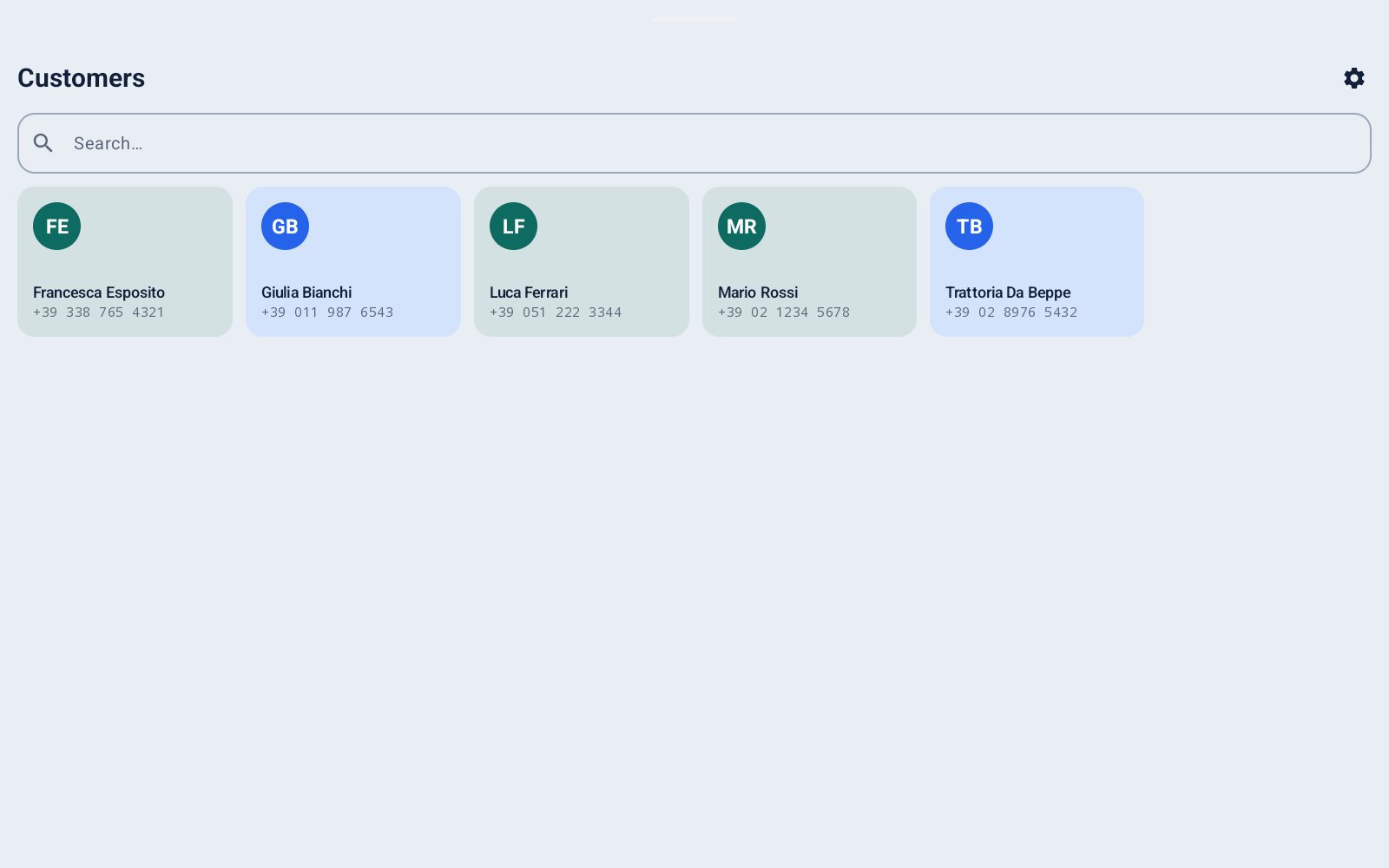
Five home screens
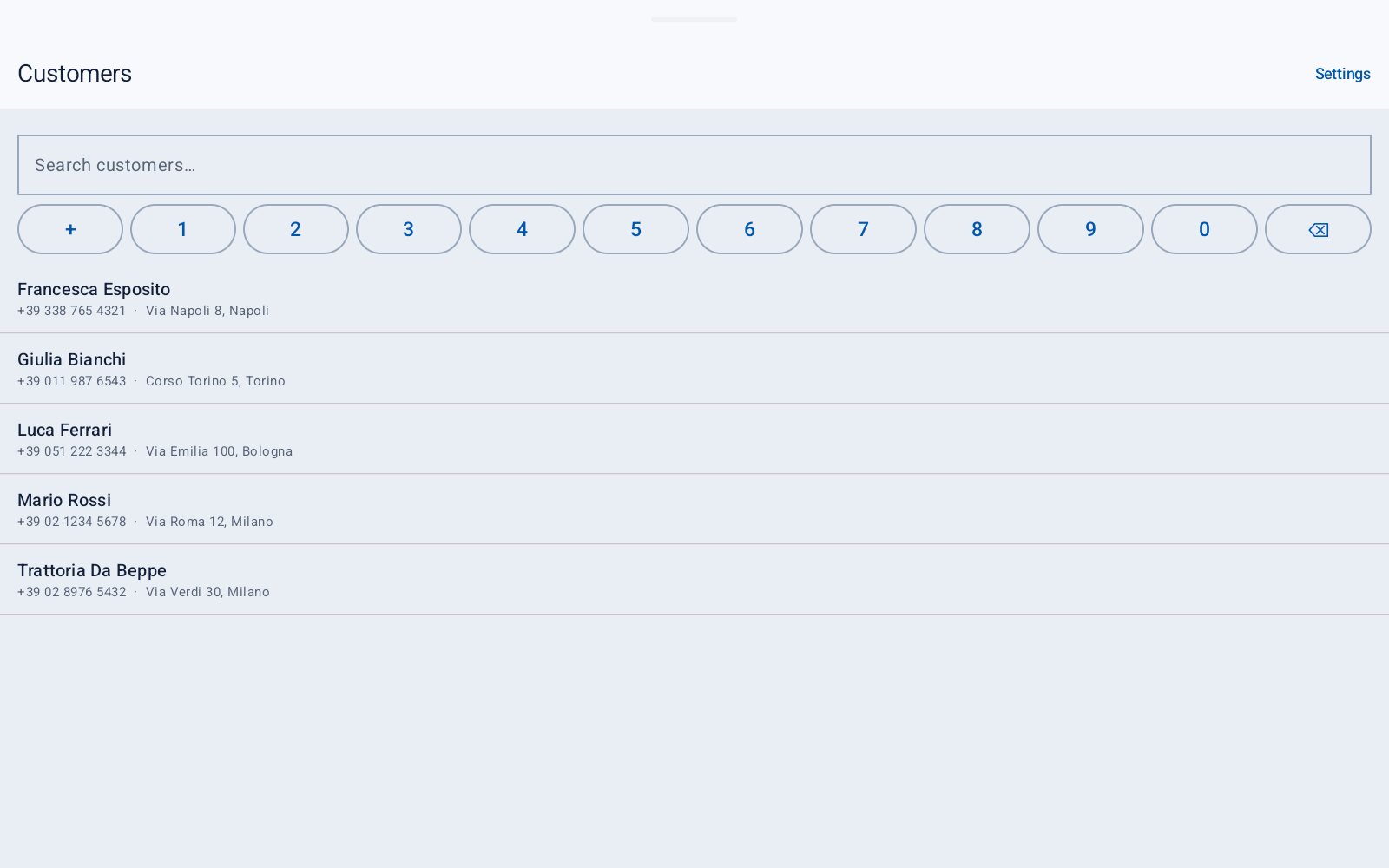
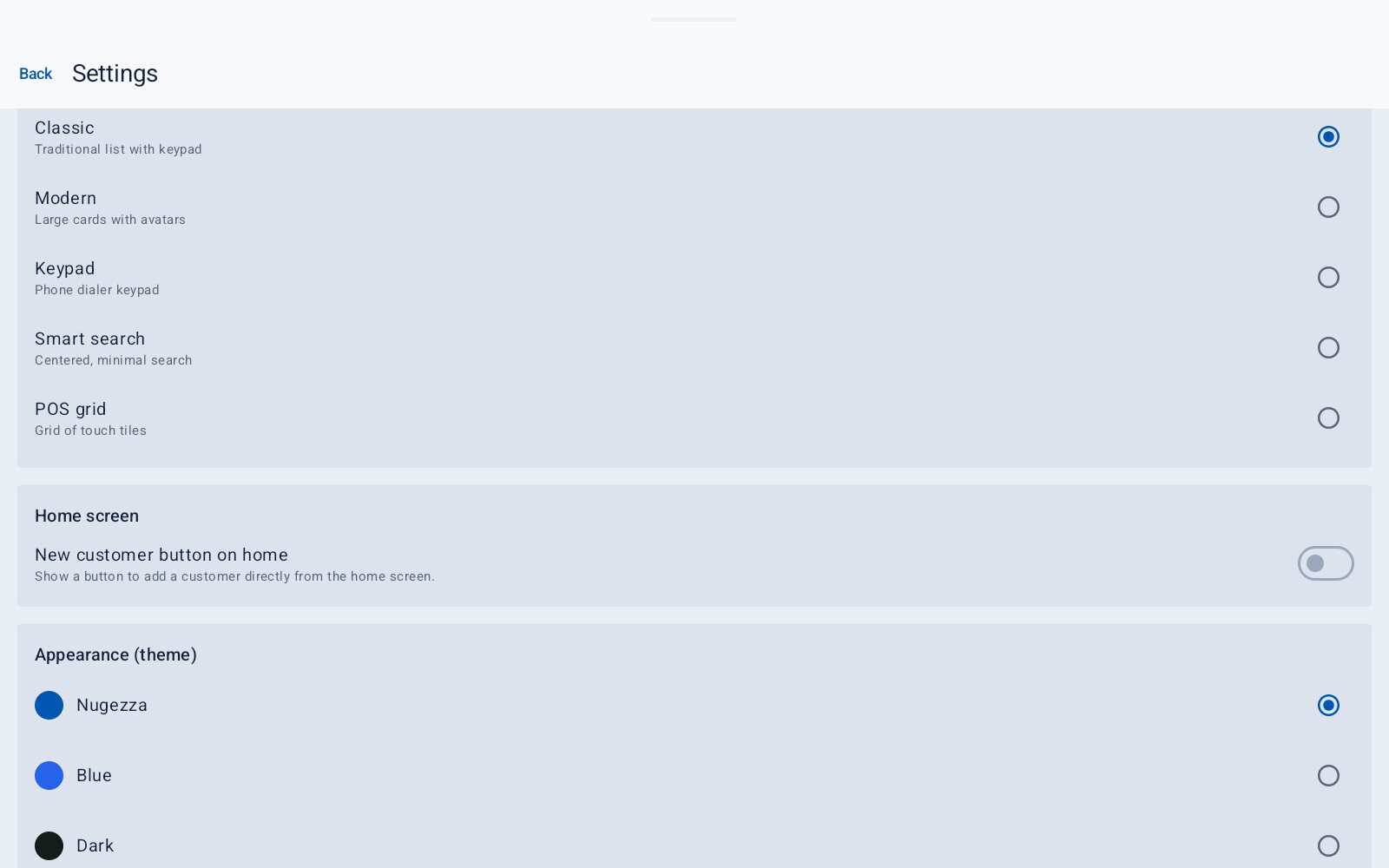
Settings › «Interface (layout)». The home screen changes at once; the customers stay the same.
| Classic | The list with a search box and a number keypad. |
| Modern | Large cards with the customer's initials. |
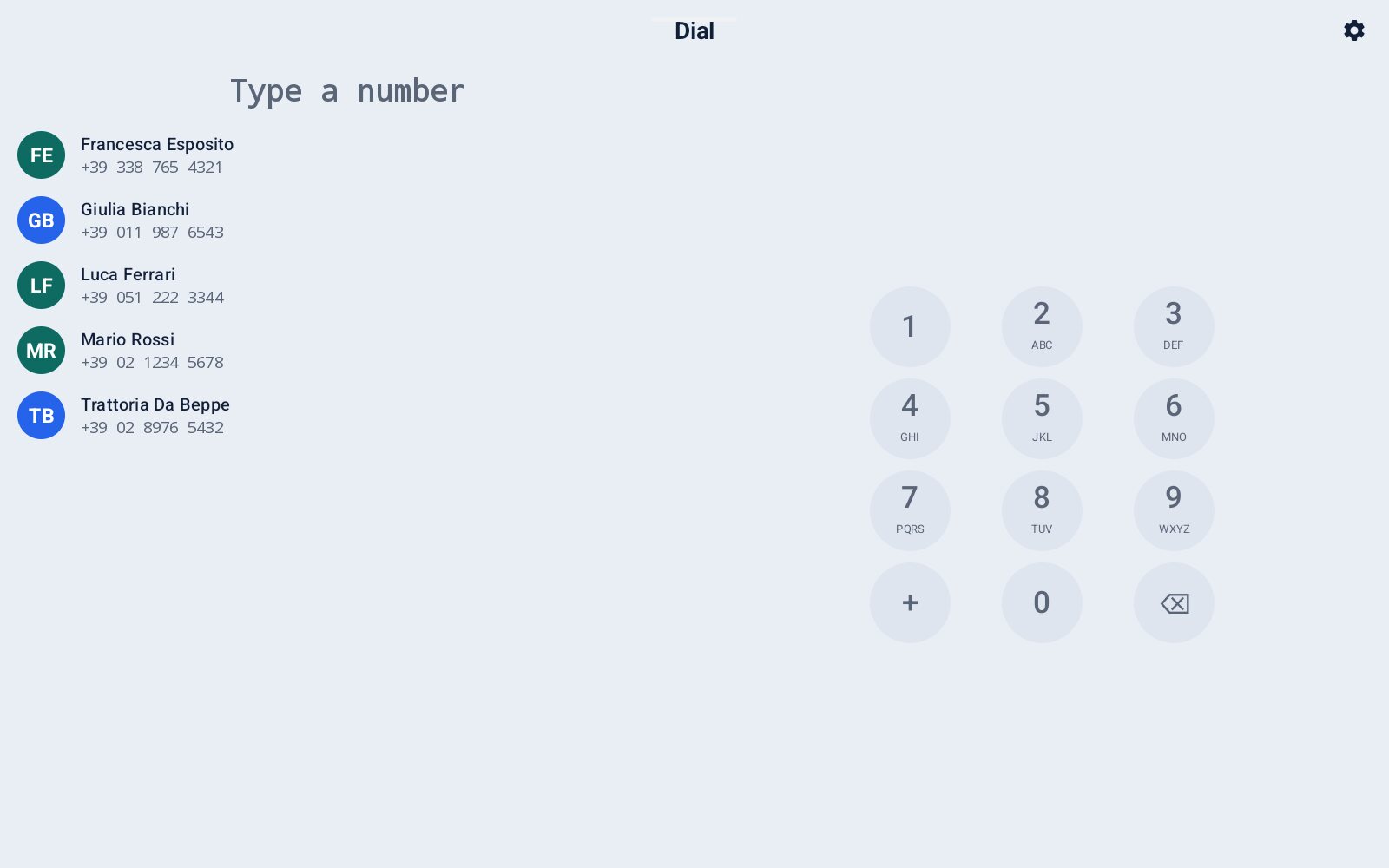
| Keypad | A phone dialer: type the number and the customer appears. |
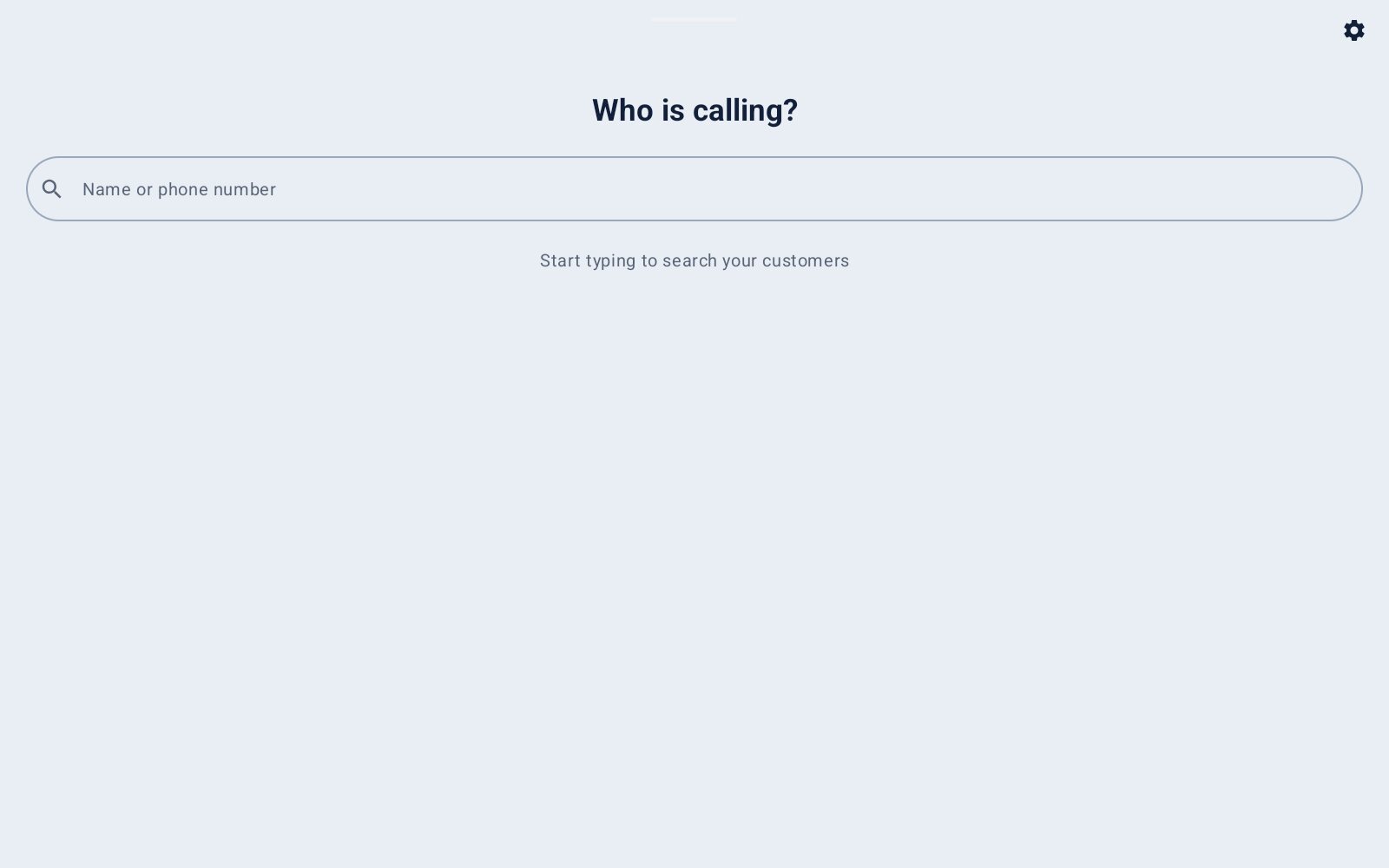
| Smart search | One search box in the middle, nothing else. |
| POS grid | Big touch tiles, for a till. |
Keypad
For a counter where people think in phone numbers: dial the first digits and the matching customers come up.
Smart search
«Who is calling?»: type part of a name or a number. If nobody matches, it offers to add a new customer with what you typed.
POS grid
Every customer is a tile, big enough for a quick finger on a busy till.
Colours, language and the home screen
- «Appearance (theme)»: Nugezza, Blue, Dark, Warm or Classic.
- «Language»: Italiano, English, Español or Français. The whole app changes at once.
- «Home screen»: turn on the «New customer» button to add customers straight from the home screen.
How a record opens
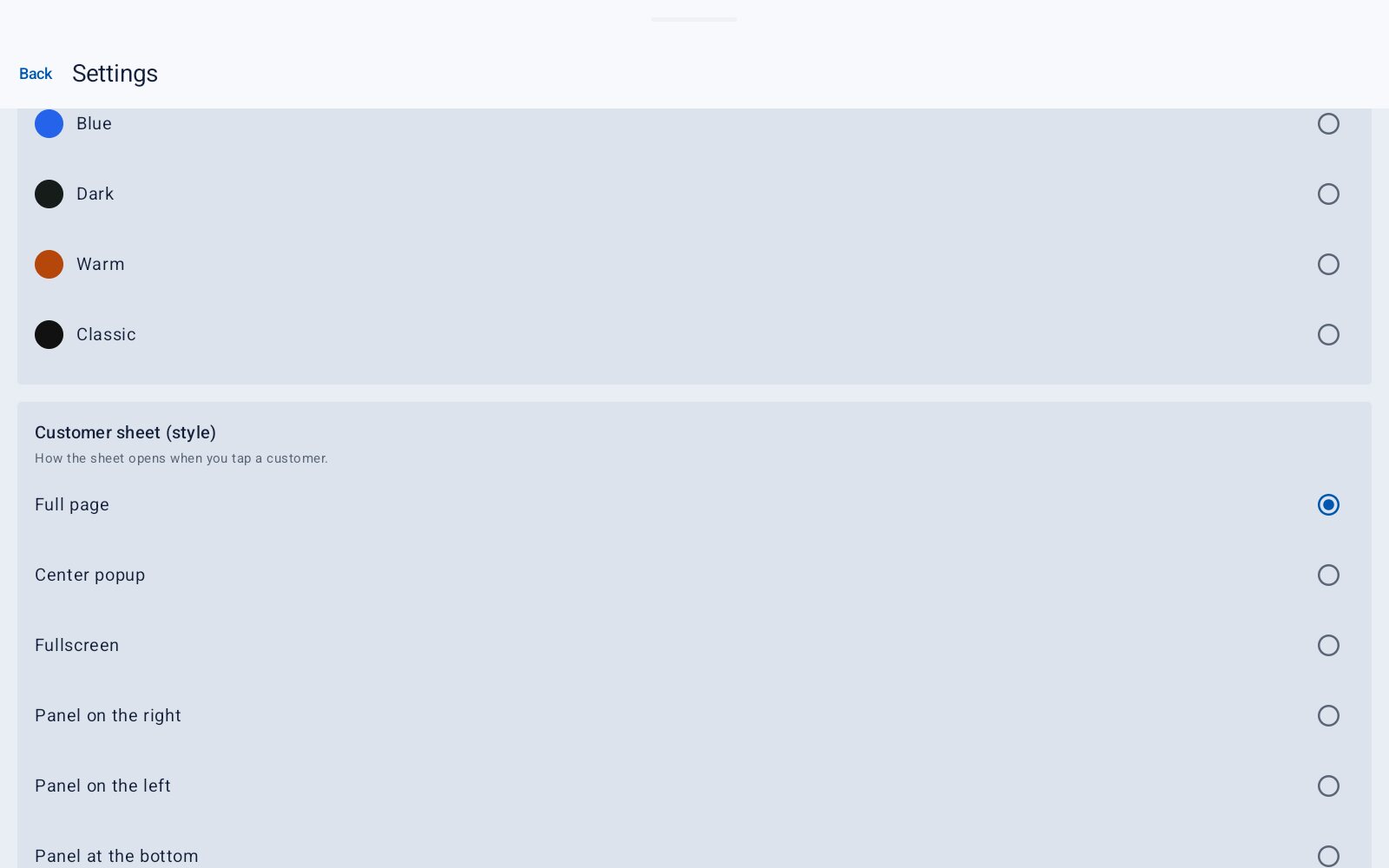
«Customer sheet (style)» chooses how a record opens when you tap a customer.
| Full page | The record fills the screen (the usual one). |
| Center popup | A window in the middle; the list stays behind it. |
| Fullscreen | A window over the whole screen. |
| Panel on the right / left | A side panel: the list stays visible beside it. |
| Panel at the bottom / top | A panel that slides in from the edge. |
Licence and prices
If something goes wrong
Questions about this app?
Chat with us now or send an inquiry — we’ll help you get it running.
