Nugezza Developera Nugezza company
🌐 · EN

Country and language

InternationalEUR
Sign in Start a project
All apps / Nugezza Booking

Nugezza Booking

The booking system for your business: installation, features and everyday use

For Windows 10 and 11 (64-bit). It runs with an active licence for that computer: try it free for 30 days. · 113 MB

Get Nugezza Booking

With your Nugezza account. One licence covers one device.

€14.99a month
€149.00a year
€349.00once — yours for good
No card needed — one free trial per app per Nugezza account.

You’ll sign in with your Nugezza account first. Paid by card through Stripe. You can cancel a subscription at any time in your area.

The system at a glance

What Nugezza Booking is

A booking system for any business that works by appointment: hairdressers, barbers, beauty and nail studios, physiotherapists, clinics. Clients book by themselves, day and night; staff see the day on the agenda screen; the owner runs everything from Gestione. It runs on a computer at the business and the data stays there.

  • A booking site with your business’s name, logo and colours
  • The agenda screen: today’s appointments, live, on a tablet or a computer
  • Gestione: services, hours, staff, shifts, takings, backups
  • WhatsApp: clients book by tapping buttons, and get a confirmation and a reminder
  • Message everyone: an offer or some news to the clients who asked for it, on WhatsApp and as a phone notification
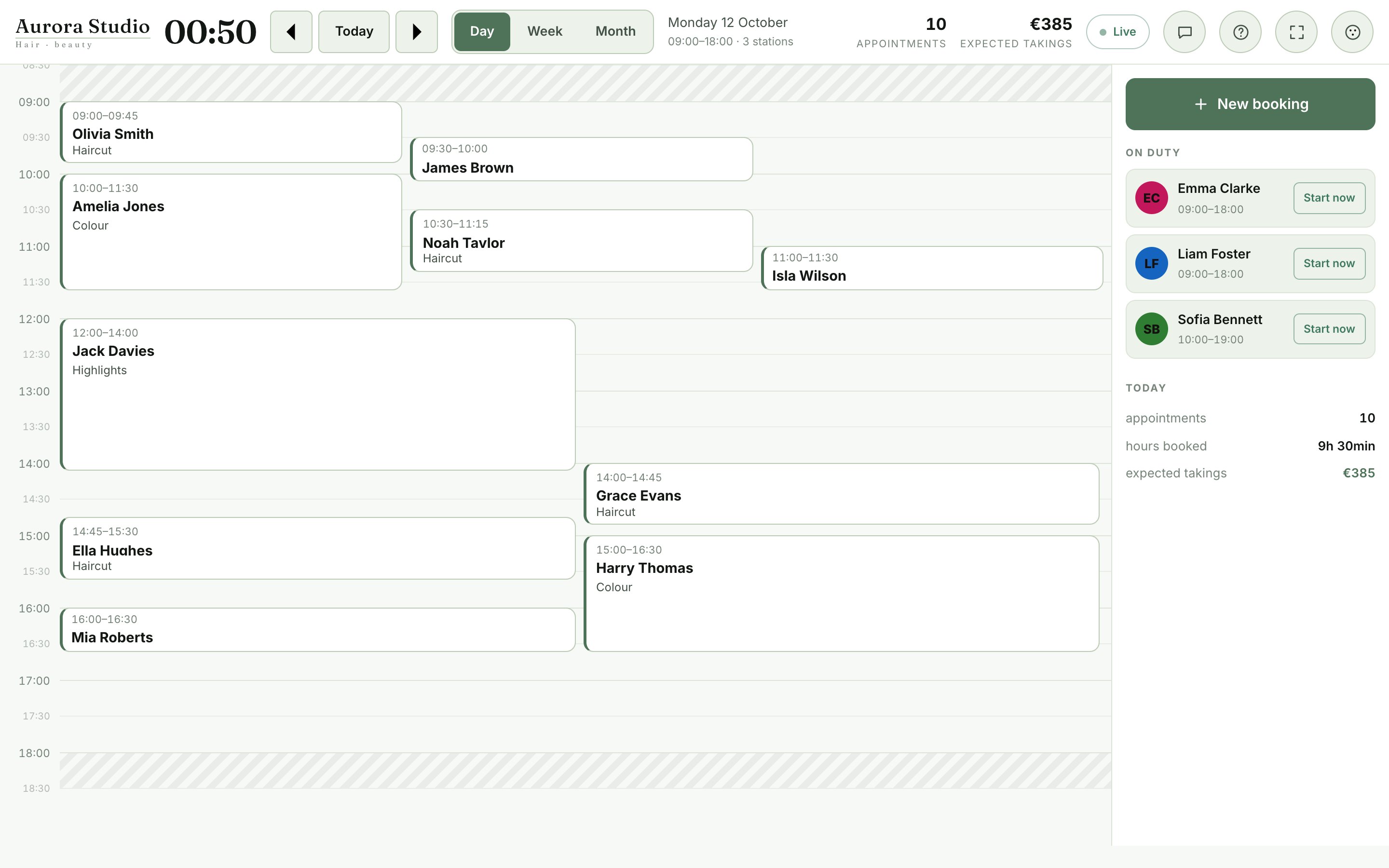
The agenda screen: the day’s appointments and who is on shift.

How it works

At the heart of the system is a program that stays on at the business’s computer. It takes the bookings, saves them in its database and shows them on every screen at once.

  1. The business’s computer

    Keeps the program running, with the database and the backups. It starts by itself when the computer is switched on.

  2. The public site

    A secure connection puts the site on the internet, at your business’s address. Clients book there.

  3. Other devices

    A tablet or another computer opens the agenda screen; the owner opens Gestione from home too.

  4. Everything live

    A booking from the site, from WhatsApp or at the desk appears on every open screen within moments.
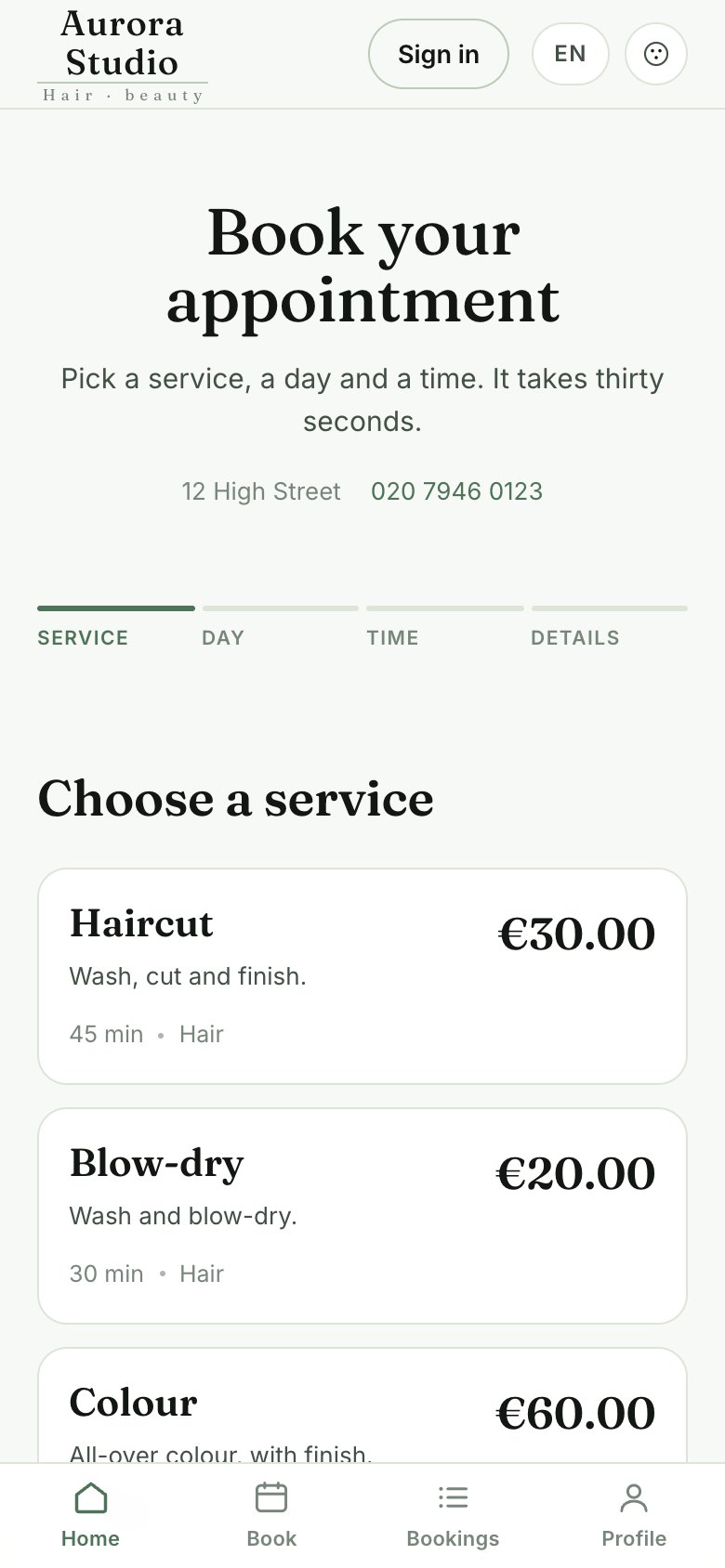
The booking site, as a client sees it on a phone.

Who uses what

Three pages for three different people. Each sees only what they need.

ClientsBooking siteChoose a service, a day and a time; find and cancel their bookings with their phone number and a password.
StaffAgenda screen (/salone)The day, each client’s card, new bookings at the desk or by phone, reminders, start and end of shift, messages.
The ownerGestione (/gestione)Everything above, plus services and prices, hours, staff and shifts, appearance, channels, messages to everyone, backups and the activity log.

Before you start

What you need

  • A Windows 10 or 11 (64-bit) computer at the business, left on during opening hours
  • An internet connection, for the public site, WhatsApp and to activate the licence
  • The program: download it from this page
  • A licence: the 30-day free trial, or monthly, yearly or for life, from your Nugezza account
  • The public-site connection code, supplied by Nugezza
  • Optional: a tablet or a second computer for the agenda screen; a WhatsApp Business number on Meta’s official API; a Google account for the calendar; a phone system or an Android phone for caller ID
Inside the business the system works without the internet too: the agenda screen and Gestione keep working on the local network. Without the internet, though, clients cannot book from home.

Licence and prices

Trial, subscription or for life

A licence is for one computer: the one that runs the program. Phones, tablets and other computers that open the booking site, the agenda screen or Gestione do not need one.

Free trial30 days, once per account, no card
Monthly€14.99 a month
Yearly€149 a year
For life€349, once
Buy it on this page with «Get Nugezza Booking», with your Nugezza account: the same account Nugezza’s customers use.

Two ways to activate it

  1. Sign in with your account

    In the setup window choose «Accedi con l’account» (sign in with your account) and type the email or phone and the password of your Nugezza account. The program activates and renews by itself.

  2. Or a licence key

    Choose «Ho un codice licenza» (I have a licence key), press «Copia il codice» to copy the computer’s code and, in your account on this site, make the key under «Licence keys». Paste it and press «Attiva».

A subscription renews while it is active; if you cancel it, the program keeps working until the end of the period paid for.

Installing on the computer

Install the program

  1. Download the file

    «Download for Windows» at the top of this page: NugezzaBooking-Setup-x.x.x.exe.

  2. If Windows warns you

    If «Windows protected your PC» appears, press «More info» and then «Run anyway».

  3. Allow the changes

    Windows asks whether the program may make changes: answer «Yes». It installs for every user of the computer.

  4. Done

    At the end the program opens with its setup window.

Installing takes about a minute.

What installing does

  • Copies the program; the desktop and Start menu icons take your business’s name as soon as you type it
  • Opens the Windows firewall for the local network only, so tablets and other computers can connect
  • Prepares the licence folder, valid for every user of the computer
  • Leaves the data alone: the database and backups live in a separate folder
  • Uninstalling or updating the program never deletes clients, bookings or backups

Setup on first start

The setup window

On first start a window opens with six steps. It saves as you go: close it halfway and you carry on where you were. Reopen it whenever you like from the icon by the clock. For now the setup window is in Italian; the steps are explained here.
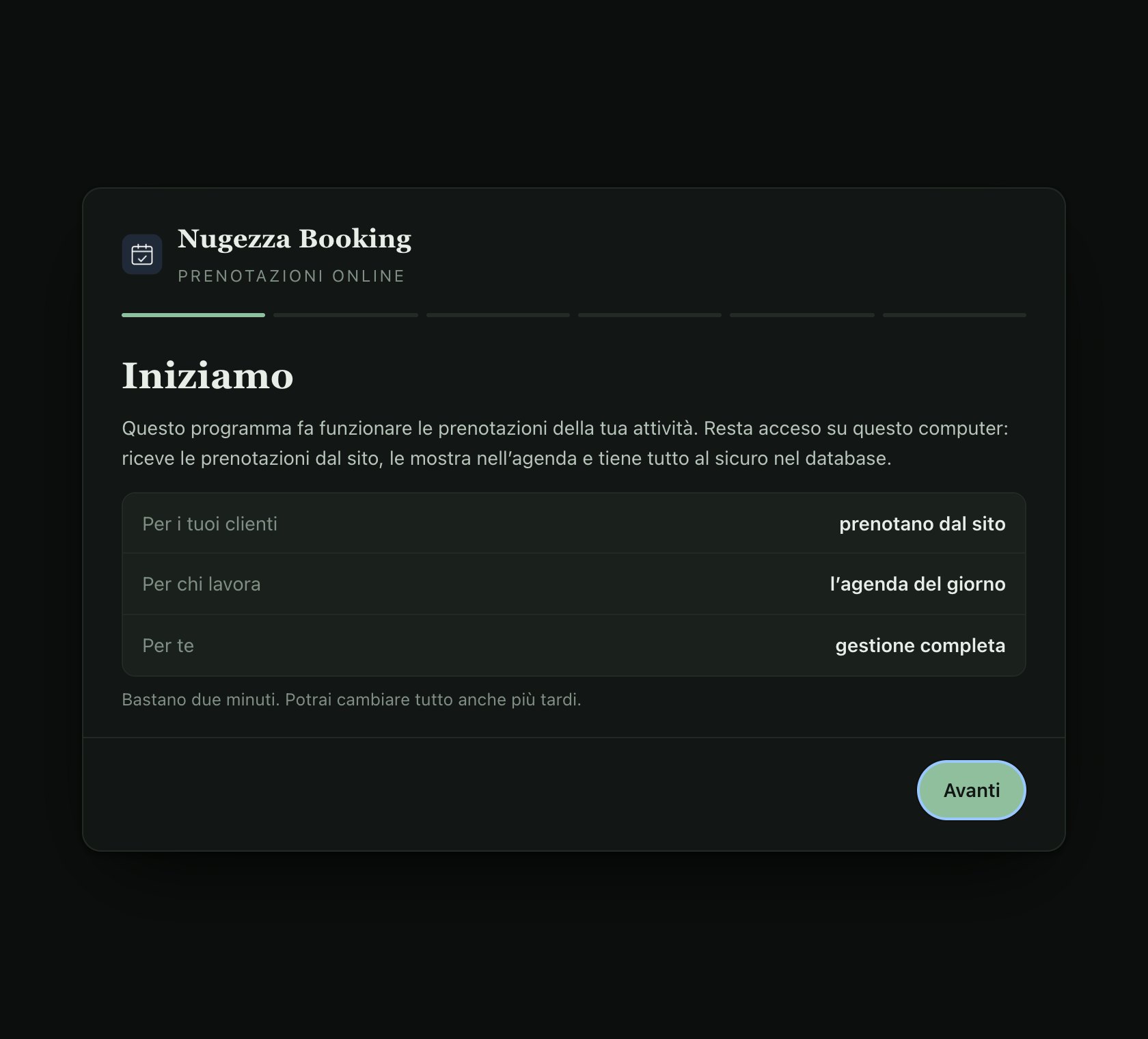
The first step of the setup window («Iniziamo», let’s begin).

Licence («Licenza»)

Sign in with your Nugezza account, or use a licence key made for this computer.

  • The green box shows the kind of licence and when it ends
  • It turns yellow when only a few days are left
  • «Sostituisci la licenza» (replace the licence) saves the new one only if it is valid: you never lose the one that works
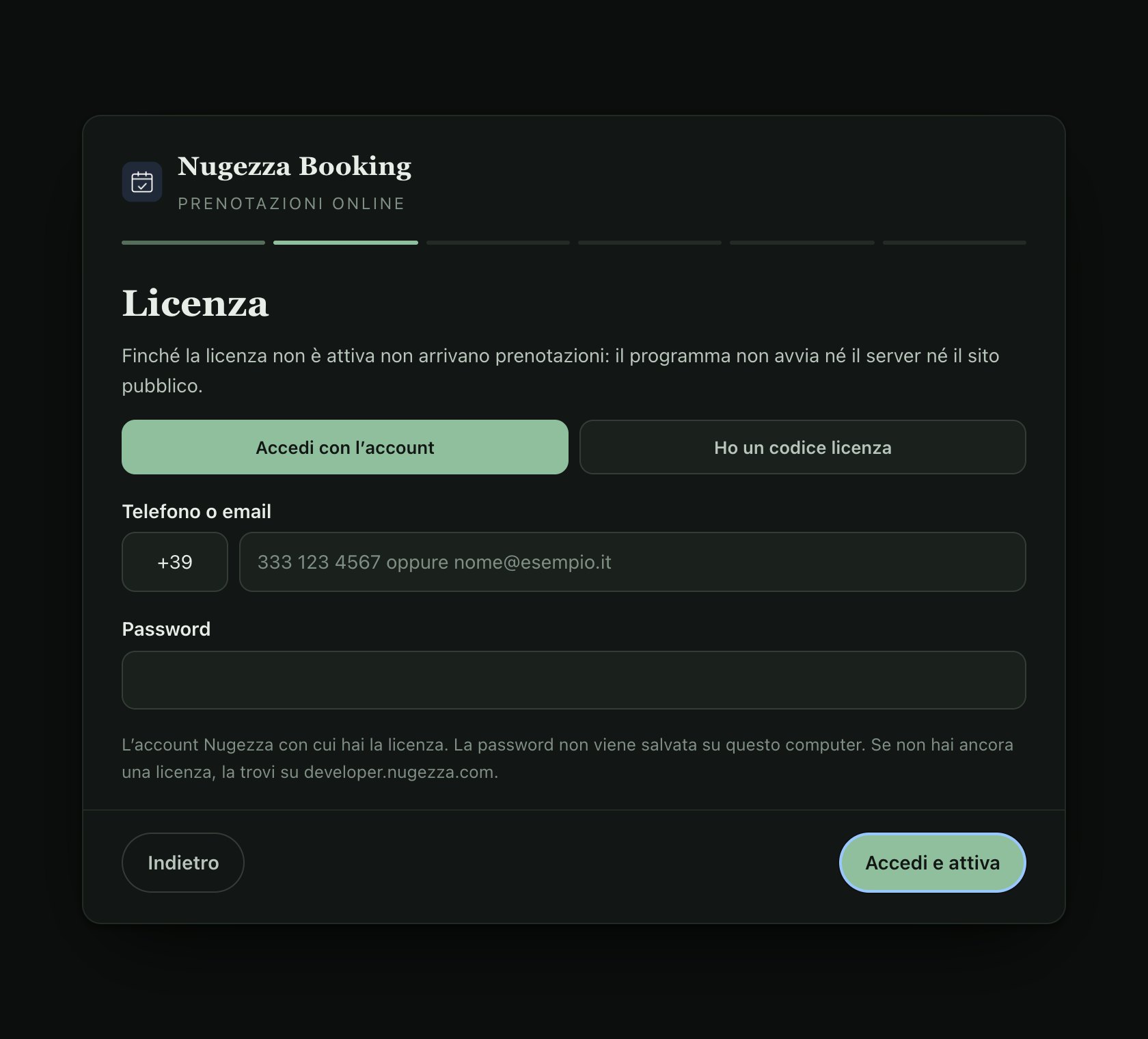
Until the licence is active the program starts neither the server nor the site: no booking can come in.
Sign in with the account, or the computer’s code for a key.

Your business («La tua attività»)

Your business’s name and logo. The program uses them for the desktop icons, the window titles and the booking site.

  • The logo becomes the program’s icon, on a white or a dark background
  • All of it can be changed later, in Gestione → Appearance
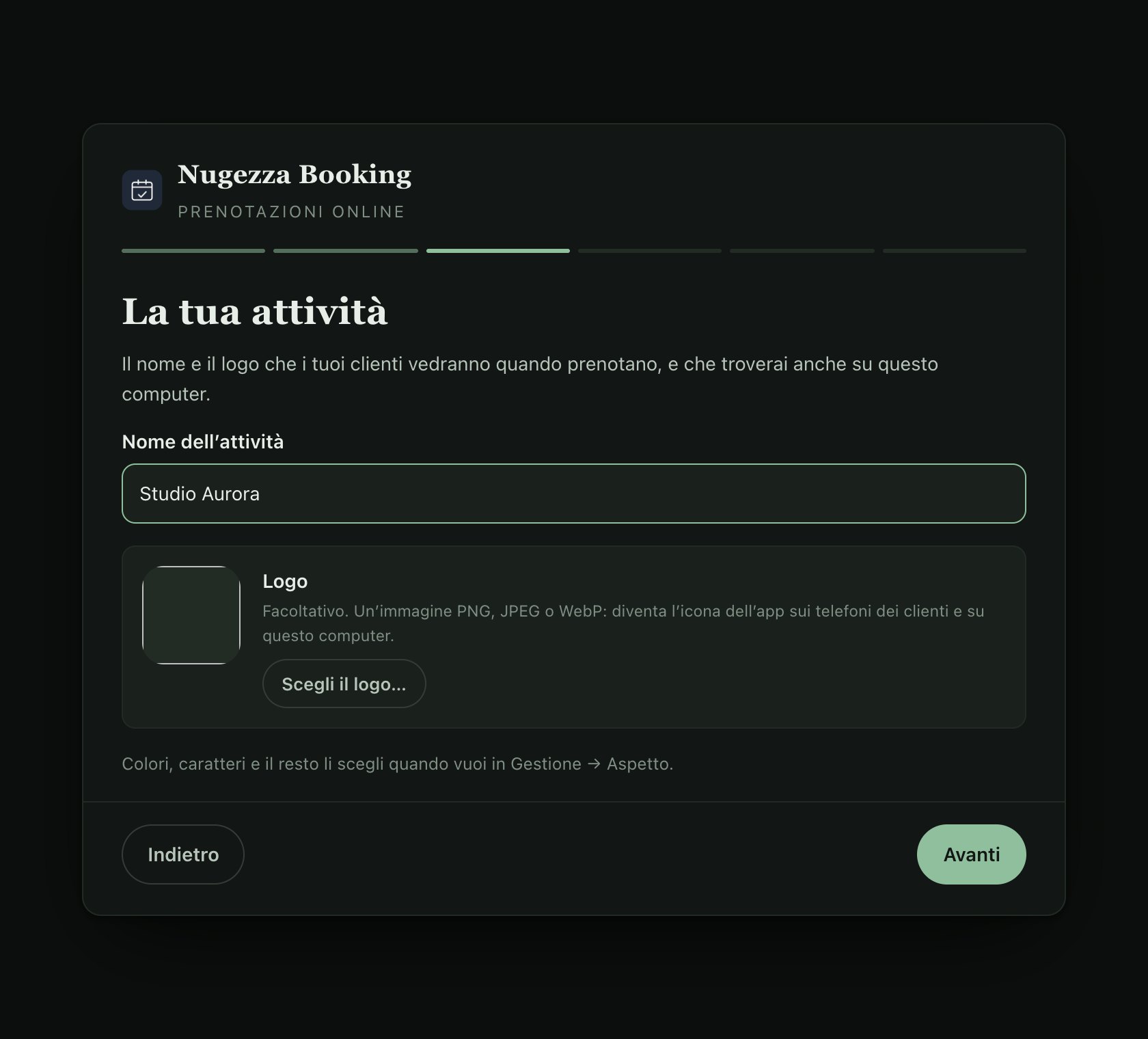
Your business («La tua attività»)

This computer («Questo computer»)

  • Start when the computer starts: the business takes bookings as soon as the computer is on
  • Prevent sleep: a computer that goes to sleep stops answering the site
  • Windows automatic sign-in: if the computer asks for a password when it starts, after a night-time restart the system would stay off until morning
  • Port: leave it at 4100 unless another program already uses it
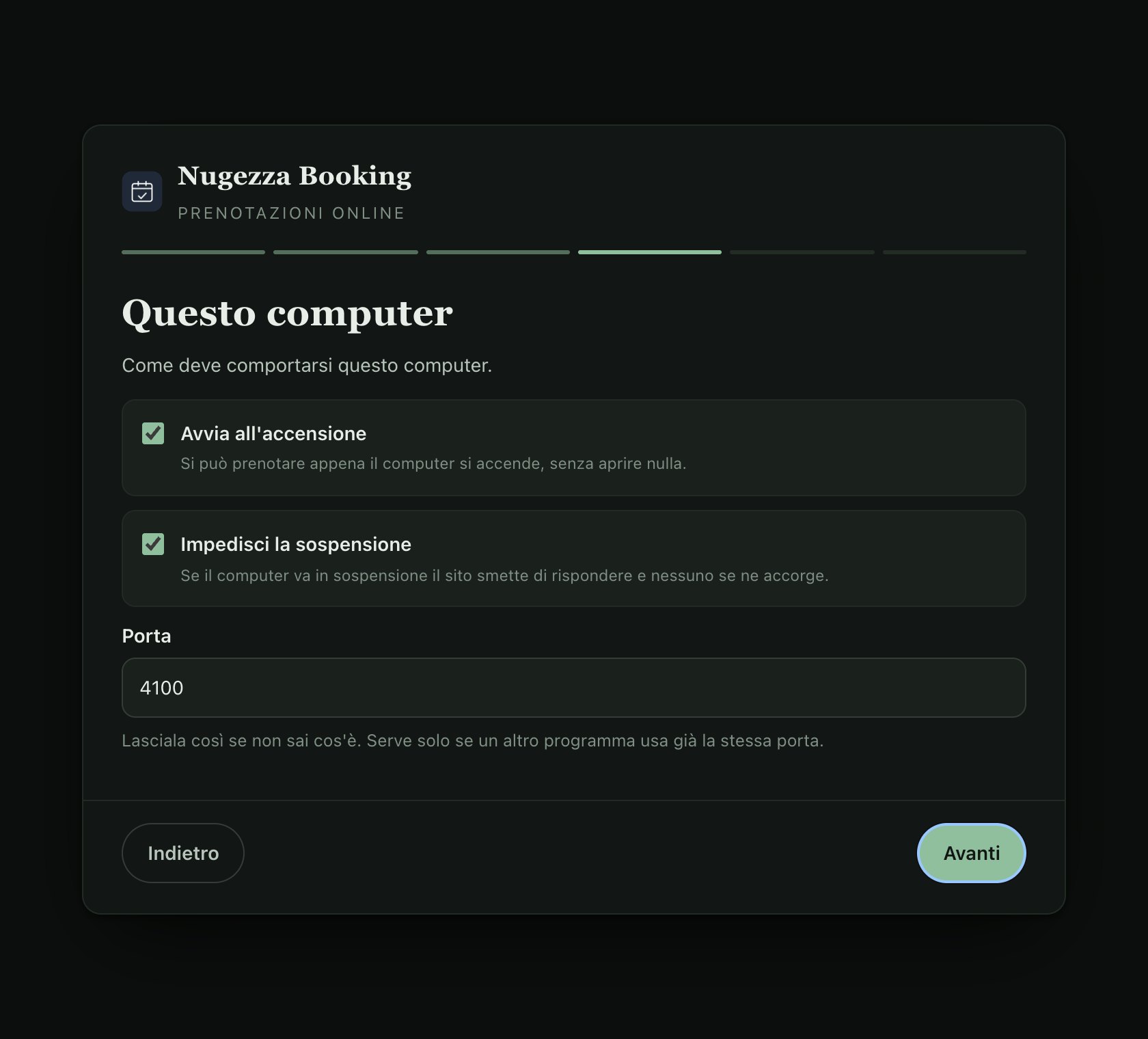
This computer («Questo computer»)

Public site («Sito pubblico»)

For clients to book from home, the computer connects to the internet with a secure connection code. No ports need opening on the router.

  • Connection code: we supply it; paste all of it
  • Site address: the one to give your clients
  • Without the code the system still works, but only inside the business
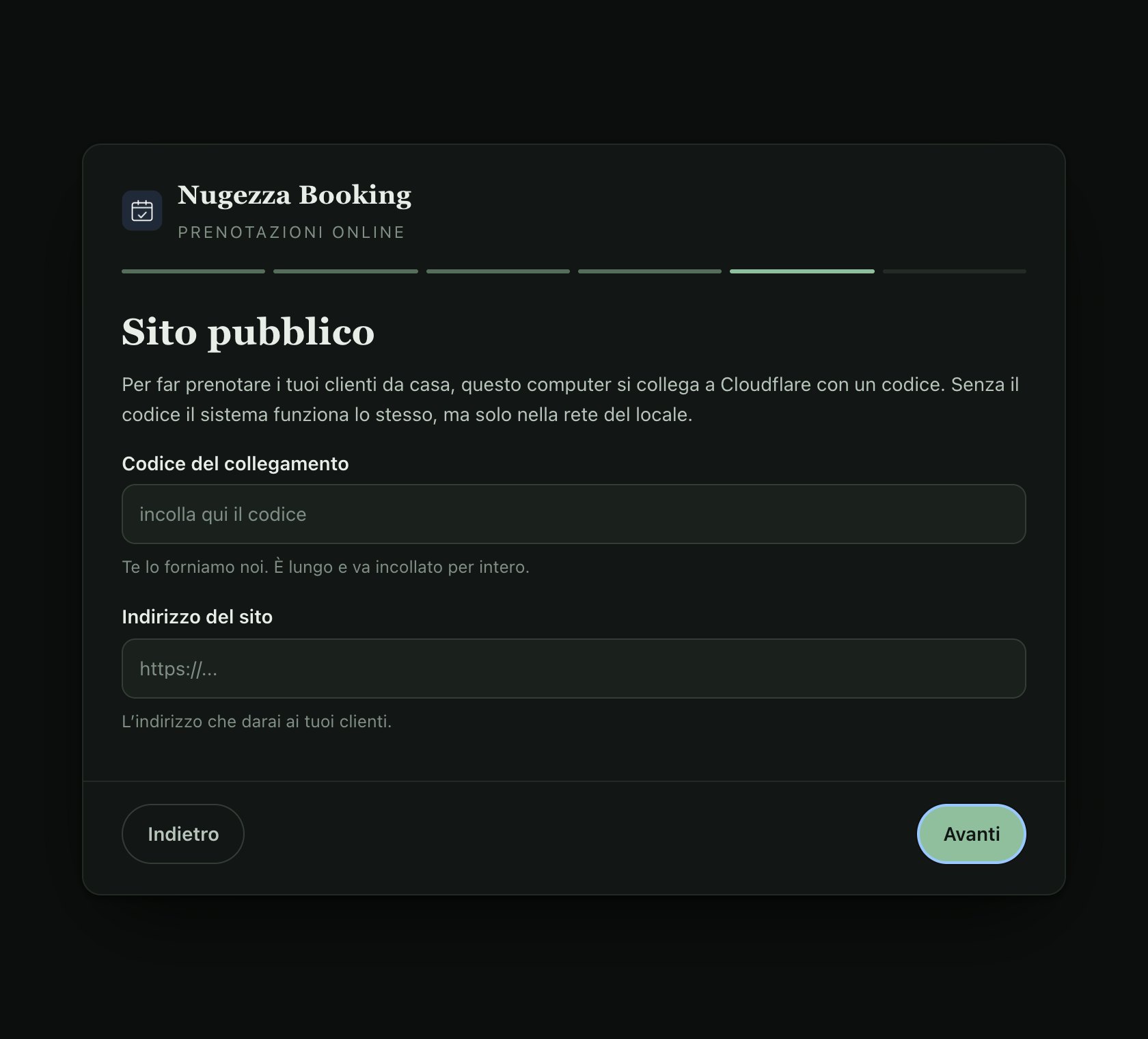
Public site («Sito pubblico»)

All set («Tutto pronto»)

The summary shows the licence, the addresses, start-up and the server’s state. «Apri la gestione» opens Gestione: the first time it asks you to create the owner’s account.

  • «Su questo computer»: the address to use on the business’s computer
  • «Dagli altri computer»: the address for a tablet or a second computer
  • «Stato: server attivo»: everything is running
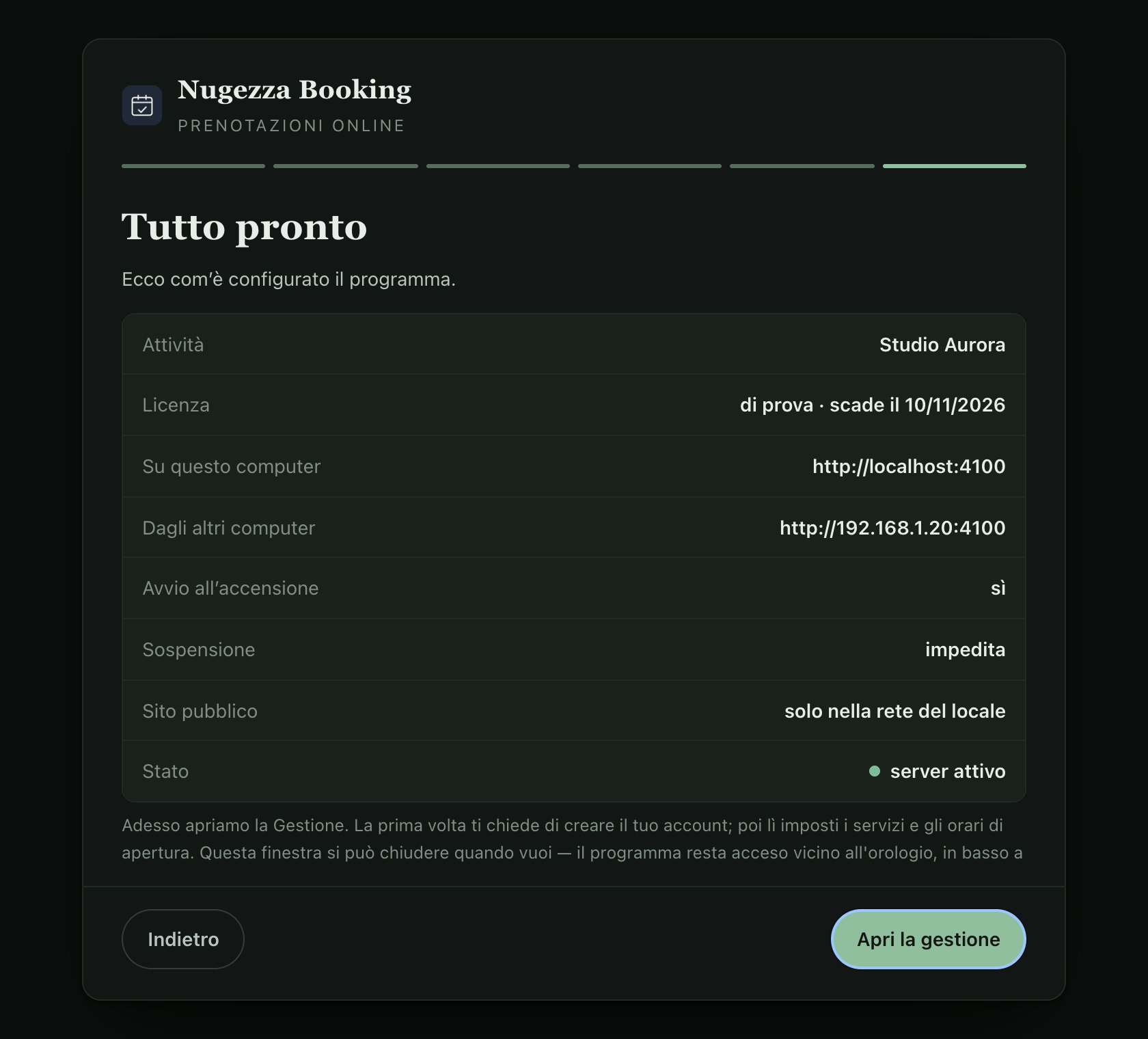
All set («Tutto pronto»)

The icon by the clock

The program stays on at the bottom right, by the Windows clock. A right-click opens its menu (in Italian for now).

The first linesWhether the server is running, whether the public site answers and when the licence ends.
Agenda · Gestione · Pagina prenotazioniOpen the three pages in a window.
Copia indirizzo pubblicoCopies the public address, to paste into a message or on social media.
Apri cartella dati · Apri registroThe folder with the database and backups, and the technical log.
Fai un backup adessoAn immediate copy of the database.
Configurazione… · Licenza…Reopen the setup window, straight at the licence if you like.
EsciQuits: clients cannot book until you open it again.

First steps in Gestione

The owner’s account

  • The first time, Gestione asks you to create the owner’s account: name, username and a password of at least 8 characters
  • Only the owner opens Gestione; staff accounts are made in Staff and open the agenda screen
  • Too many wrong attempts lock signing in for a few minutes

Four answers and you start

What kind of business it is, how many clients you can see at the same time, and whether the owner sees clients too. «Add a few example services to edit» gives you a typical price list to change.

  • Hairdresser, barber, beauty studio, nails, physiotherapy, clinic or other
  • The number of people can be replaced by staff shifts later
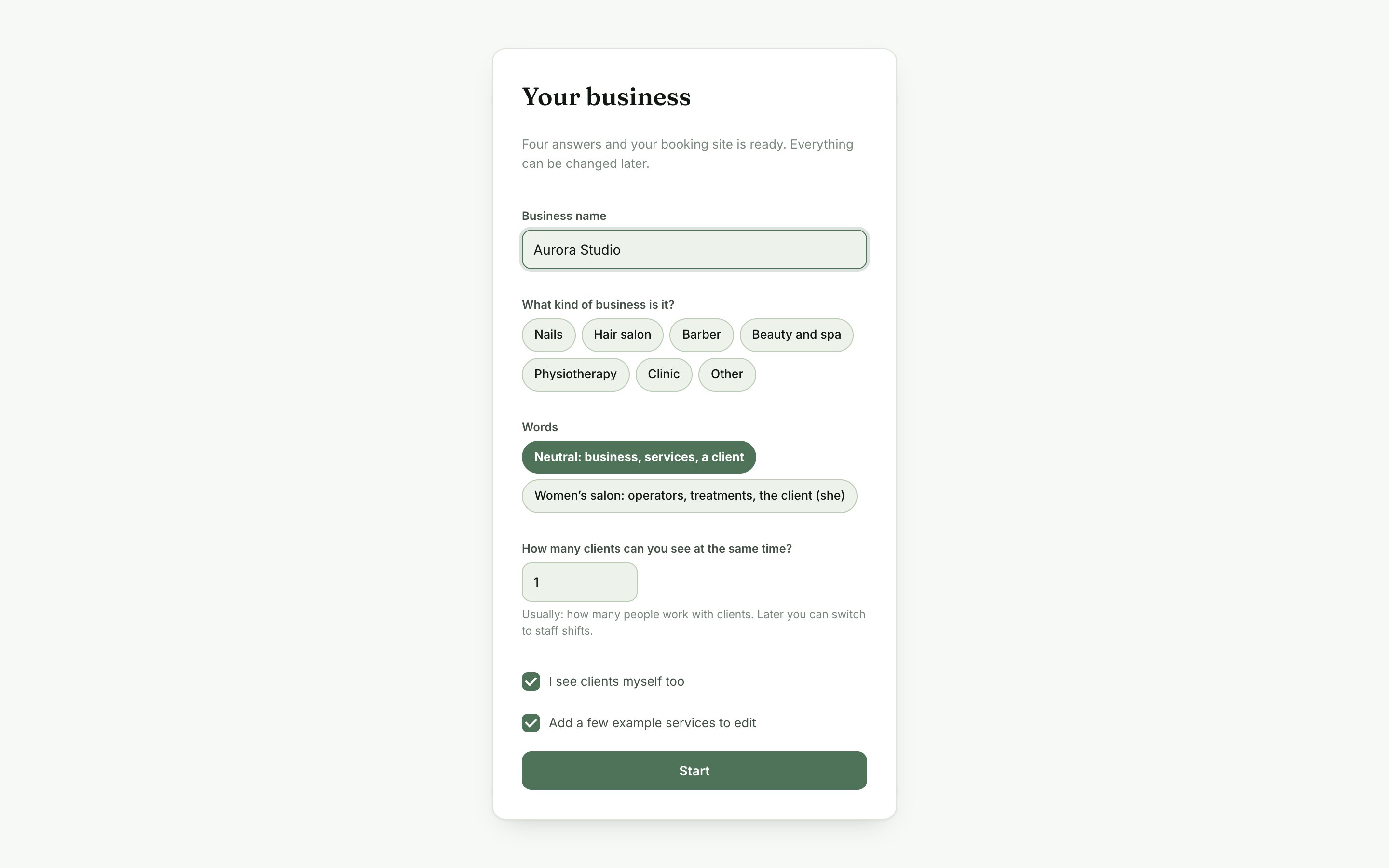
«Your business»: the first page of Gestione.

Appearance: the site in your brand

  • The business’s name, subtitle and logo
  • Colours, fonts and text size, for every screen
  • The words: what the site, the agenda screen and the bot call your staff, your services and your clients
  • The preview shows your choices at once; the site and the agenda screen take them on their next load
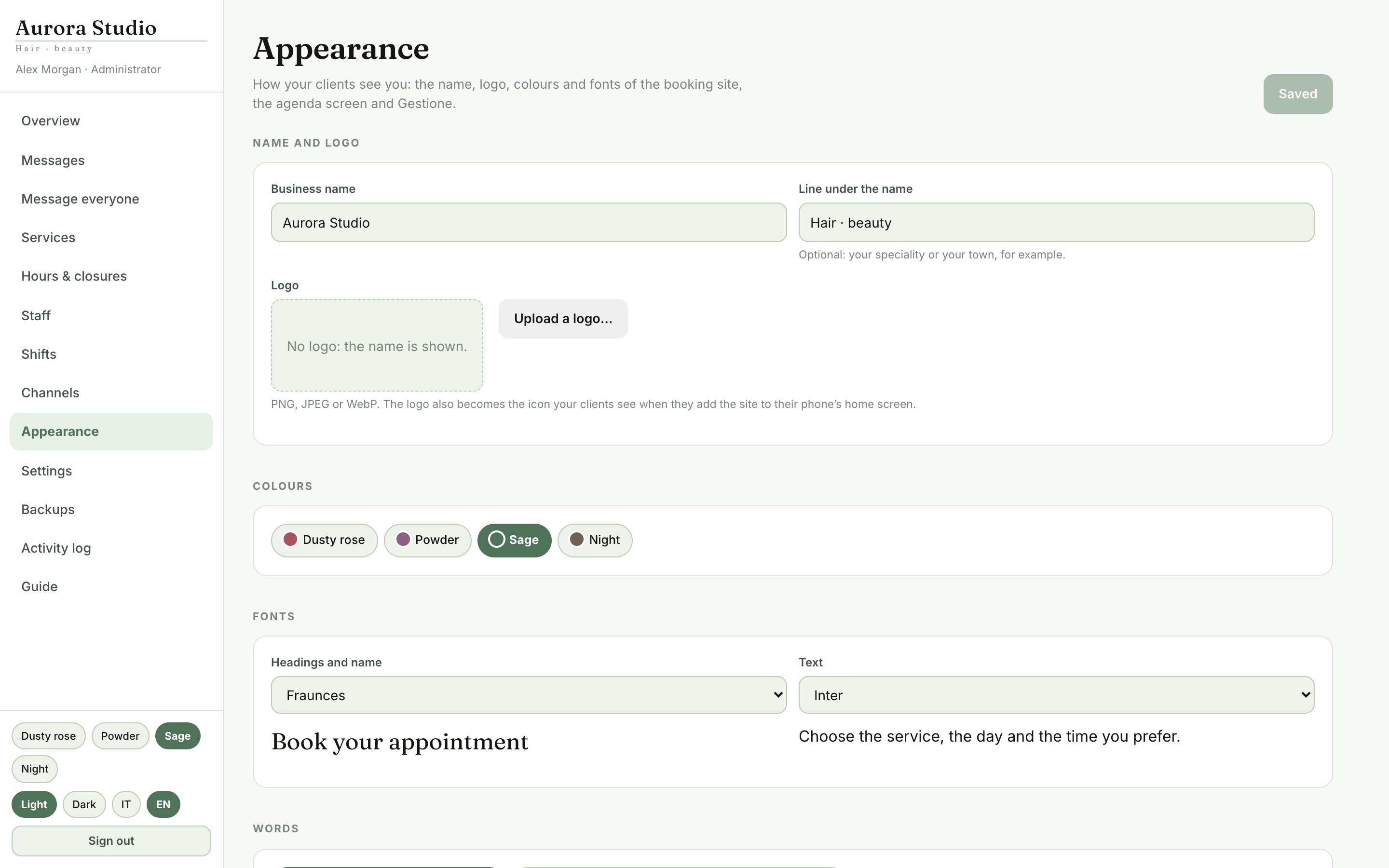
Appearance: the site in your brand

The booking site

1 · The service

The client opens the site and sees the services, with description, length and price. No account is needed to look: it is asked for only at the end.

  • Services, prices and lengths are those in Gestione → Services
  • An add-on makes the appointment longer and adds its price to the total
  • The summary stays at the bottom: services, length and total
1 · The service

2 · Day and time

The system offers only the days and times that are really free, worked out from the opening hours, the staff’s shifts and the appointments already taken. A double booking cannot happen.

  • Closed days and full days are marked as such
  • Nobody can book too close to the time: the minimum notice is set in Gestione
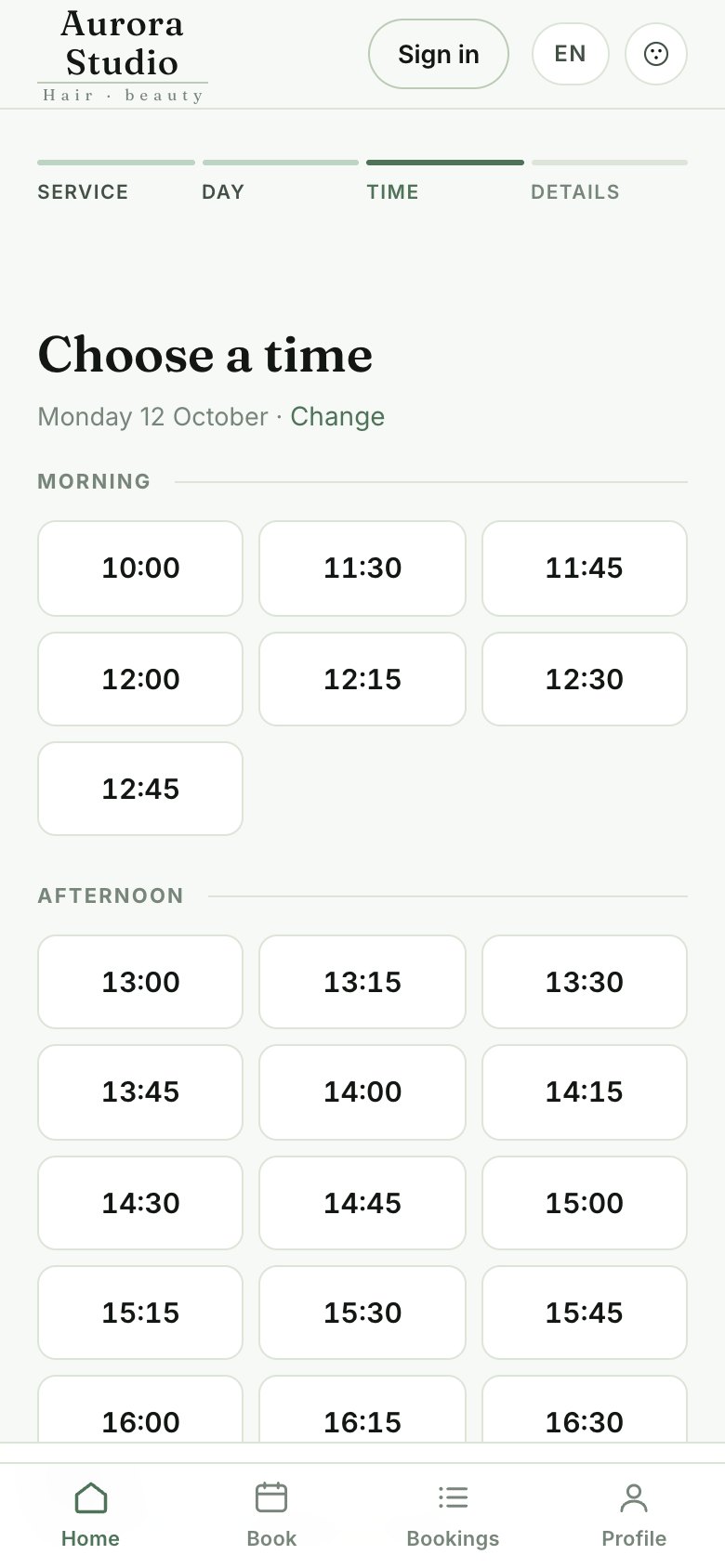
2 · Day and time

3 · Sign in to confirm

The last step: the client types their number. If they are registered they type their password; if they are new they choose a password and say their name. The time they picked is held for them meanwhile.

  • With the same number they find this booking and the next ones
  • Two separate consents: one to handle the booking, required, and one for offers and reminders, optional
  • Forgotten password: a code arrives on WhatsApp
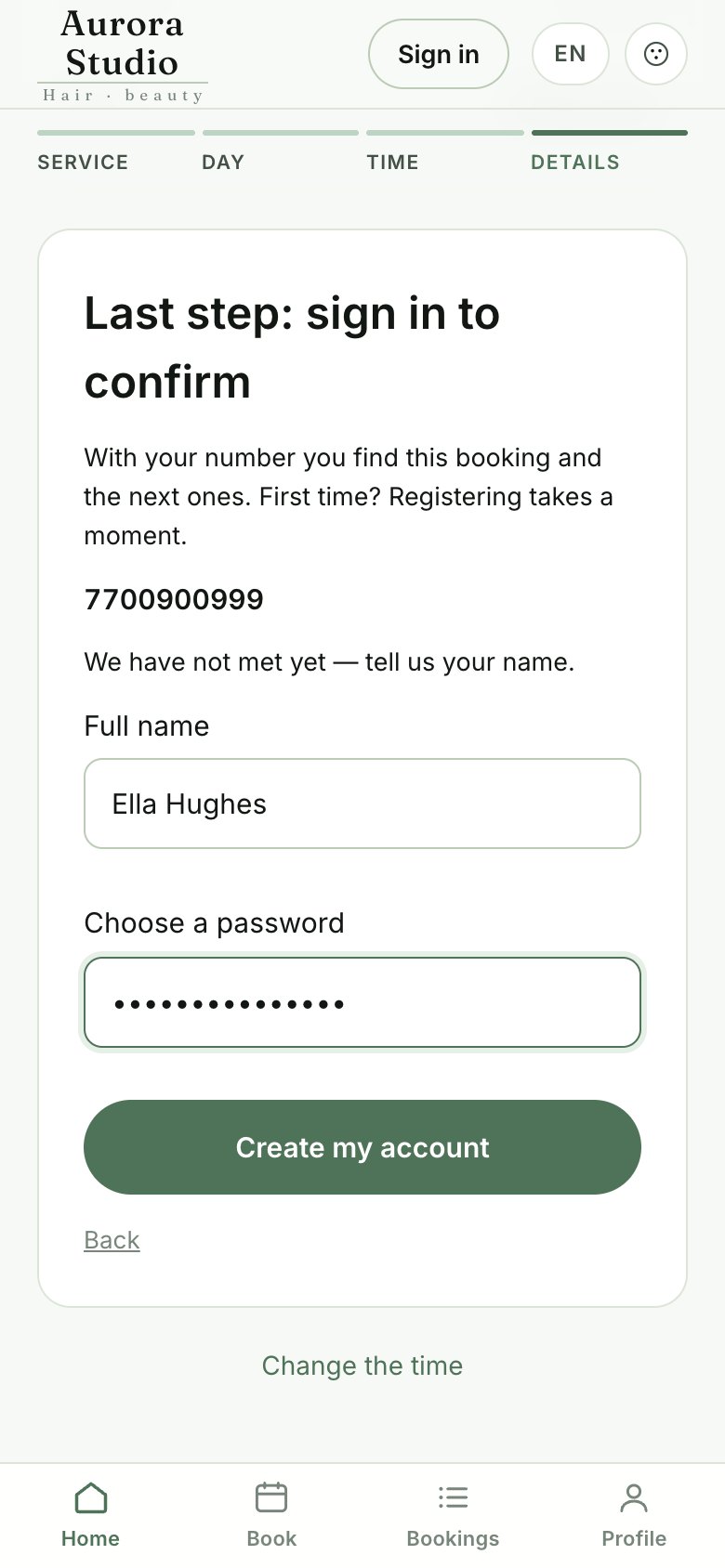
3 · Sign in to confirm

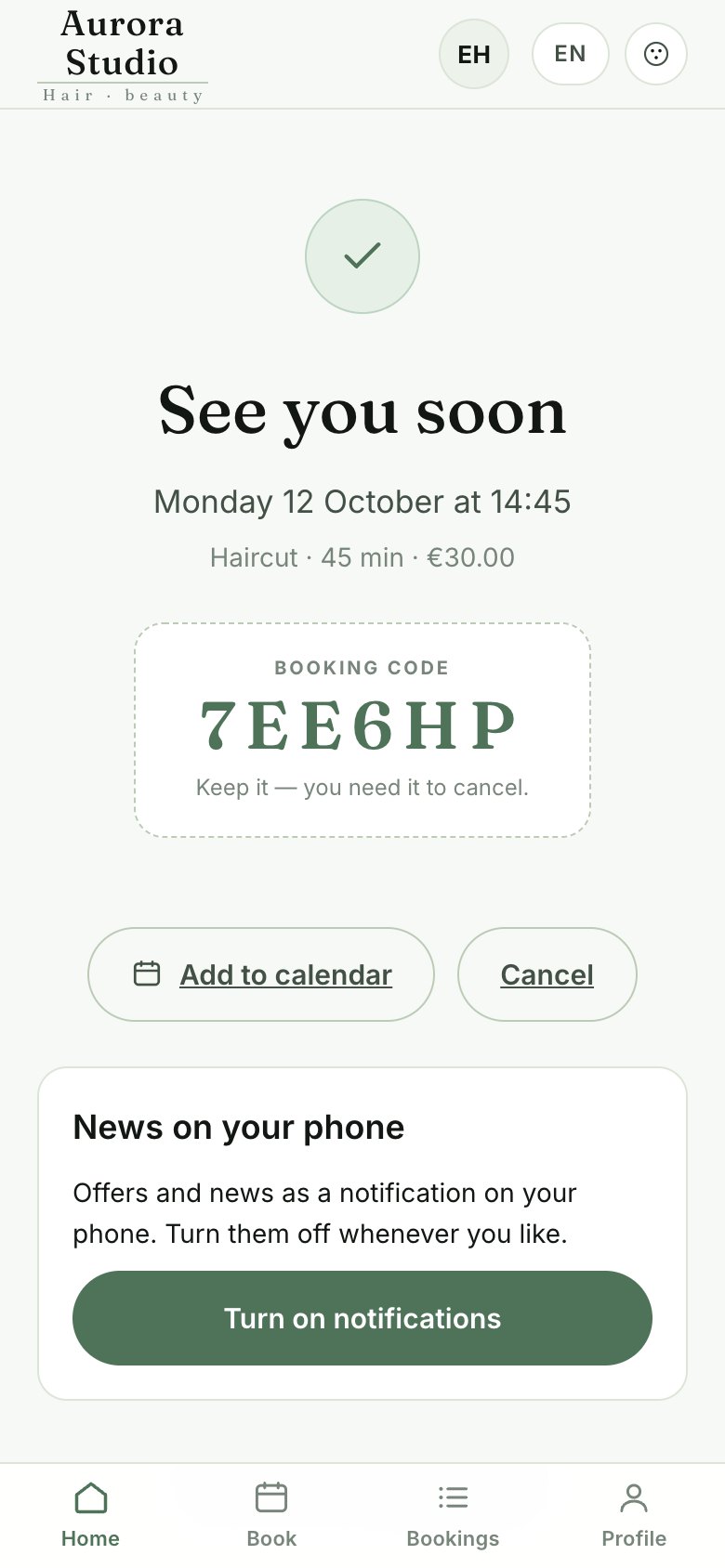
4 · Booking confirmed

  • The booking code and «Add to calendar»
  • «Cancel» to undo it straight away after a mistake
  • With WhatsApp connected, a confirmation arrives and, the day before, a reminder
  • «News on your phone»: the client can turn on the business’s notifications
4 · Booking confirmed

My bookings and the profile

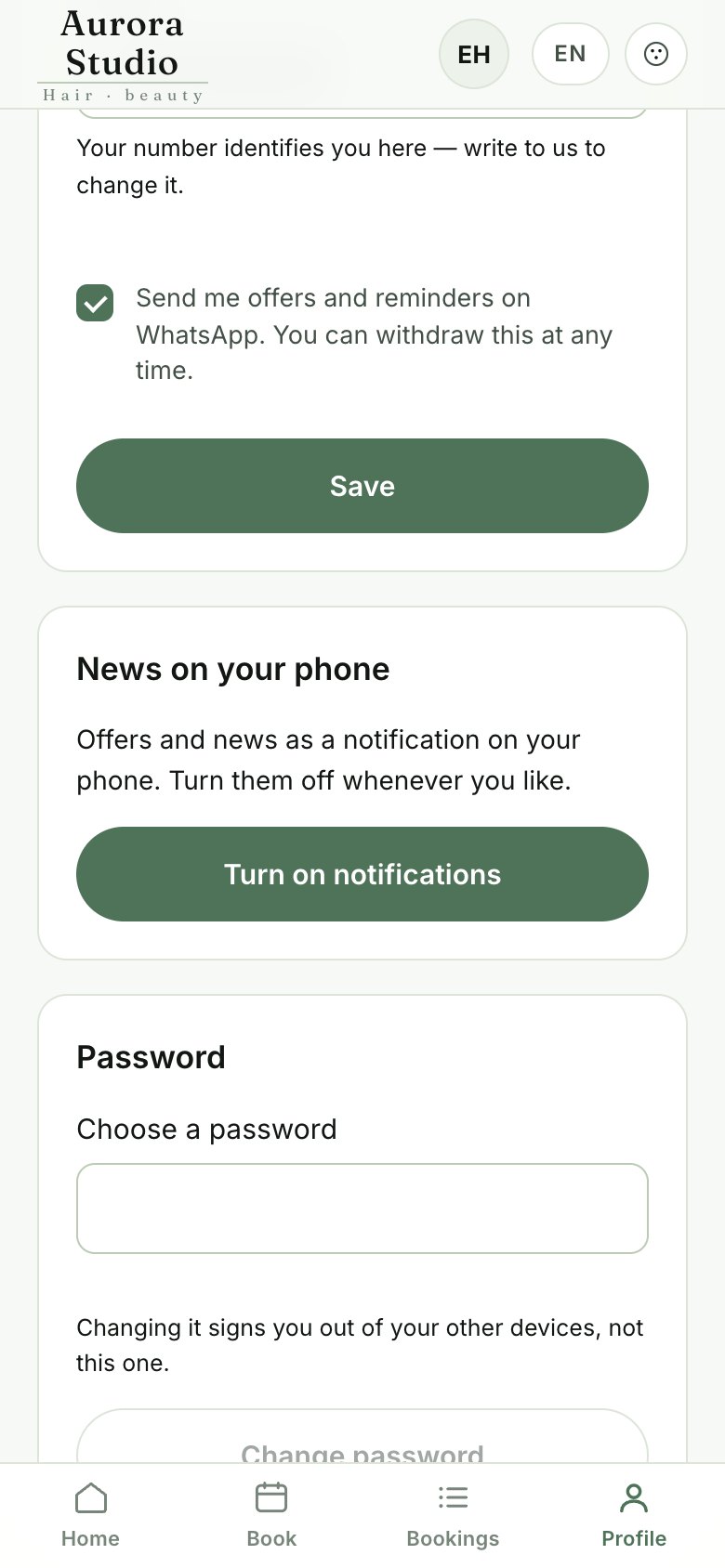
With their account the client sees their next appointments and cancels them up to a few hours before (4, changeable in Gestione). A cancelled time goes back on sale at once.

  • In the profile: their details, the password, notifications on the phone and deleting the account
  • On iPhone notifications come from the site added to the Home Screen: the profile explains how
  • The site is in Italian and English, light or dark
My bookings and the profile

Privacy notice

The /privacy page tells clients who handles their data, why, and how to ask for it to be deleted. It fills itself in from the details in Gestione → Settings and names only the outside services really in use (WhatsApp, Instagram, Google).

Meta asks for it before enabling WhatsApp. Have the text checked by your adviser.

The agenda screen

The day

The appointment board, with a column for each person on shift and the line of the current time.

  • At the top: the arrows and «Today» to change day, the opening hours, the appointments and the expected takings
  • «Live» says the screen is up to date; if the connection drops it says so in red
  • On the right: who is on shift and the day’s summary
The day

Connecting a screen

  1. Open the address

    On the tablet or computer open the «Dagli altri computer» address followed by /salone, or the public site followed by /salone.

  2. Sign in

    With the owner’s account the screen stays signed in for a year; with a staff account it signs out after 12 hours without use.

  3. Signing a device out

    A lost device is signed out from Gestione → Settings → Signed-in devices.

The appointment card

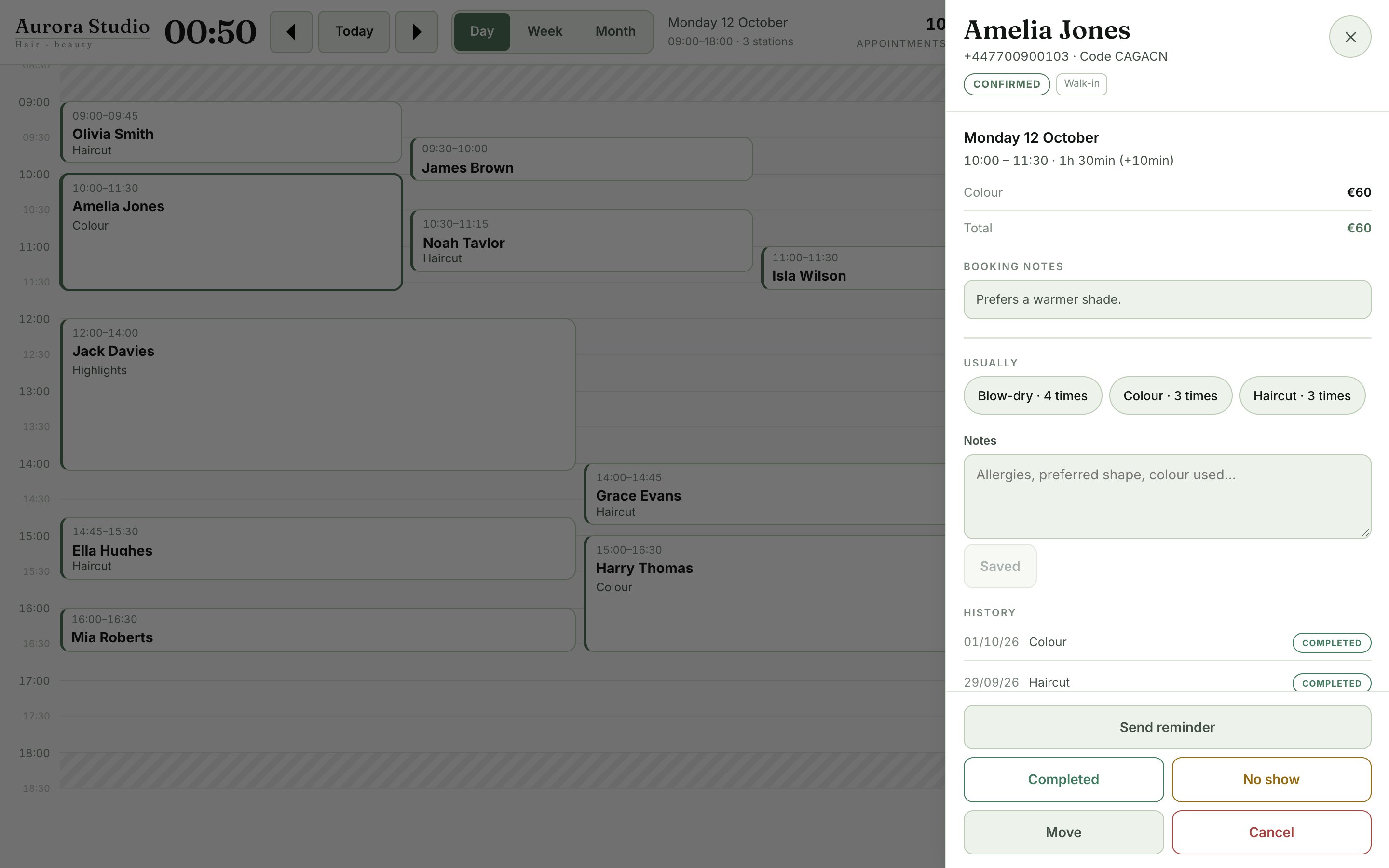
Tap an appointment to open its card, with the services, the total and everything about the client.

  • Visits, spending, no-shows and last visit; the booking’s notes and the client’s lasting notes
  • «Send reminder»: a ready-written WhatsApp message to the client. It opens WhatsApp on the device, or goes from the business’s number through the WhatsApp API: chosen in Gestione → Channels
  • «Completed» or «No show» when the appointment ends: they count for takings and statistics
  • «Move»: tap the new time on the board · «Cancel»: frees the time
The appointment card

A new booking at the desk or by phone

  1. Who the client is

    Search by name or phone; for someone new, type name and phone.

  2. Service and time

    Pick the service, any add-ons and a free time.

  3. Where it comes from

    «Walk-in» or «By phone», then «Create booking».
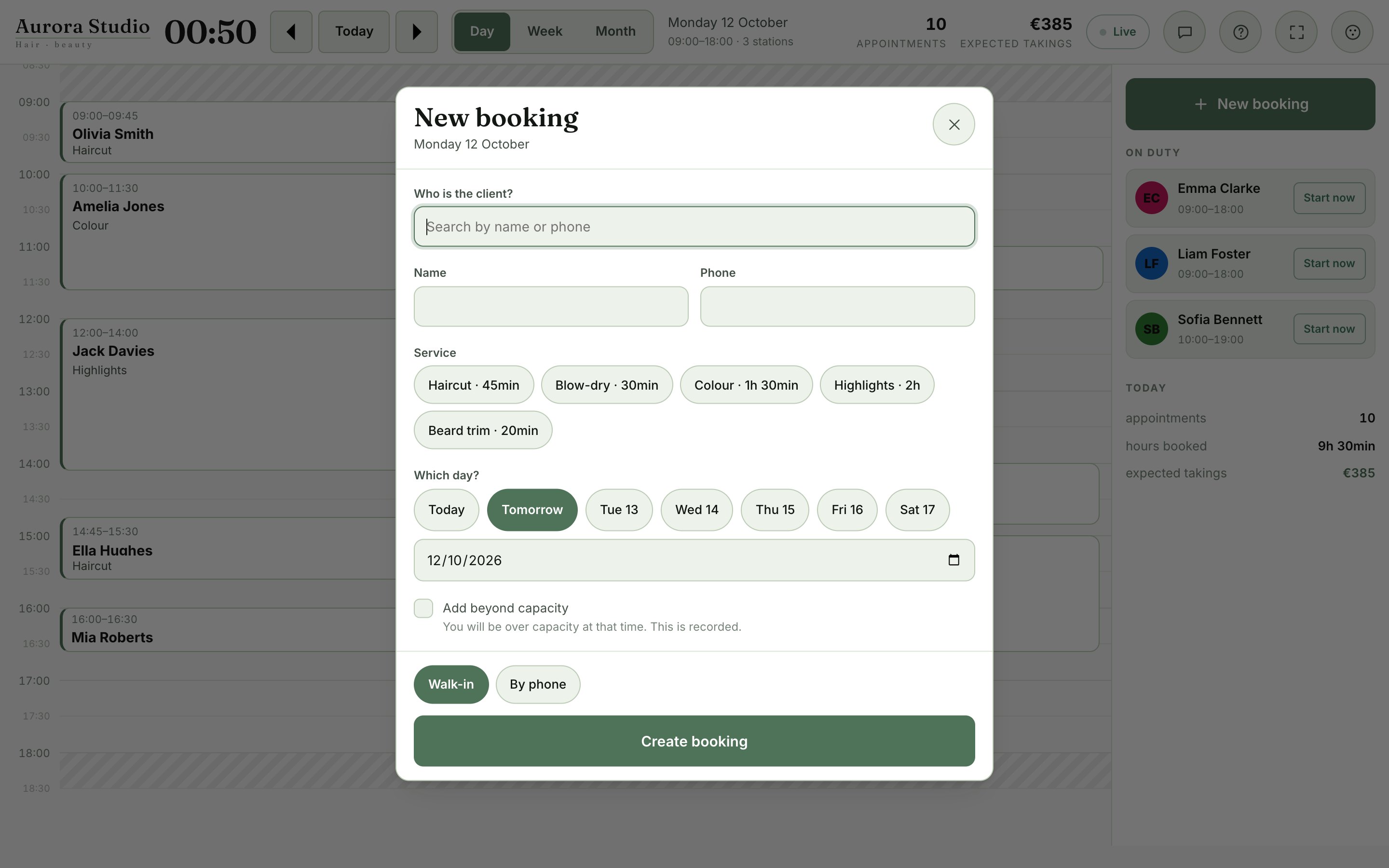
When there is no room you can still force it with «Add beyond capacity»: it is recorded in the activity log.
A new booking at the desk or by phone

Start and end of shift

Staff tap «Start shift» when they arrive and «End shift» when they leave. That is how the system knows how many people are really available today.

  • For future days, availability comes from Gestione → Shifts
  • If there are more clients than people, a warning appears: no appointment is cancelled, you decide

Incoming calls and messages

  • With caller ID, the client’s card appears when the phone rings, before you answer
  • The speech-bubble button shows how many client questions are waiting: answer from there, on the same channel (WhatsApp or Instagram)
  • «Done» closes a question without answering, for instance when you called back

Gestione

Overview

How the business is doing, over 7 days, 30 days, 90 days or 12 months.

  • Takings, average ticket, upcoming appointments, no-shows, cancellations, new and returning clients
  • Takings by day and by service, busiest hours, where bookings come from
  • «Export CSV» for your accountant or a spreadsheet
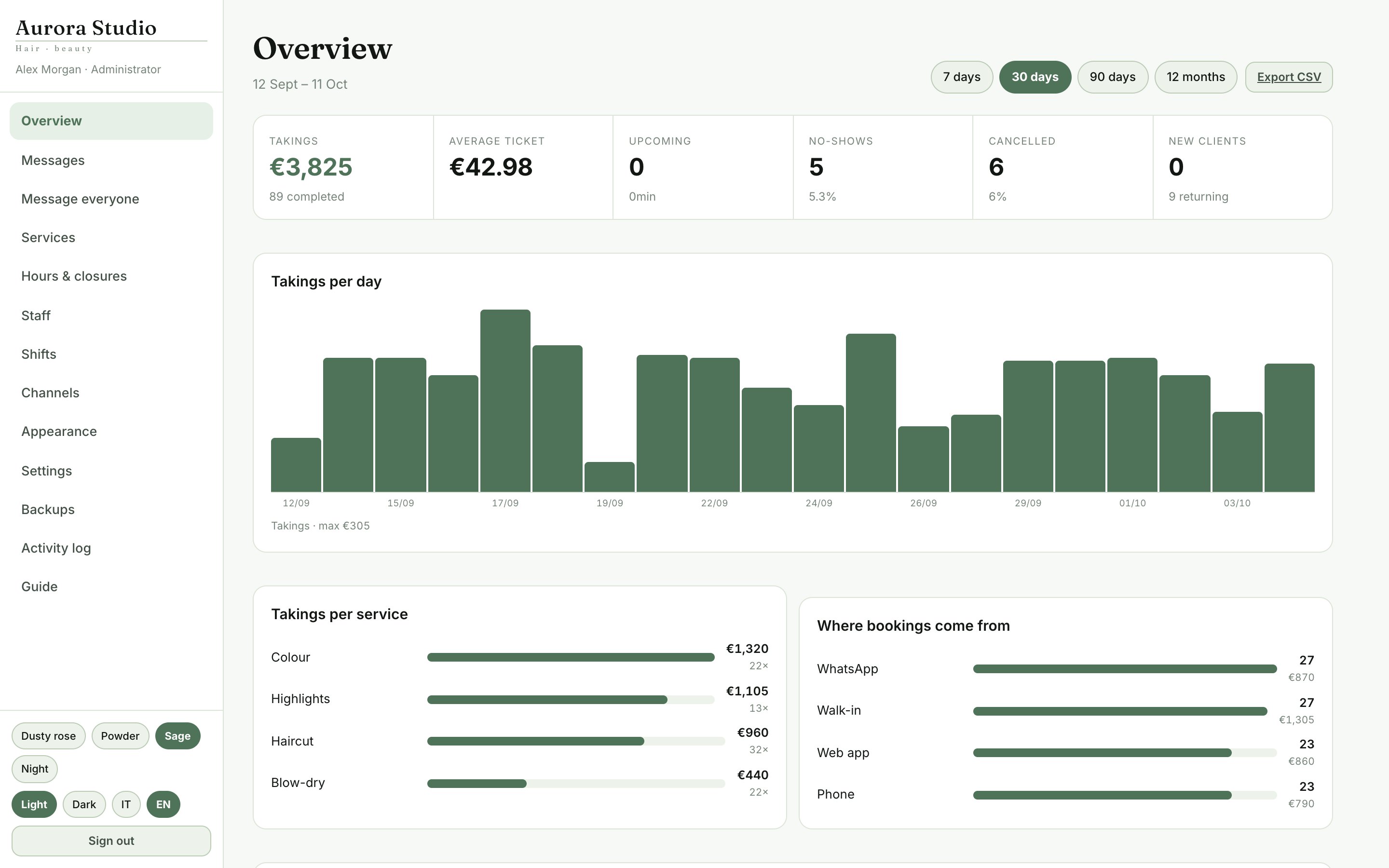
Overview

Services

  • Name, description, category, price and length
  • Cleanup: the minutes after the service before the next appointment
  • Kind: main service or «Add-on» (added to a service)
  • Recall: after how many days to invite the client to book again
  • «Retire»: the service leaves the booking site but stays in the history and the takings
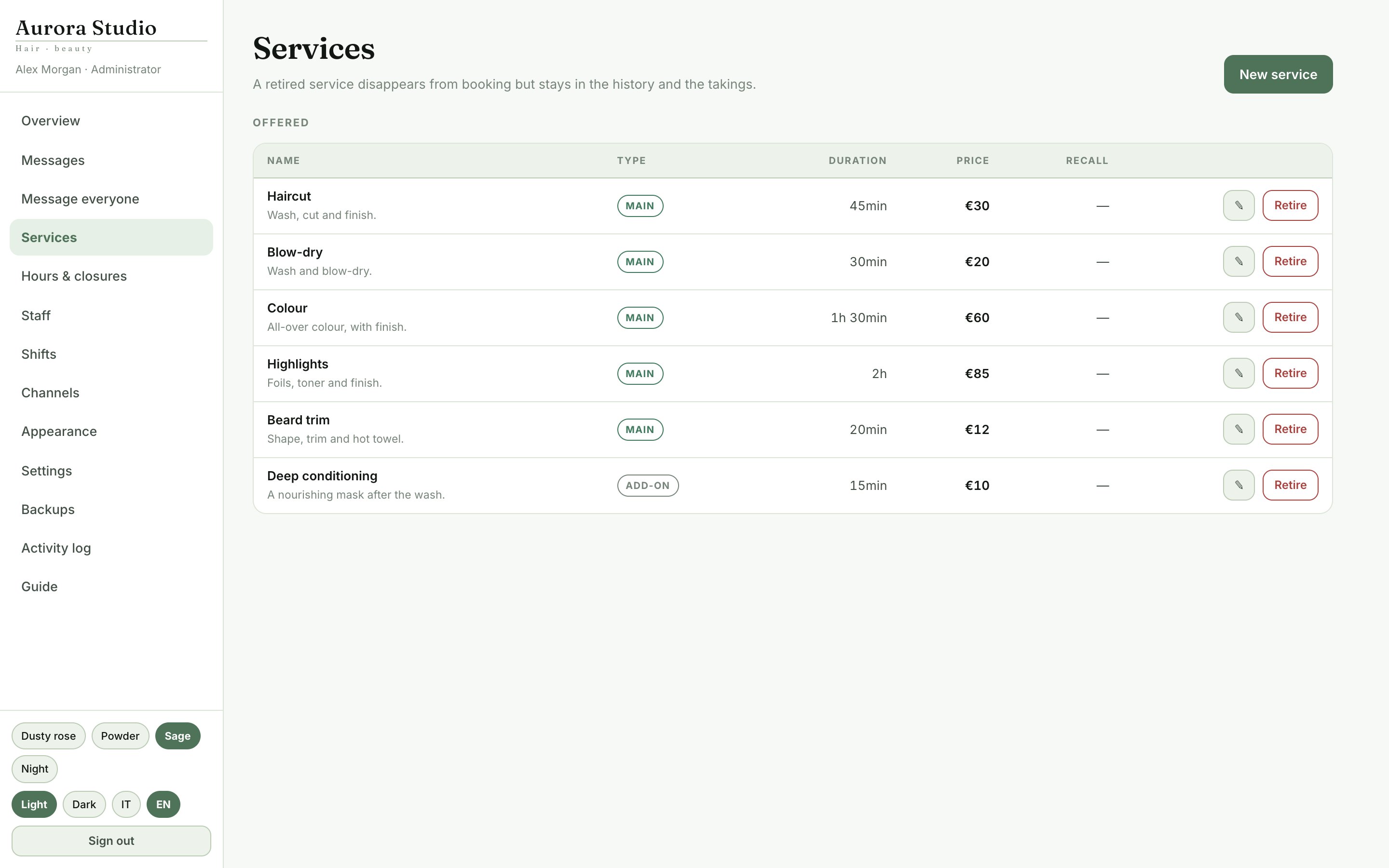
Services

Hours & closures

  • One or two time bands a day, for a lunch break; «Closed» when there are none
  • Closures: holidays, bank holidays and one-off closures, with the reason
  • Appointments already in a closure are counted and left alone: nothing is cancelled by itself
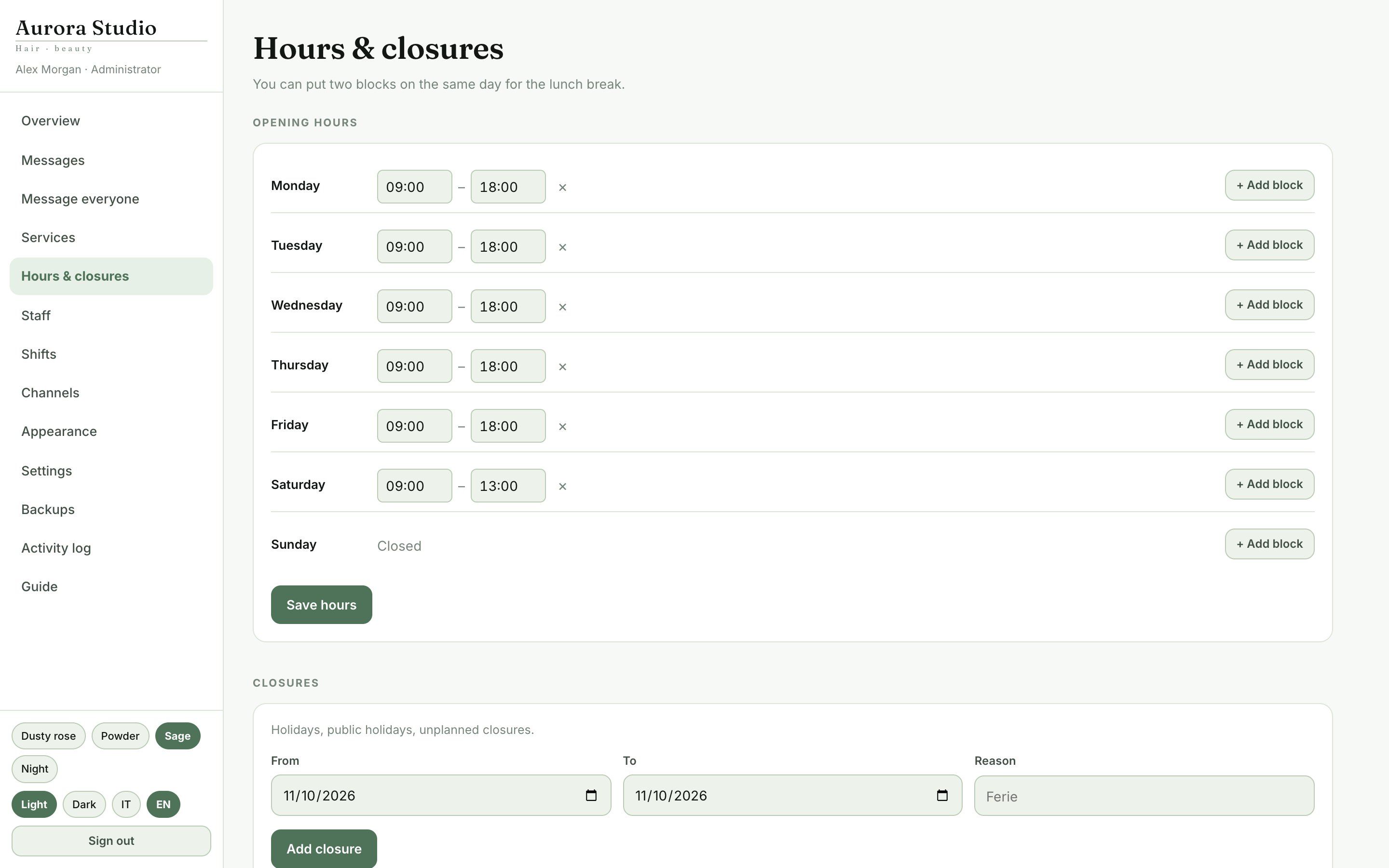
Hours & closures

Staff

  • Name, phone and colour of each person
  • Agenda screen sign-in: username and password; changing the password signs that person out everywhere
  • «Sees clients»: untick it for someone who works at the business but does not see clients
  • Absences: someone absent does not count towards availability
  • WhatsApp alerts: every new booking, and the day’s agenda each morning
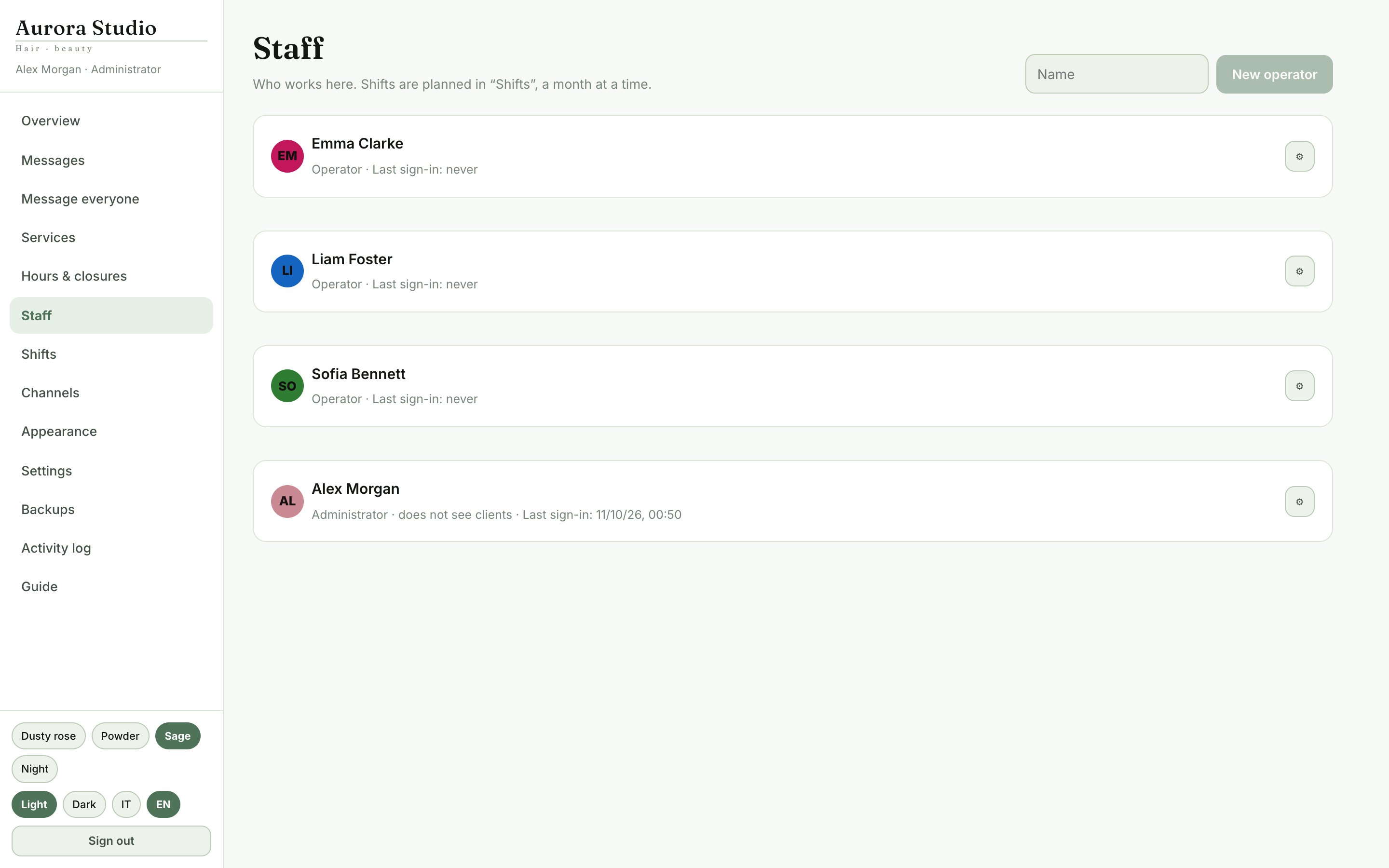
Staff

Shifts

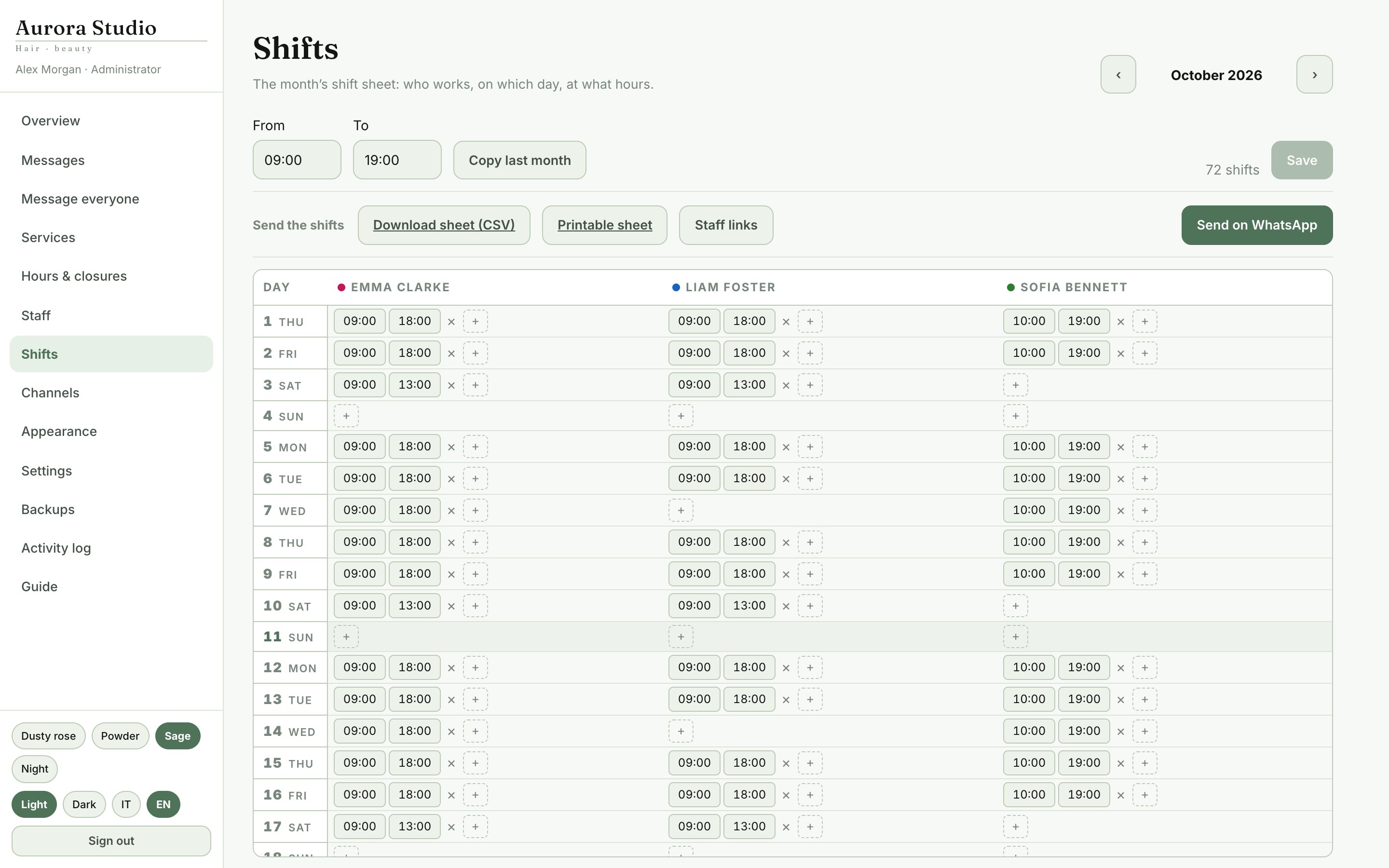
The month’s shift sheet: a row per day, a column per person. The agenda screen opens and closes shifts following this sheet.

  • «Copy last month» fills the month for you to correct
  • An empty month is not a closed month: it is a month not done yet, and the site will offer no times. The sheet says so in red
  • «Send on WhatsApp» sends everyone their days and a private link to the sheet, always up to date
  • «Download sheet (CSV)» and «Printable sheet»
Shifts

Settings

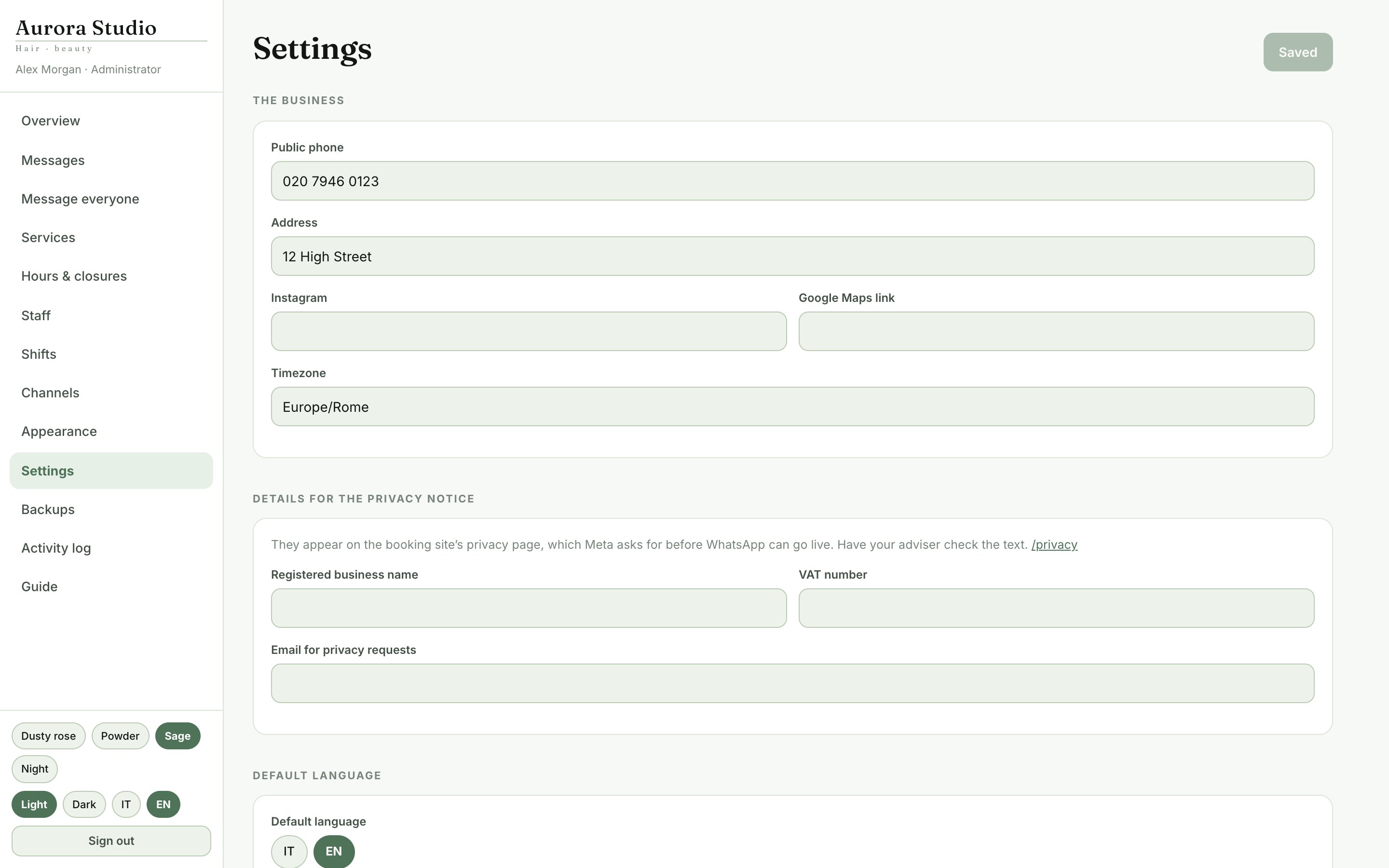
  • The business: public phone, address, Instagram, Google Maps link, time zone
  • Booking rules: time steps, minimum notice, how far ahead, until when clients can cancel online
  • Capacity: from the staff’s shifts, or a fixed number
  • Details for the privacy notice: company name, VAT number, email
  • Signed-in devices: see who is signed in and sign a device out
Settings

Backups and the activity log

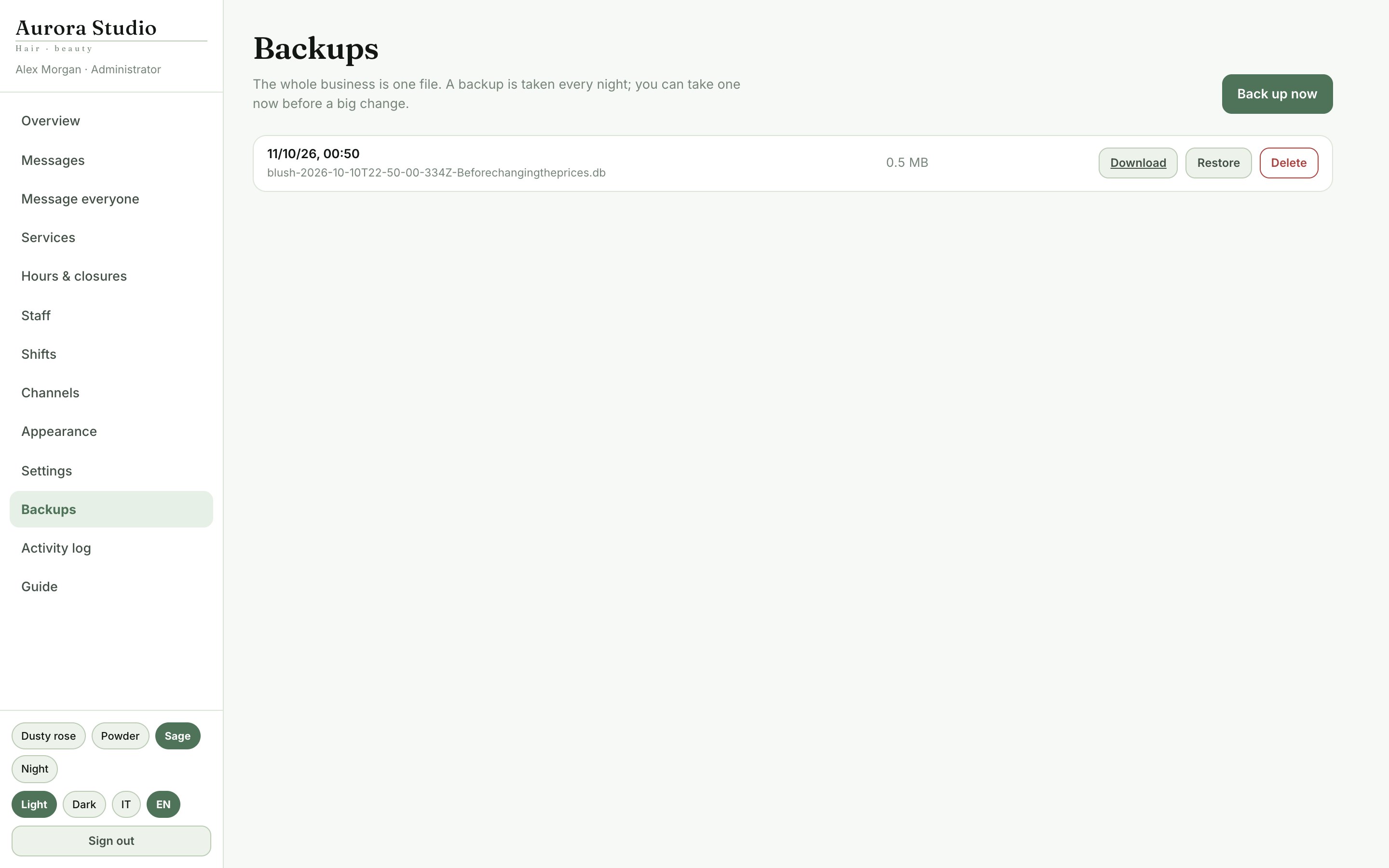
The whole business is one file. The system copies it every night, and you can make a copy whenever you like.

  • «Download» saves a copy to a USB stick or another computer
  • «Restore»: the current database is set aside and replaced at the next server restart; until then you can cancel
  • The activity log says who changed what, and when: bookings, shifts, prices, settings, backups
Backups and the activity log

WhatsApp, notifications and other channels

WhatsApp: the two modes

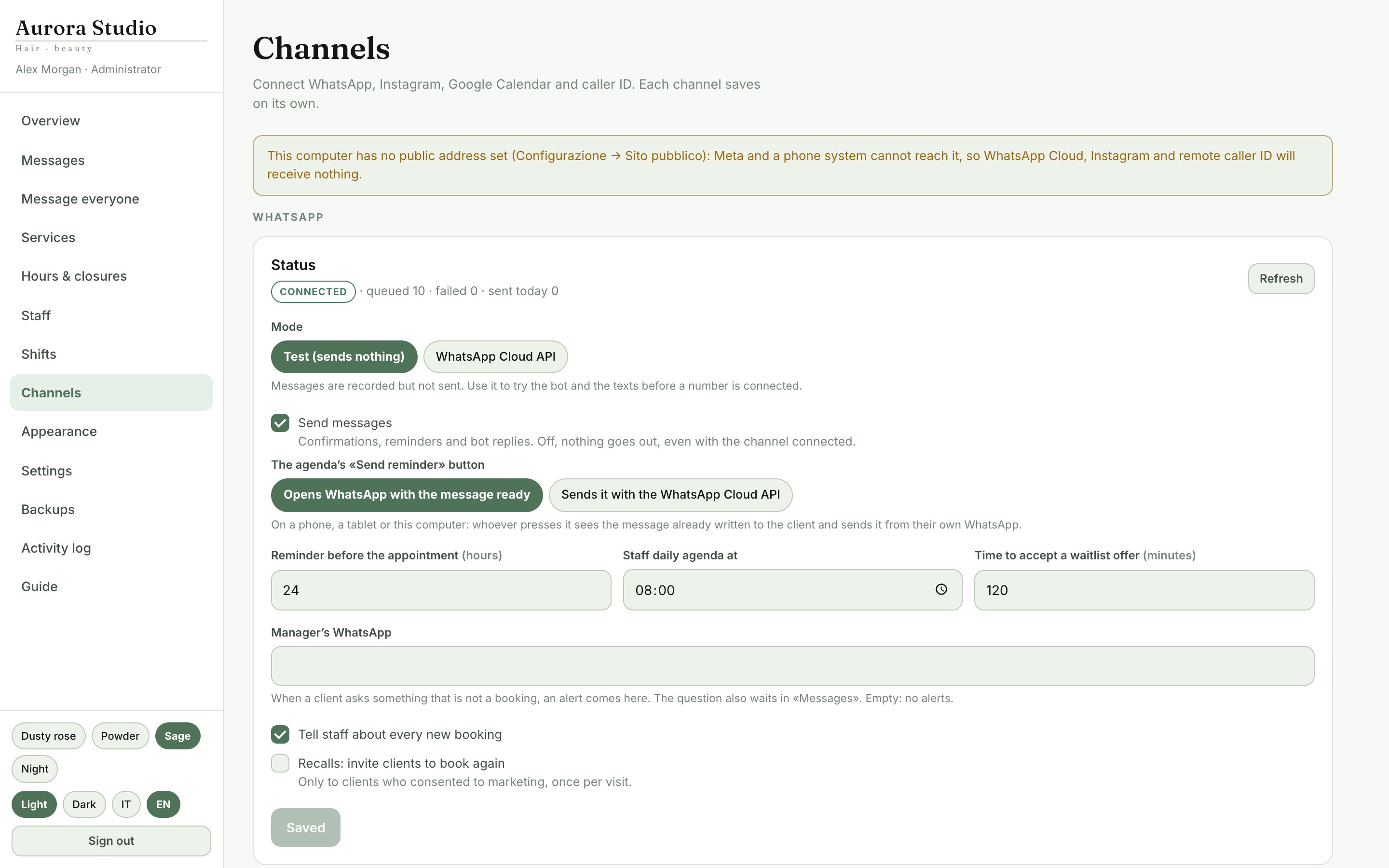
  • Test mode: messages are logged, not sent. Use it to try the bot and the texts before connecting a number
  • WhatsApp Cloud API: Meta’s official API, with no risk of the number being blocked. Meta charges for conversations on its own price list and requires a verified business
  • Reminders 24 hours before, the day’s agenda to staff, new-booking alerts
  • The agenda’s «Send reminder» button: opens the WhatsApp app with the message ready, or sends it from the business’s number
WhatsApp: the two modes

Connecting the WhatsApp number

  1. A Meta app

    In Meta for Developers create a Business app and add the WhatsApp product, with the business’s number.

  2. Credentials

    In Channels paste the Phone number ID, a permanent access token and the app secret.

  3. Webhook

    In Meta paste the webhook address and verify token shown in Channels, and subscribe to «messages».

  4. Templates and verification

    Create and get approved the message templates Channels lists, verify the business and set the app Live. Then press «Connect».

Without the app secret no incoming message is accepted: on purpose, or anyone could pretend to be a client.

The bot: booking with buttons

Any message gets an answer with three buttons (the bot speaks Italian for now): Prenota (book), I miei appuntamenti (my appointments), Altra domanda (another question). From there booking is a series of taps: service, day, time, name, confirm.

  • Before confirming, the bot shows the day, time and service
  • The reminder goes the day before, as for bookings from the site
  • «Altra domanda» hands the conversation to a person: it arrives in Messages, and the bot steps aside for an hour
  • In test mode you can do all of this from Channels, without a phone

The 24-hour rule and templates

WhatsApp delivers free text only within 24 hours of a person’s last message. After that, the template Meta approved goes instead, with the same details.

  • Channels lists the templates to create in WhatsApp Manager: name, category, language, text and examples, to copy exactly
  • Until a template is approved, that message shows as «failed» with the reason: it is never lost in silence
  • Your own texts are changed in Channels → Message texts; approved templates must stay word for word

Message everyone

An offer, some news or a photo to every client who agreed to receive them: on WhatsApp and as a notification on their phone.

  • Write the text; {nome} becomes each client’s name. You can add a photo
  • Choose where it goes (notification, WhatsApp) and to whom (everyone, or only those who came in the last 4 months)
  • «Preview recipients» says how many will get it before anything is sent
  • On WhatsApp it goes as the «promozione» template (or «promozione_foto»), which Meta must have approved and which Meta charges for each one delivered
  • Every message says how to stop them: whoever answers STOP gets no more offers
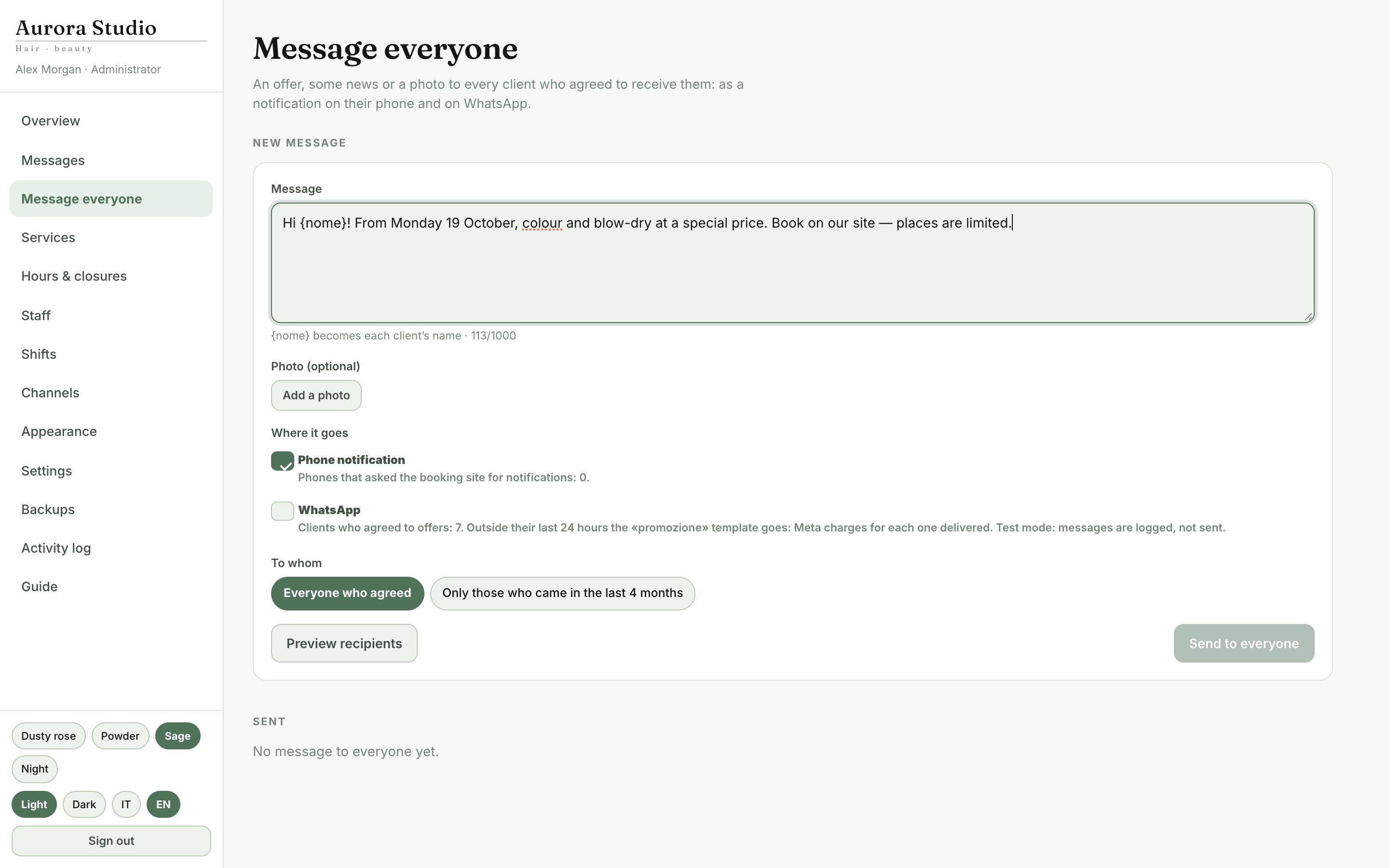
Message everyone

Instagram, Google Calendar and calls

  • Instagram Direct: the bot answers there too, with the same steps; it needs a professional account linked to the same Meta app
  • Google Calendar: bookings become events, and anything added in Google blocks those times
  • Caller ID: a VoIP phone system, an Android phone or a modem makes the client’s card appear when the phone rings; «Try a ring» shows it without a real phone

Data and updates

The business’s data

  • Clients, bookings and settings are in a database on the business’s computer, not on an outside service
  • An automatic backup every night, plus the ones you make; download them to a USB stick now and then
  • Passwords are stored encrypted; WhatsApp and Google codes are never shown again once saved
  • The public site goes through an encrypted connection: no port is opened on the router

Updating the program

  1. Download the new version

    From this page, when one comes out.

  2. Install it on top

    Open it and install it like the first time, without uninstalling. If the program is open, the installer closes it and opens it again at the end.

  3. Check the version

    The menu of the icon by the clock shows the new version. Clients, bookings, backups and the licence stay the same.

The program never updates itself from the internet: an update is installed only when you decide.

If something goes wrong

Common problems

Clients cannot book on the site
Is the computer on and the program open? The icon by the clock says whether the server is running and the public site answers. If the computer had gone to sleep, turn on «Prevent sleep».
After a night-time restart the site cannot be reached
Windows asks for a password at start-up. Open the setup window → This computer → set up automatic sign-in.
The agenda screen says «Not connected»
Check the tablet’s network. The screen keeps retrying; meanwhile it shows the last good picture and never wipes it.
A day shows as full although there is room
Have the staff started their shift? Today’s availability comes from who is on shift. For future days check Shifts and the absences in Staff.
A WhatsApp message shows as «failed»
The reason is written next to it. Most often: more than 24 hours have passed and the template is not approved by Meta yet.
The licence is not accepted
A key must be pasted whole, dashes included, and works only on the computer whose code you copied. «Sign in with your account» needs no key at all.

Questions people ask

Do I need the internet to work?
Not inside the business: the agenda screen and Gestione work on the local network. The internet is needed for bookings from home, for WhatsApp and to renew the licence.
Can two clients take the same time?
No. The time is held for whoever is booking, and the system checks availability at the moment it saves.
Can I use Gestione from my phone?
Yes, at the public site’s address followed by /gestione, with the owner’s account.
Does every tablet need a licence?
No. The licence is for the computer that runs the program; tablets, phones and other computers open the pages in their browser.
Does WhatsApp cost anything?
The program does not. Meta charges for conversations on its official API on its own price list: answers to clients within 24 hours are usually free, offers are paid.
What if the computer breaks?
Install the program on another computer, write to us to move the licence, and restore the last backup you downloaded.

Questions about this app?

Chat with us now or send an inquiry — we’ll help you get it running.

Contact