

Printer Emulator
Receipt, kitchen, label and fiscal printers on your computer: test POS printing without a single printer
For Windows 10 and 11 (64-bit), macOS 11 or newer (Intel and Apple Silicon) and 64-bit Linux. It runs with an active licence for that computer: try it free for 30 days. · v1.2.3
Windows 10 or 11, 64-bit. Run the installer. The first time, Windows may say it protected your PC: choose More info, then Run anyway.
macOS 11 or newer, on any Mac. Open it and drag the app to Applications. The first time, open System Settings, Privacy & Security, and press Open Anyway; when it asks, allow incoming connections, so the till can reach the printers.
64-bit Linux. Make the file executable (chmod +x), then run it. With a firewall on: sudo ufw allow 9100:9110/tcp.
Printer Emulator at a glance
Printers that live on your screen
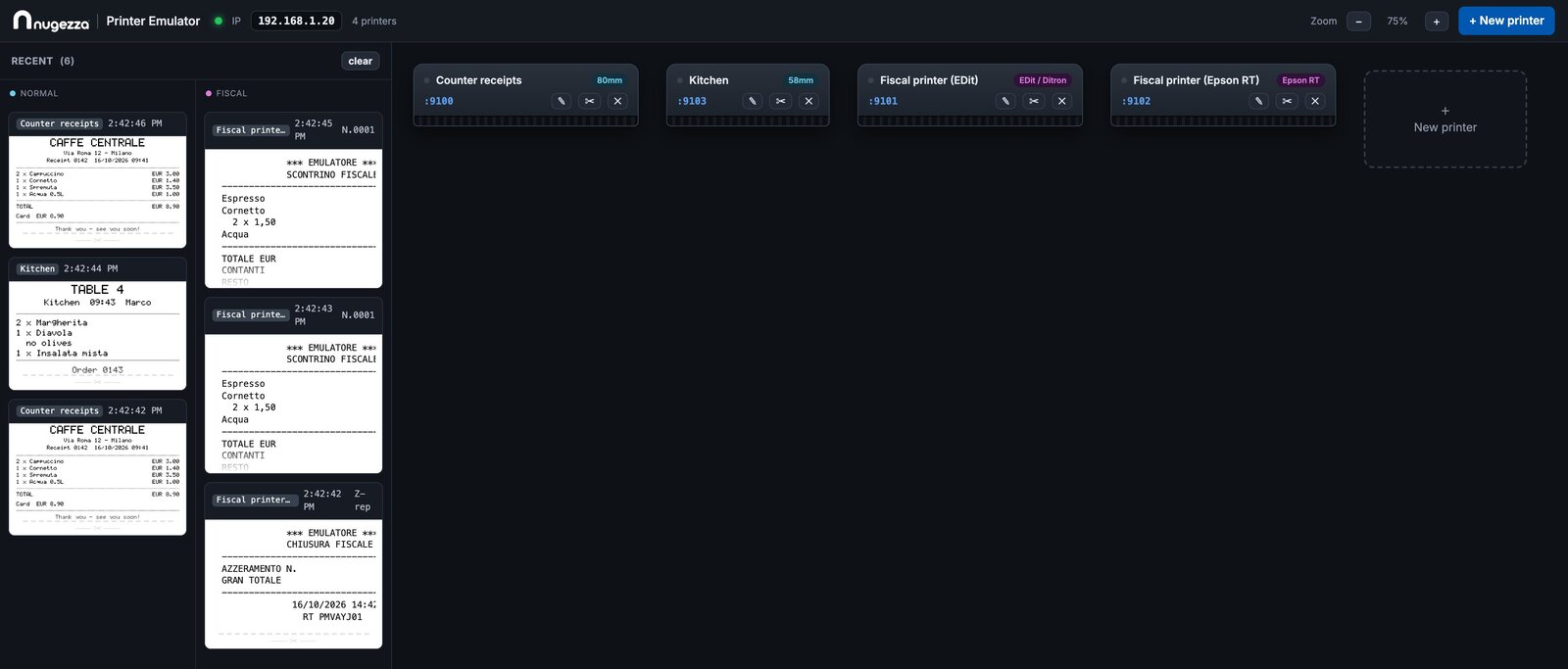
Printer Emulator pretends to be a shop's printers. Each printer you create listens on its own network port, exactly like a real network printer, and the POS prints to it without knowing the difference. The paper feeds out of the machine on screen, is cut, and drops into a history you can open at full size.
- Thermal receipt printers (ESC/POS), 58 or 80 mm: the counter, the kitchen, the bar.
- Label printers (TSPL): each label drawn at its own size, as the label printer prints it.
- Italian fiscal printers (RT): the EDit / Ditron family and Epson, with real receipts, document numbers and Z reports.
- As many printers as you want, all running at the same time.
- It answers the POS the way the hardware does, so the POS reports success.
Licence and prices
Install and sign in
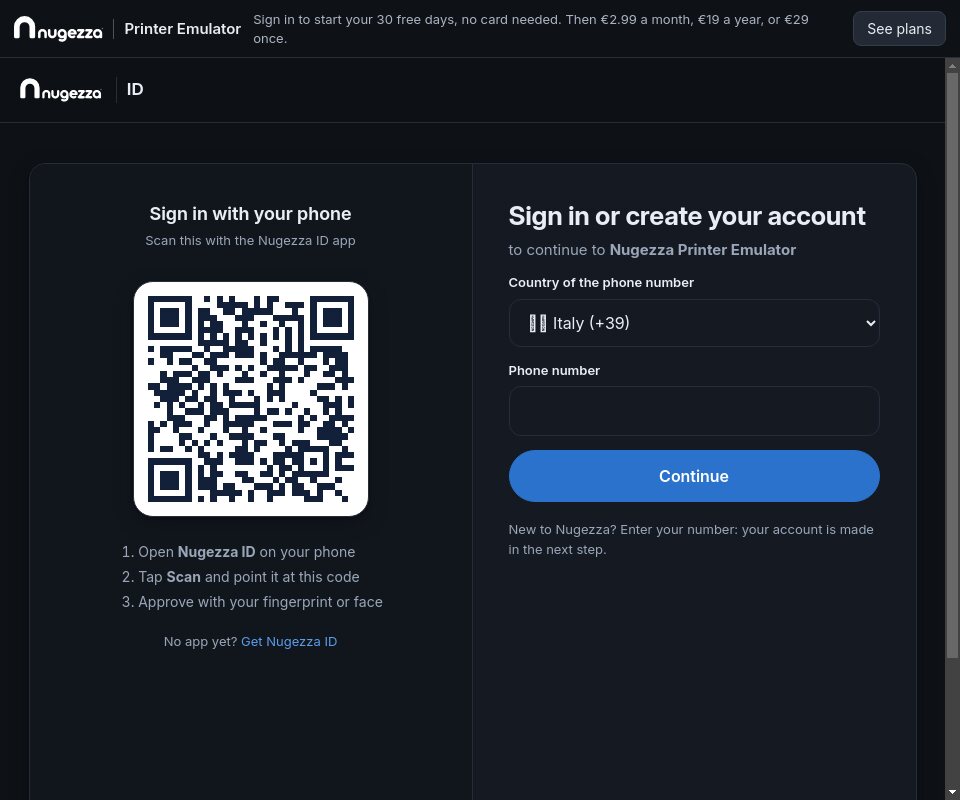
Sign in with Nugezza ID
The form is already there
It is the same Nugezza ID form every Nugezza site shows. The app never sees your password.
With your phone
Open the Nugezza ID app on your phone and scan the QR on the screen.
Or with your number
Choose the country code, type your phone number and password, then the second step. No account yet? Create one on the same form.
Signed in
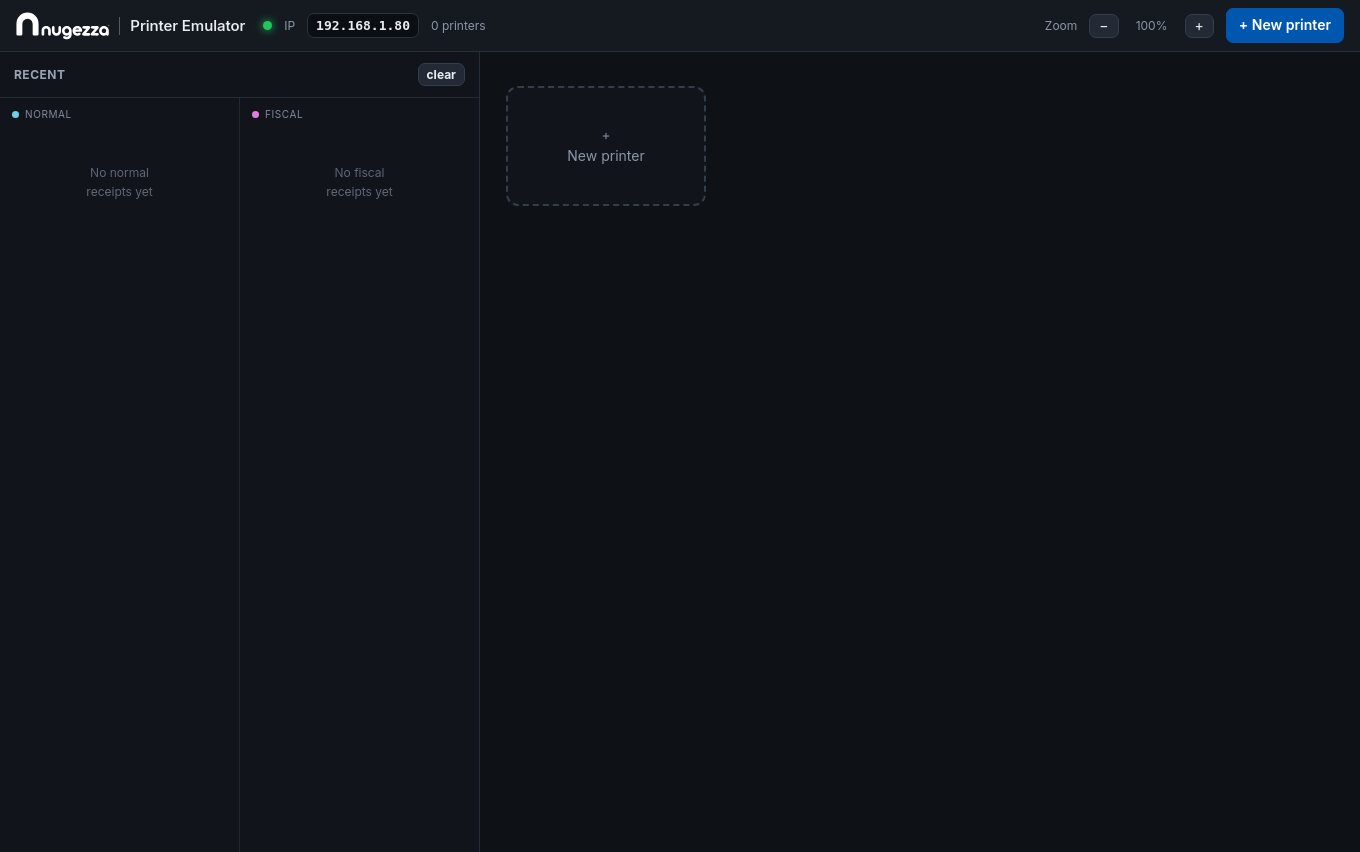
The workshop opens. Your first sign-in starts the 30 free days.
- Help › «Licence…» shows the licence and the account at any time, and signs this computer out.
- A monthly or yearly plan runs until its next payment, offline too. Then the app needs the internet, says «Waiting for your next payment», and opens by itself once the payment is in.
- Bought once, it runs offline for good and never asks.
Your printers
Creating a printer
+ New printer
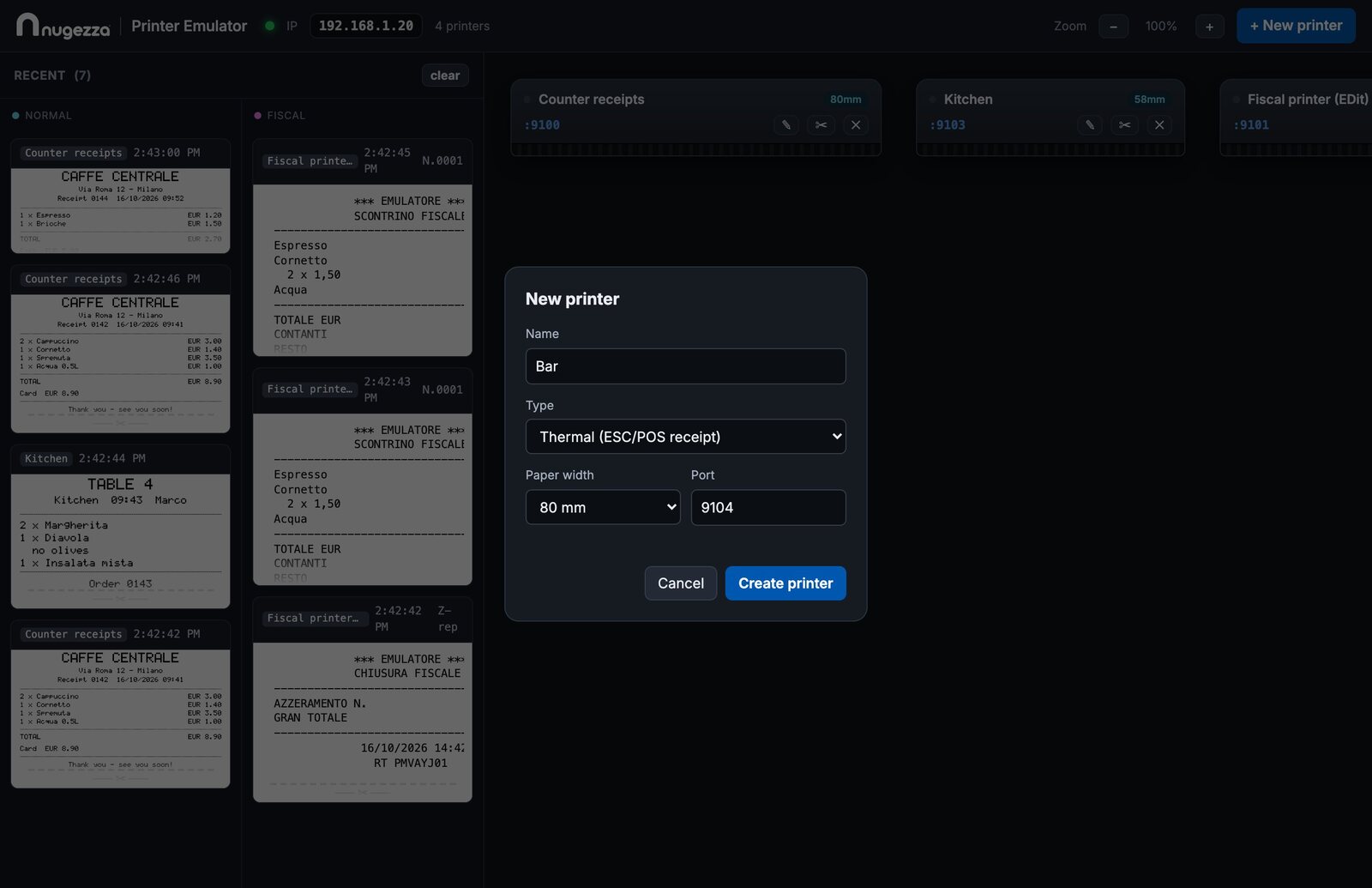
Press «+ New printer» at the top right, or the dashed «New printer» card after the last machine.
Name
What it is for: Counter, Kitchen, Bar, Fiscal…
Type
«Thermal (ESC/POS receipt)», «Fiscal RT — EDit / Ditron» or «Fiscal RT — Epson».
Paper width and port
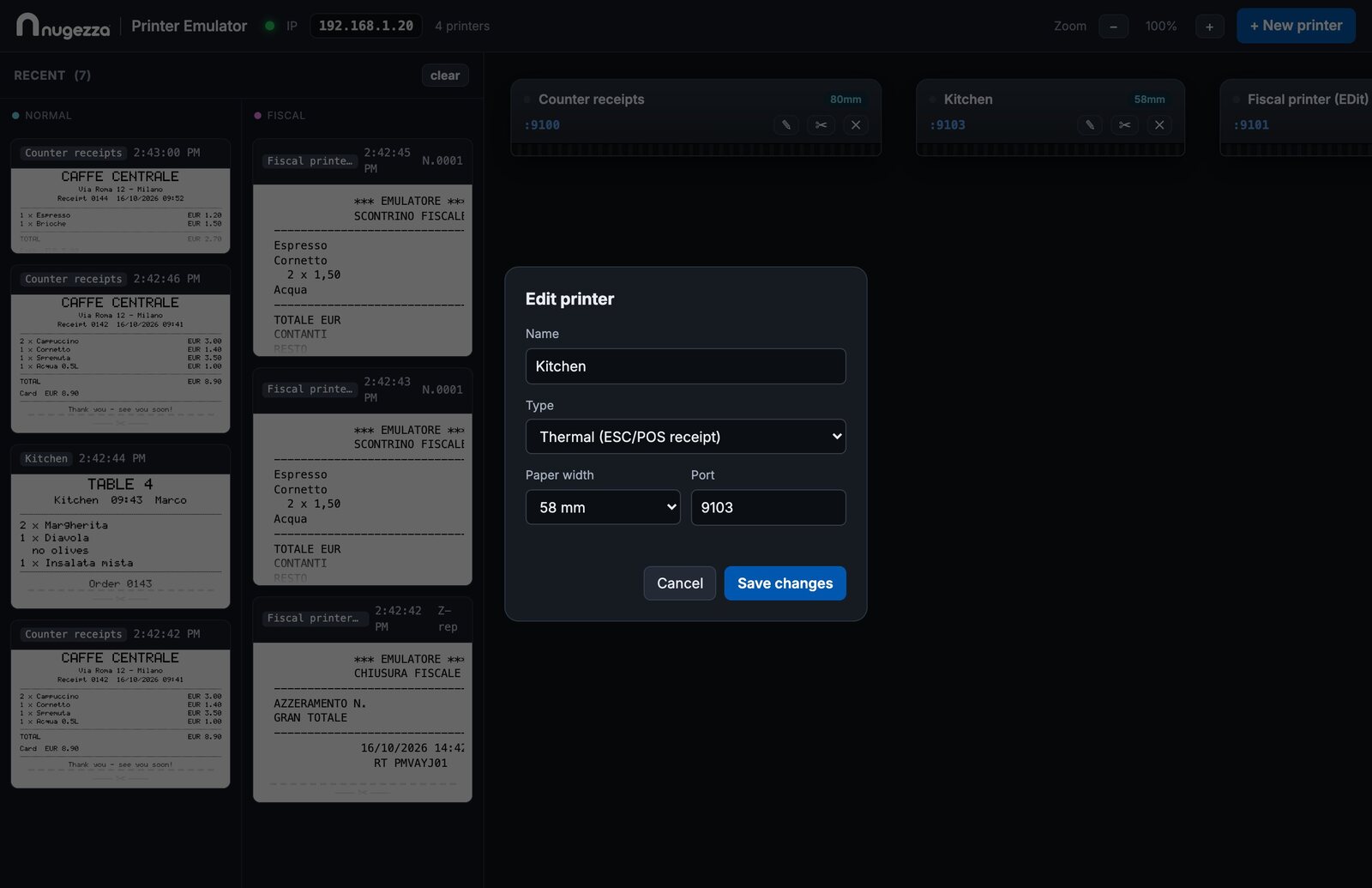
80 or 58 mm, like the real roll. The port suggested is the next free one from 9100: keep it.
Create printer
The machine appears in the workshop and is listening at once.
The buttons on a machine
- The pencil changes the name, type, paper width or port. Saving moves the printer to its new port at once.
- The scissors cut the paper by hand (chapter 6).
- The cross removes the printer, after asking.
- The port number copies itself when you click it; so does the IP at the top left.
- «Zoom − / +» makes the machines and the paper smaller or larger.
Connect the POS
Printing and the history
Paper that behaves like paper
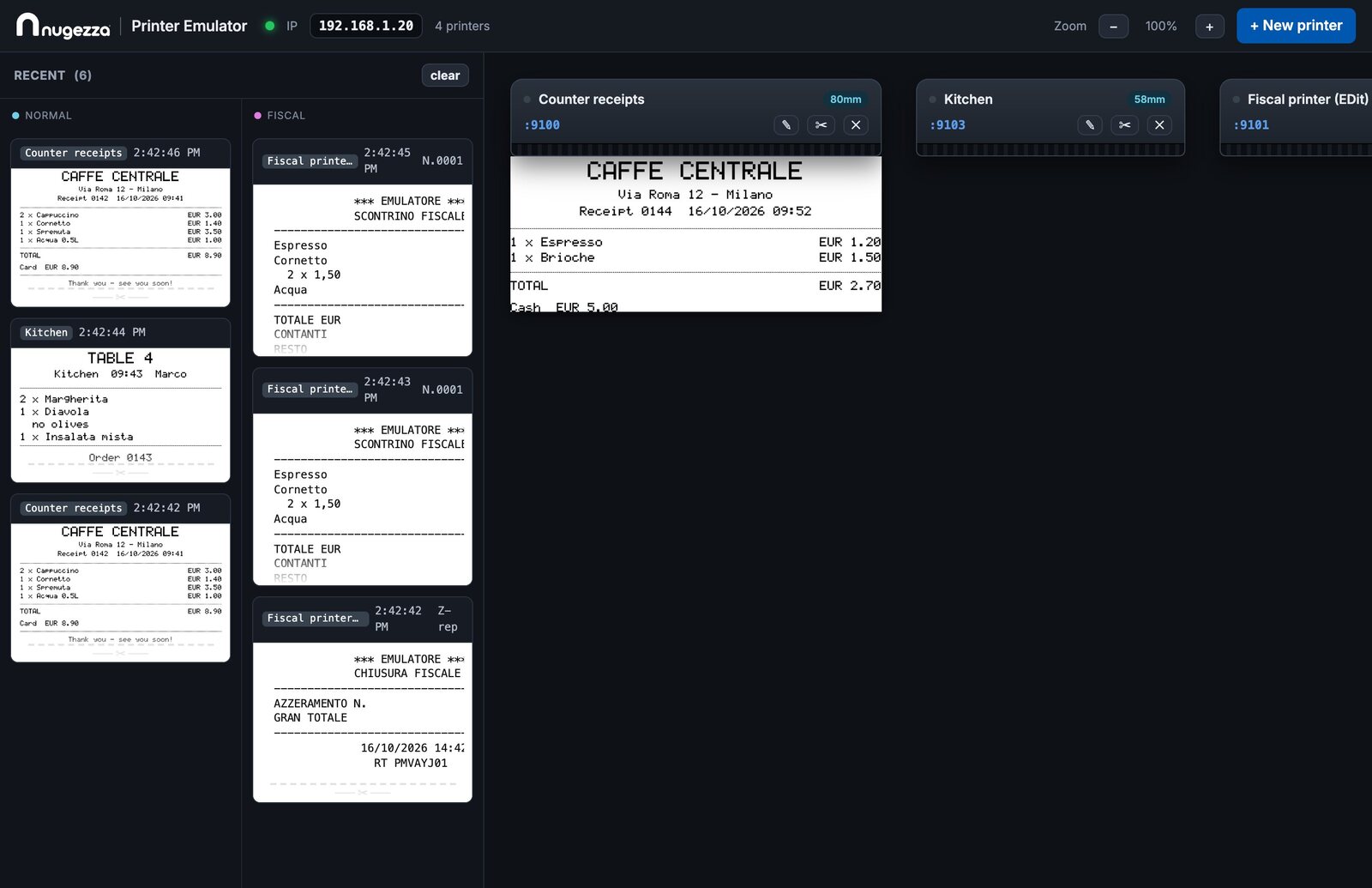
When the POS prints, the machine's light comes on and the paper feeds out of the slot. It stays there, growing with every print, until it is cut: exactly like a real roll.
The cut, and the history
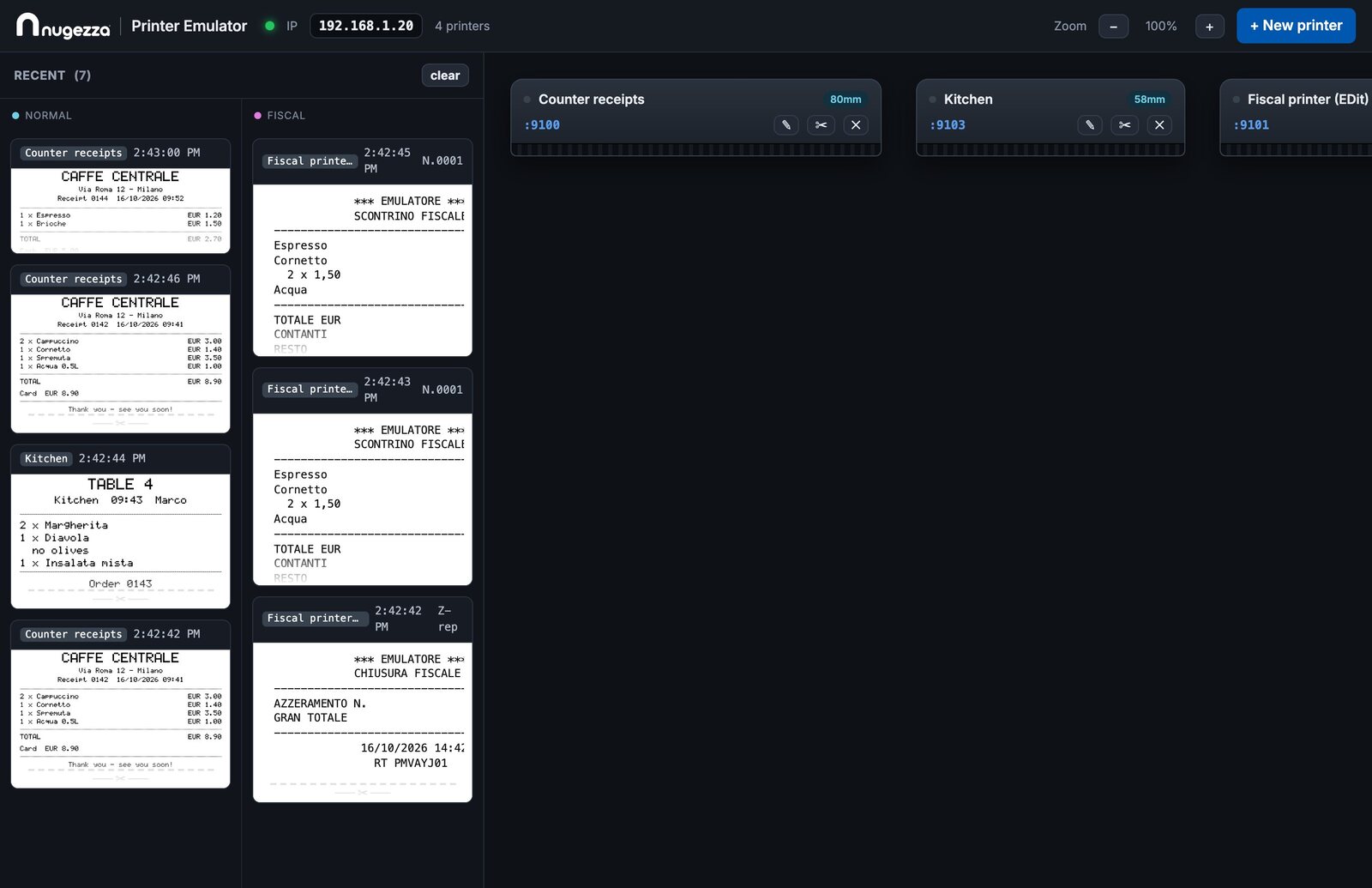
The POS usually ends a receipt with a cut command: the paper is cut and drops into «Recent» on the left. If the POS does not cut, press the scissors on the machine.
- «Normal» holds receipts, kitchen tickets and labels; «Fiscal» holds fiscal receipts and reports.
- Each card shows the printer, the time and, for fiscal ones, the document number.
- «clear» empties the history. It is also emptied when the app closes.
- A cash-drawer command shows «💵 Cash drawer opened» in the middle of the screen.
A receipt at full size
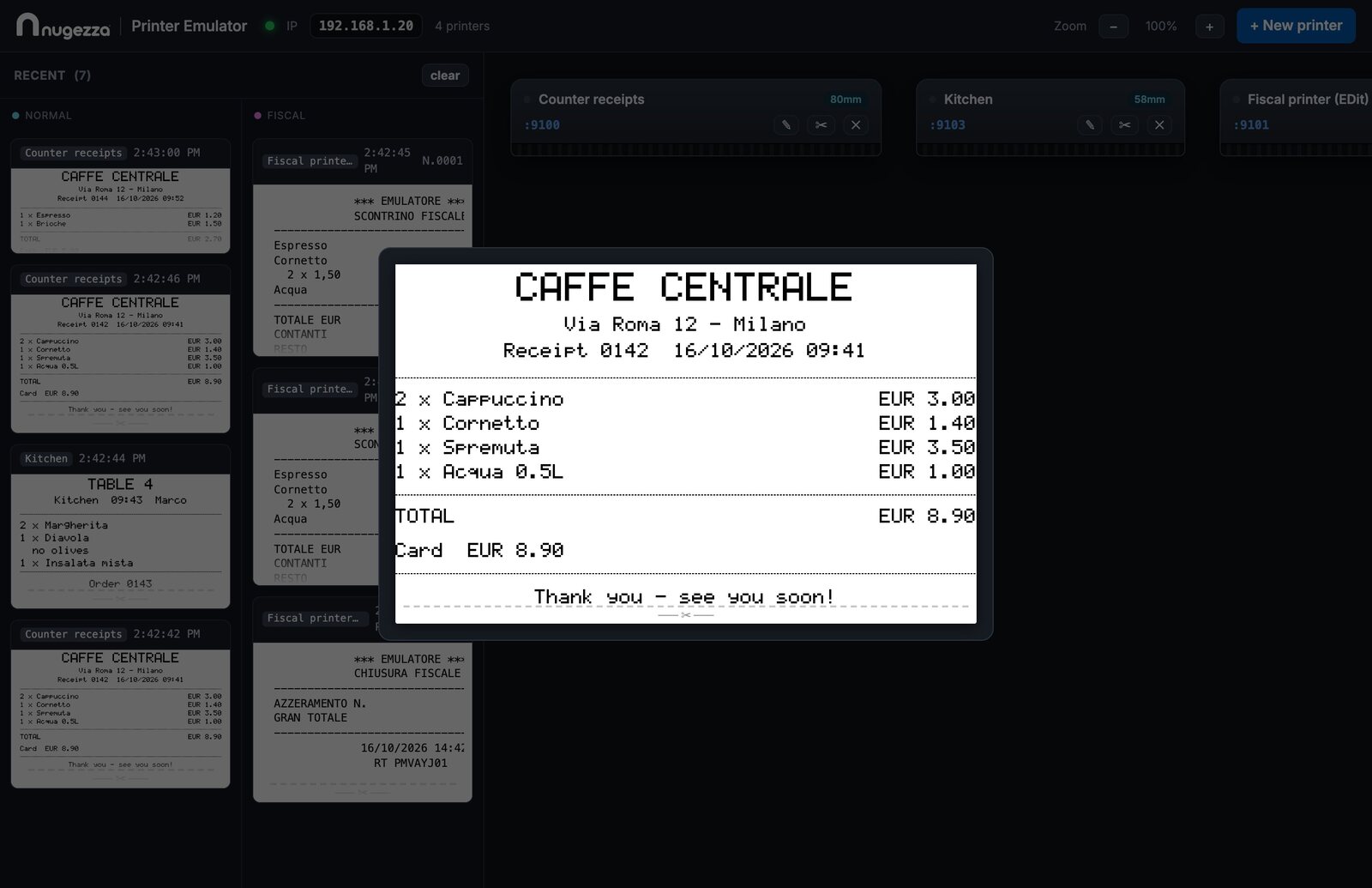
Click a card and the receipt opens at the printer's own resolution: one dot of the printer is one pixel on screen. This is how you check a logo, a QR code, the alignment of a column or a font that is too small, before it reaches real paper.
Fiscal printers
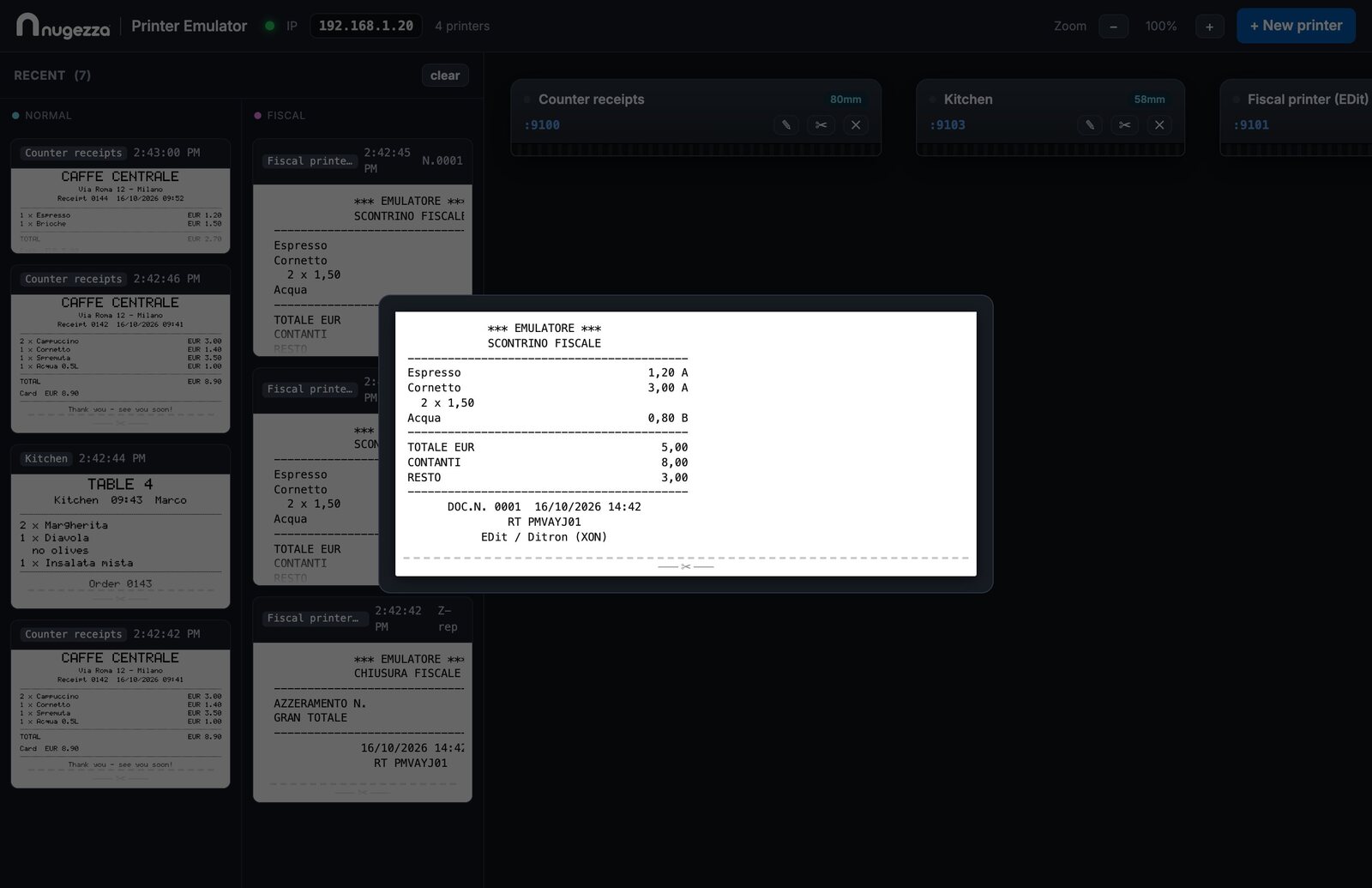
A fiscal receipt
A fiscal printer rebuilds the receipt (scontrino) from what the POS sends: items, quantities, VAT department letters, total, payment and change, then the document number and the date. The POS gets back the document number, as from the real printer.
- EDit / Ditron: XON/XOFF with the fiscal footer, as the real printer answers.
- Epson: HTTP/XML, with the same reply an Epson RT gives.
- Document numbers count up from 0001 while the app runs.
X and Z reports
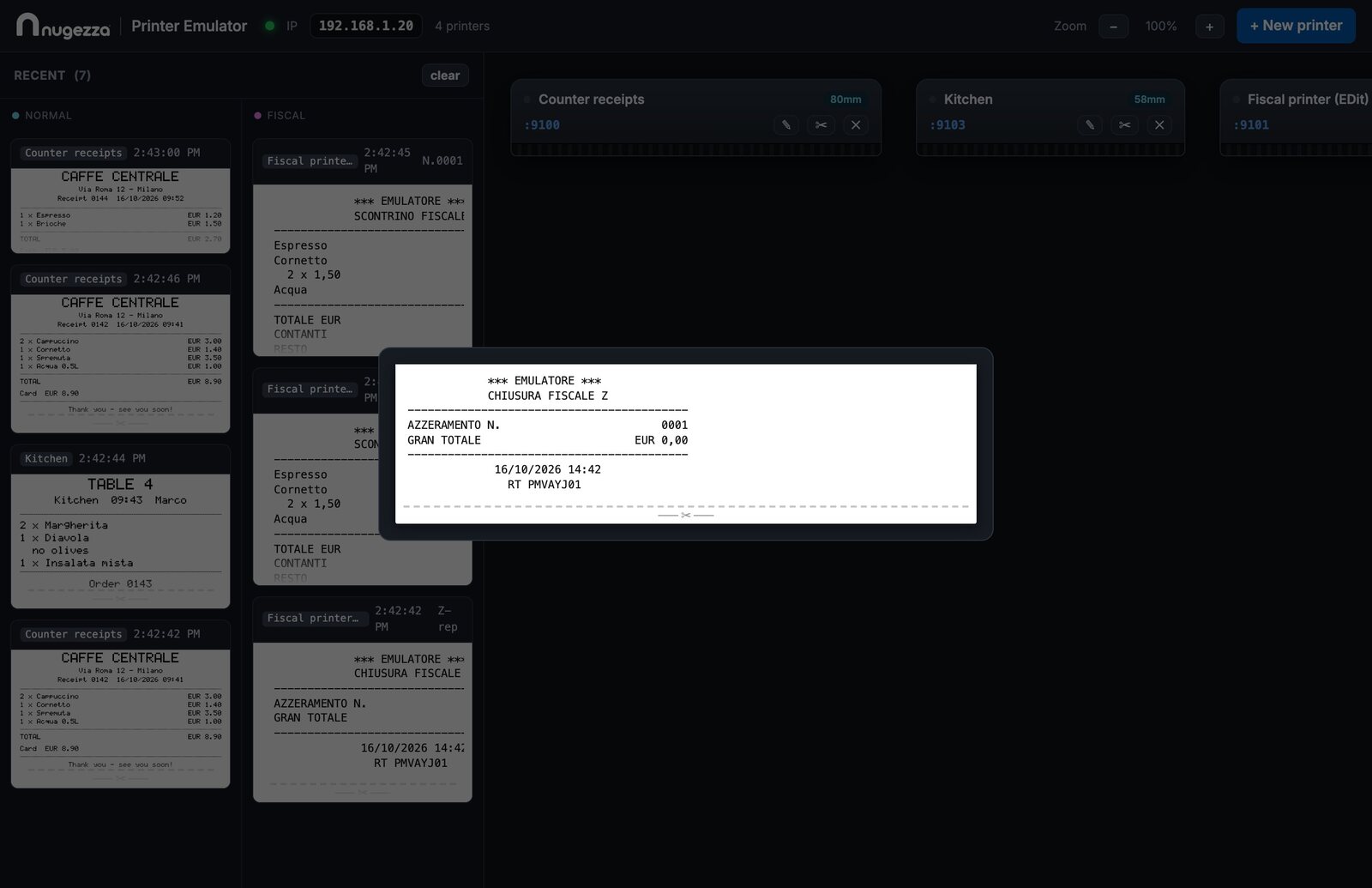
The POS can ask the fiscal printer for the day's reports, and the emulator keeps a running daily total for each fiscal printer.
| X report (LETTURA X) | The day's total so far. Nothing is reset. |
| Z report (CHIUSURA FISCALE Z) | The day's closure: the total, the closure number, then the daily total starts again from zero. |
If something goes wrong
Questions about this app?
Chat with us now or send an inquiry — we’ll help you get it running.
