
Nugezza Booking
The booking system for your business: installation, features and everyday use
මේ ගයිඩ් එක ඉංග්රීසියෙන්; වැඩසටහන තියෙන්නේ ඉතාලි සහ ඉංග්රීසි භාෂාවලින්.
For Windows 10 and 11 (64-bit). It runs with an active licence for that computer: try it free for 30 days. · 113 MB
Nugezza Booking ගන්න
ඔබේ Nugezza ගිණුමෙන්. එක ලයිසන්ස් එකක් එක උපාංගයක් සඳහා.
මුලින්ම ඔබේ Nugezza ගිණුමෙන් ලොග් වෙන්න. Stripe හරහා කාඩ් එකෙන් ගෙවන්න. සබ්ස්ක්රිප්ෂන් එකක් ඕනෑම වෙලාවක ඔබේ පිටුවෙන් නවත්තන්න පුළුවන්.
The system at a glance
What Nugezza Booking is
A booking system for any business that works by appointment: hairdressers, barbers, beauty and nail studios, physiotherapists, clinics. Clients book by themselves, day and night; staff see the day on the agenda screen; the owner runs everything from Gestione. It runs on a computer at the business and the data stays there.
- A booking site with your business’s name, logo and colours
- The agenda screen: today’s appointments, live, on a tablet or a computer
- Gestione: services, hours, staff, shifts, takings, backups
- WhatsApp: clients book by tapping buttons, and get a confirmation and a reminder
- Message everyone: an offer or some news to the clients who asked for it, on WhatsApp and as a phone notification
How it works
At the heart of the system is a program that stays on at the business’s computer. It takes the bookings, saves them in its database and shows them on every screen at once.
The business’s computer
Keeps the program running, with the database and the backups. It starts by itself when the computer is switched on.
The public site
A secure connection puts the site on the internet, at your business’s address. Clients book there.
Other devices
A tablet or another computer opens the agenda screen; the owner opens Gestione from home too.
Everything live
A booking from the site, from WhatsApp or at the desk appears on every open screen within moments.
Before you start
Licence and prices
Installing on the computer
Setup on first start
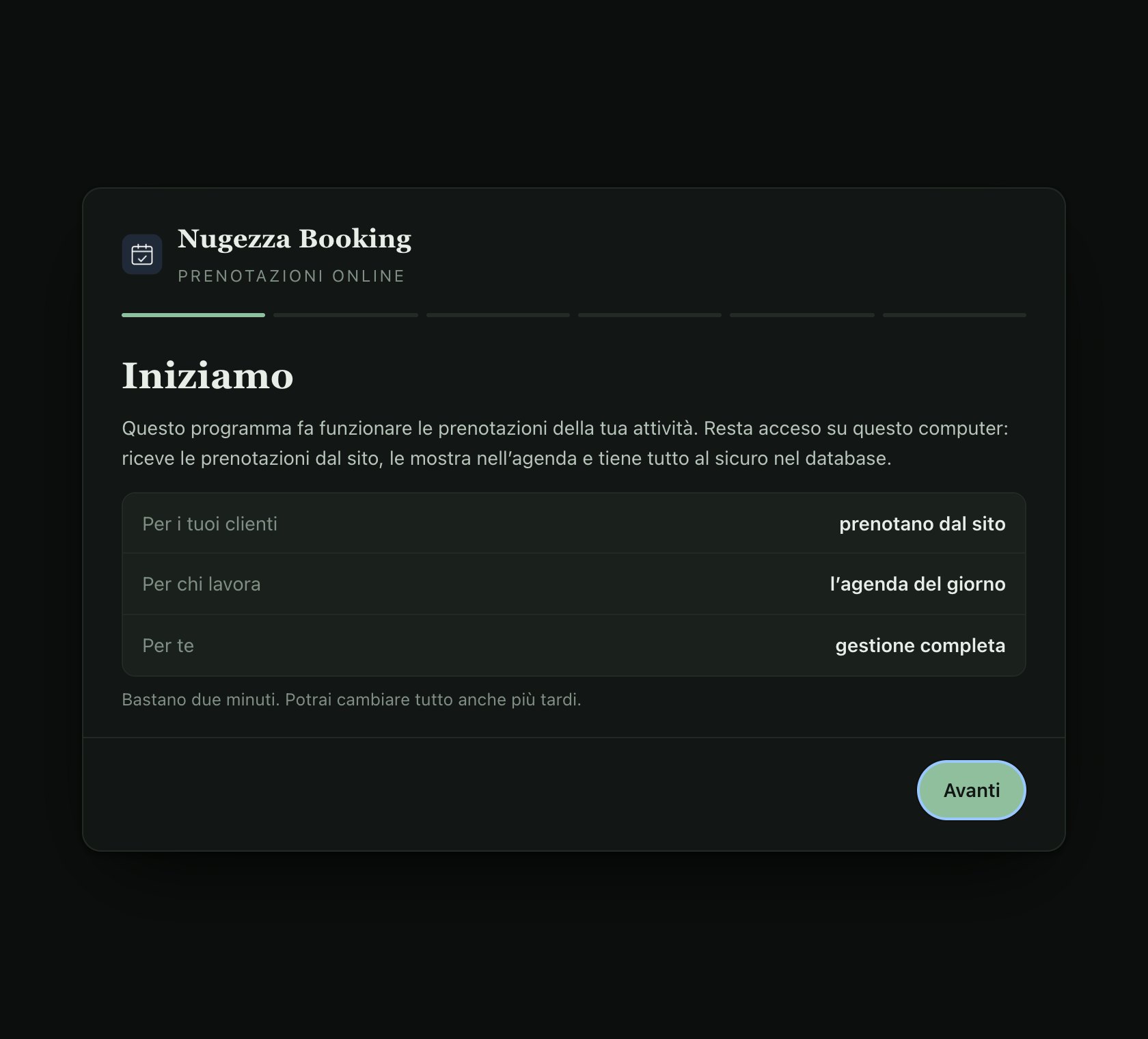
The setup window
On first start a window opens with six steps. It saves as you go: close it halfway and you carry on where you were. Reopen it whenever you like from the icon by the clock. For now the setup window is in Italian; the steps are explained here.
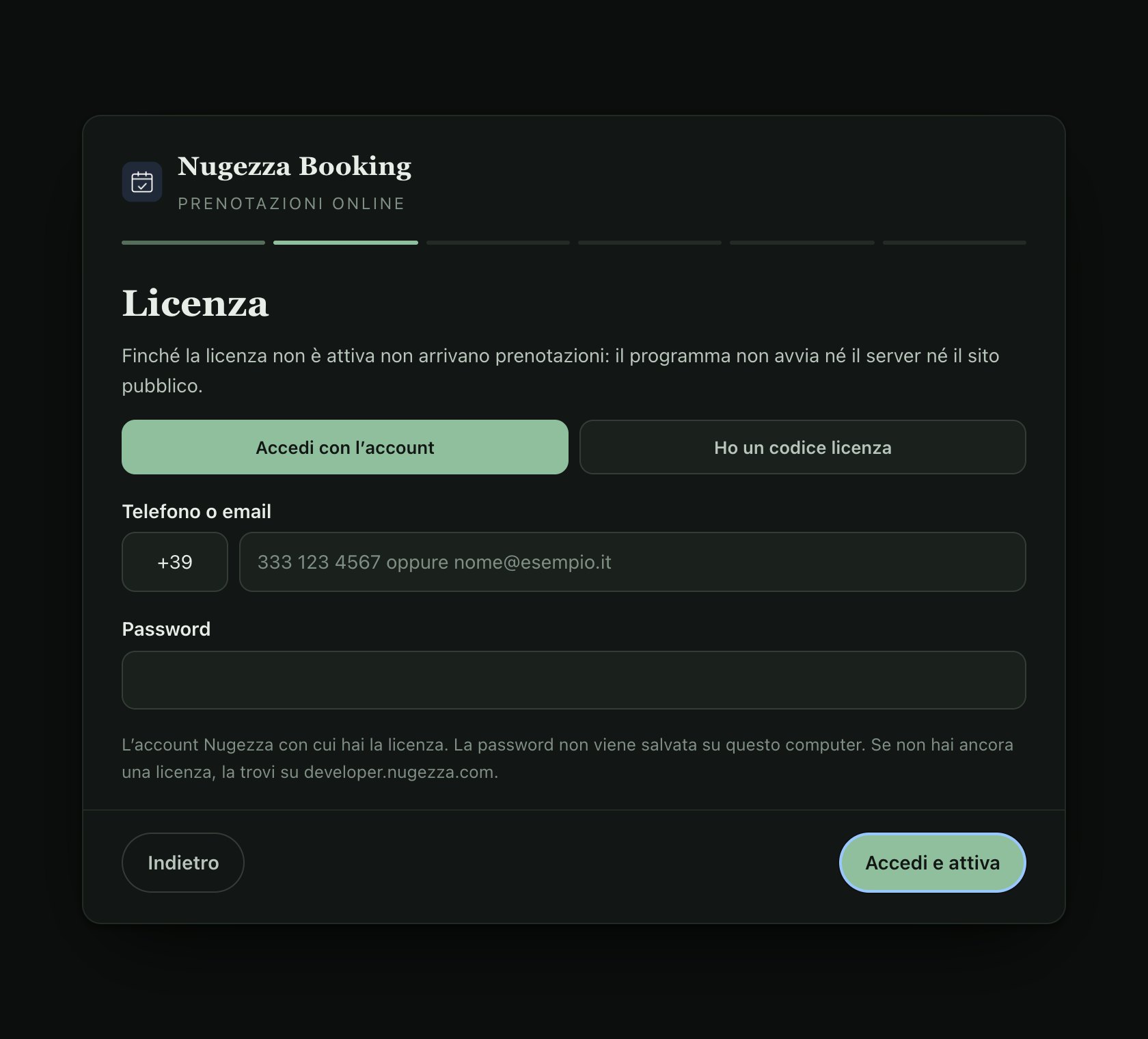
Licence («Licenza»)
Sign in with your Nugezza account, or use a licence key made for this computer.
- The green box shows the kind of licence and when it ends
- It turns yellow when only a few days are left
- «Sostituisci la licenza» (replace the licence) saves the new one only if it is valid: you never lose the one that works
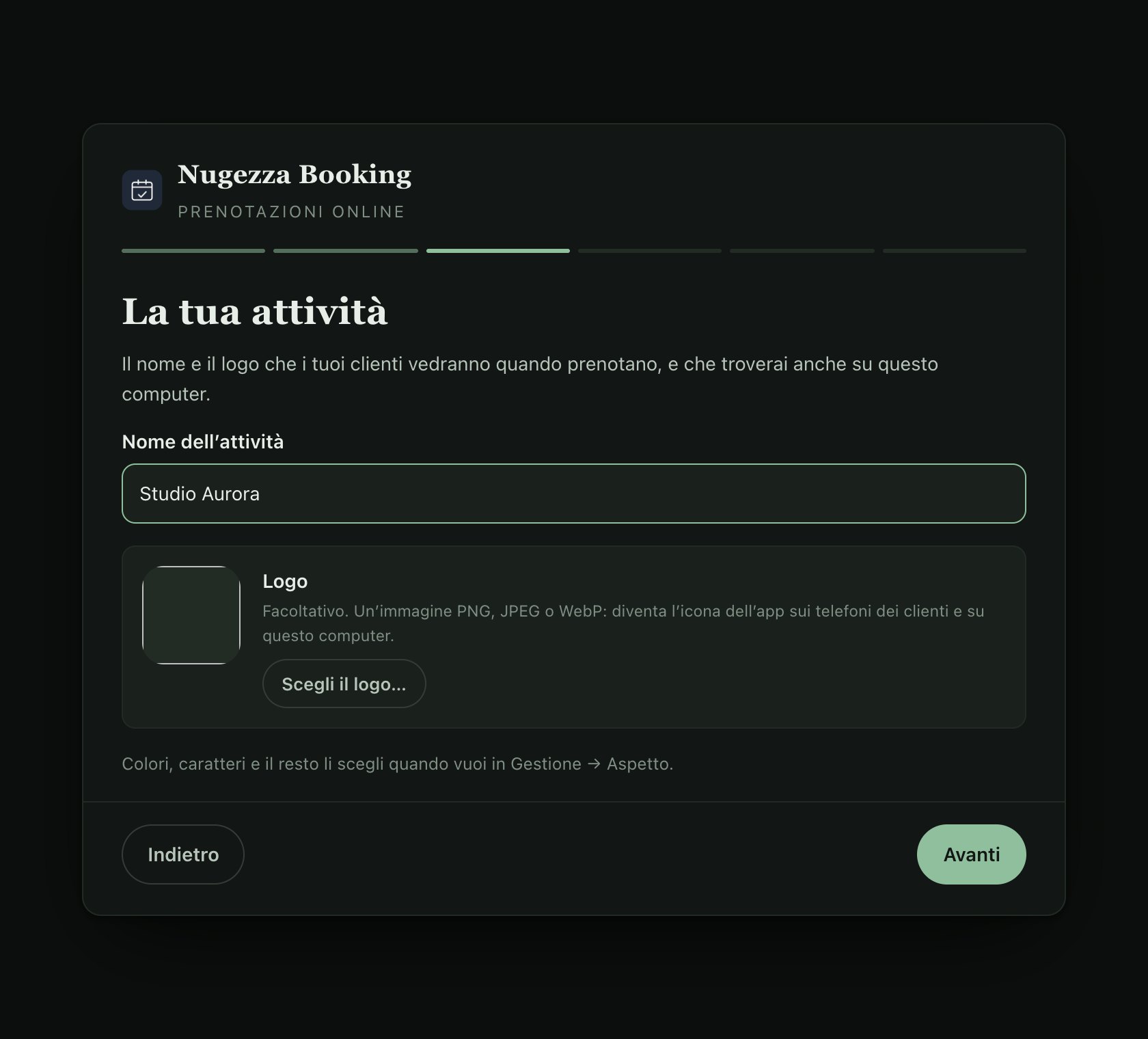
Your business («La tua attività»)
Your business’s name and logo. The program uses them for the desktop icons, the window titles and the booking site.
- The logo becomes the program’s icon, on a white or a dark background
- All of it can be changed later, in Gestione → Appearance
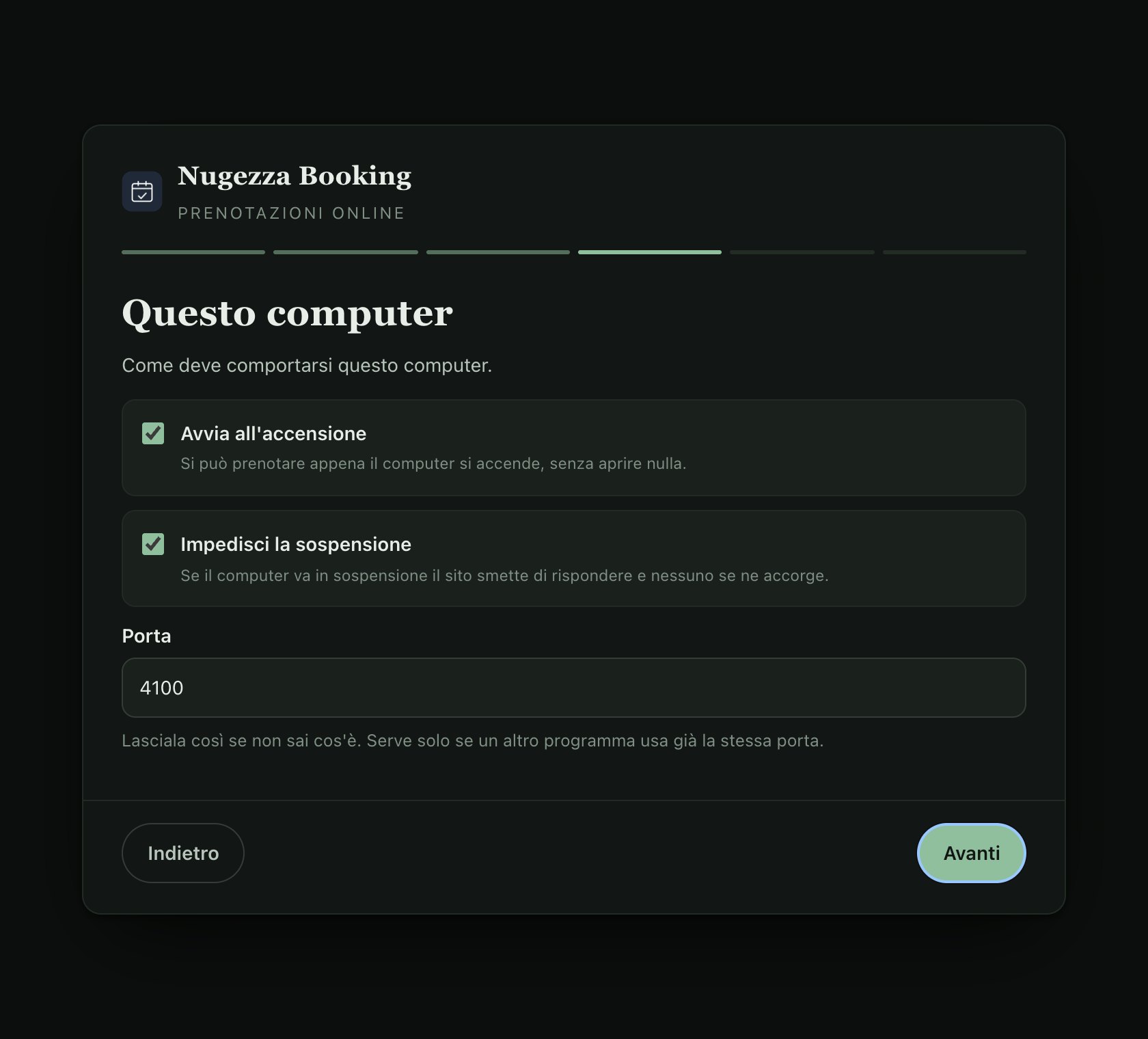
This computer («Questo computer»)
- Start when the computer starts: the business takes bookings as soon as the computer is on
- Prevent sleep: a computer that goes to sleep stops answering the site
- Windows automatic sign-in: if the computer asks for a password when it starts, after a night-time restart the system would stay off until morning
- Port: leave it at 4100 unless another program already uses it
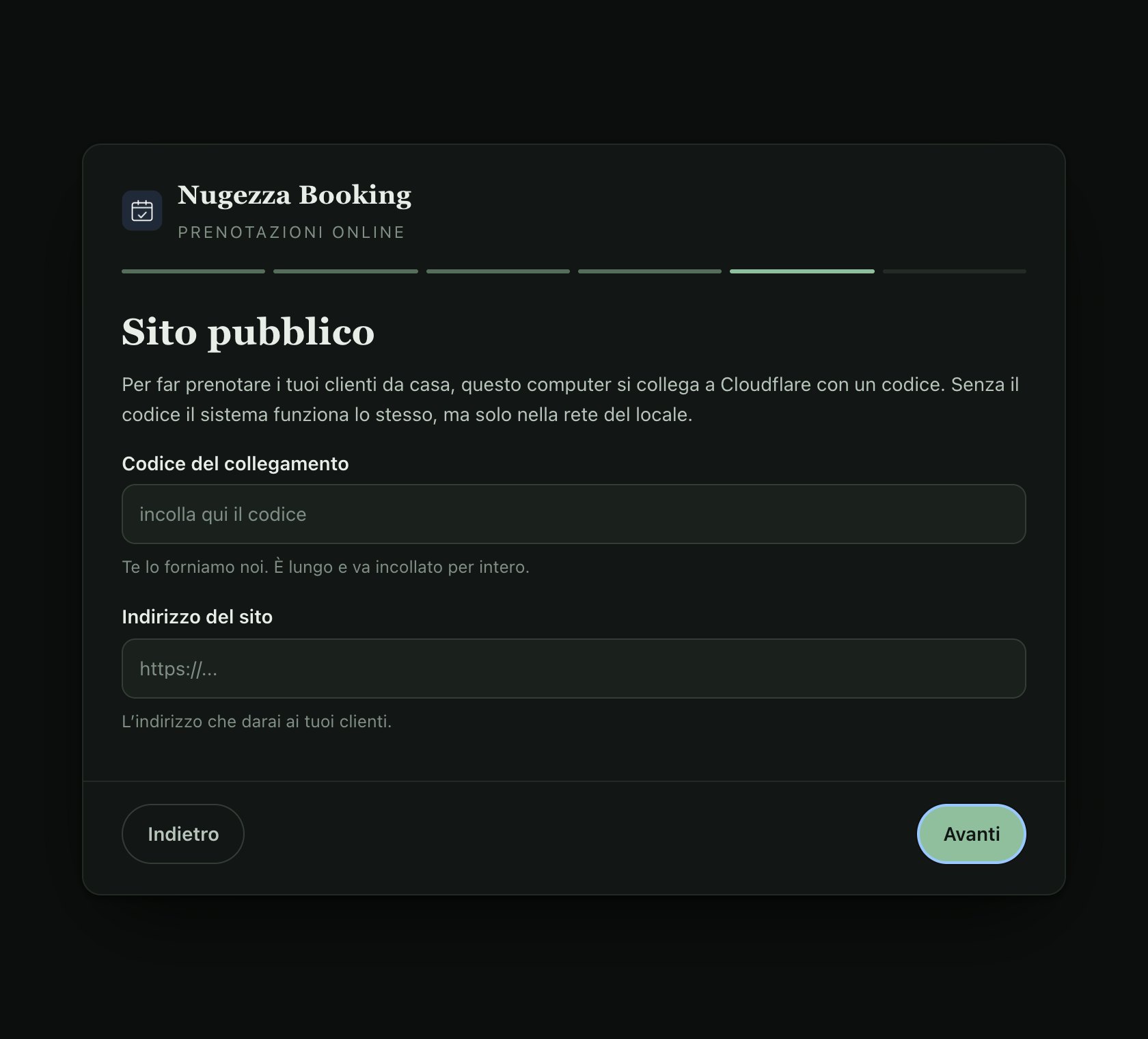
Public site («Sito pubblico»)
For clients to book from home, the computer connects to the internet with a secure connection code. No ports need opening on the router.
- Connection code: we supply it; paste all of it
- Site address: the one to give your clients
- Without the code the system still works, but only inside the business
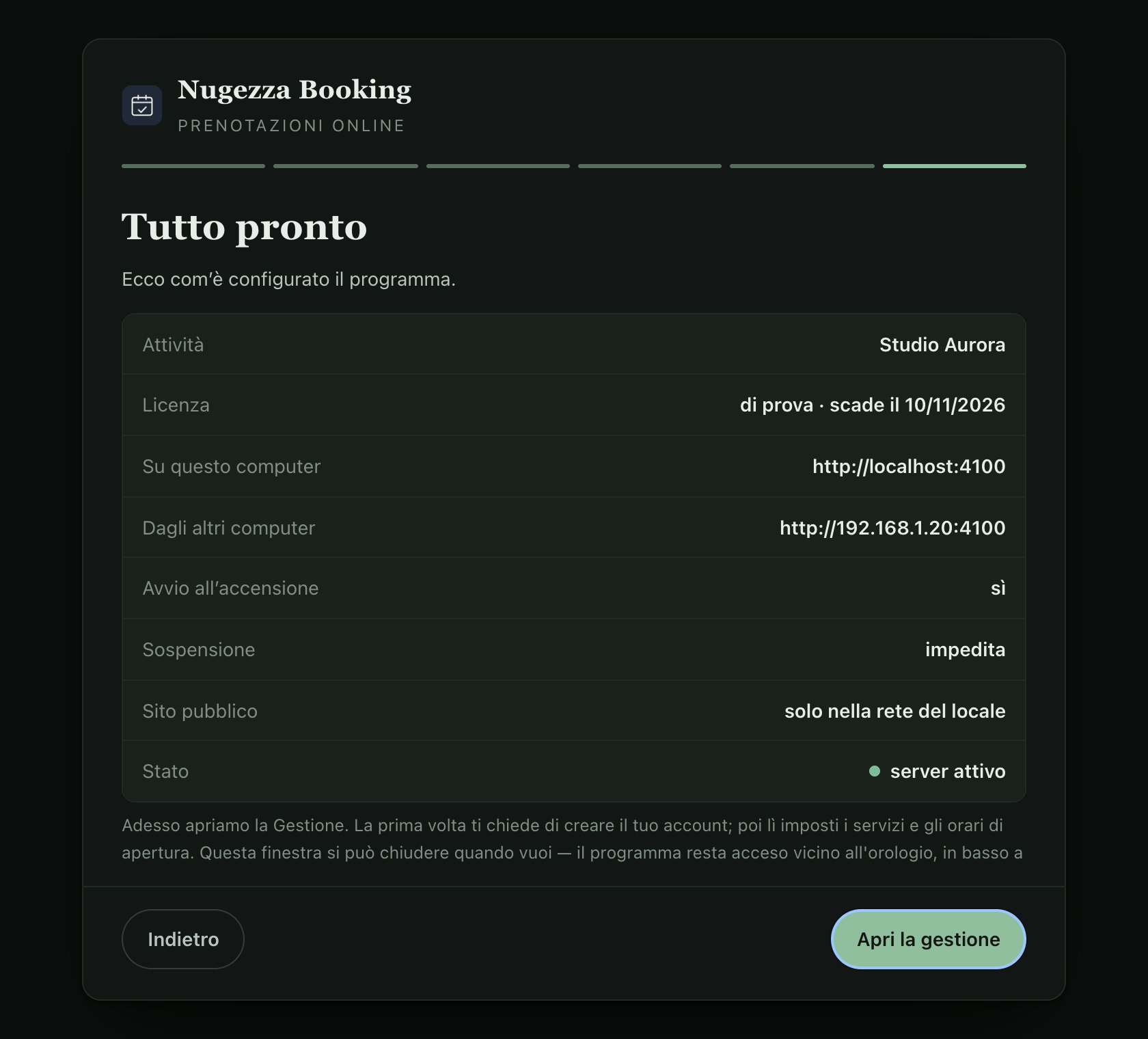
All set («Tutto pronto»)
The summary shows the licence, the addresses, start-up and the server’s state. «Apri la gestione» opens Gestione: the first time it asks you to create the owner’s account.
- «Su questo computer»: the address to use on the business’s computer
- «Dagli altri computer»: the address for a tablet or a second computer
- «Stato: server attivo»: everything is running
First steps in Gestione
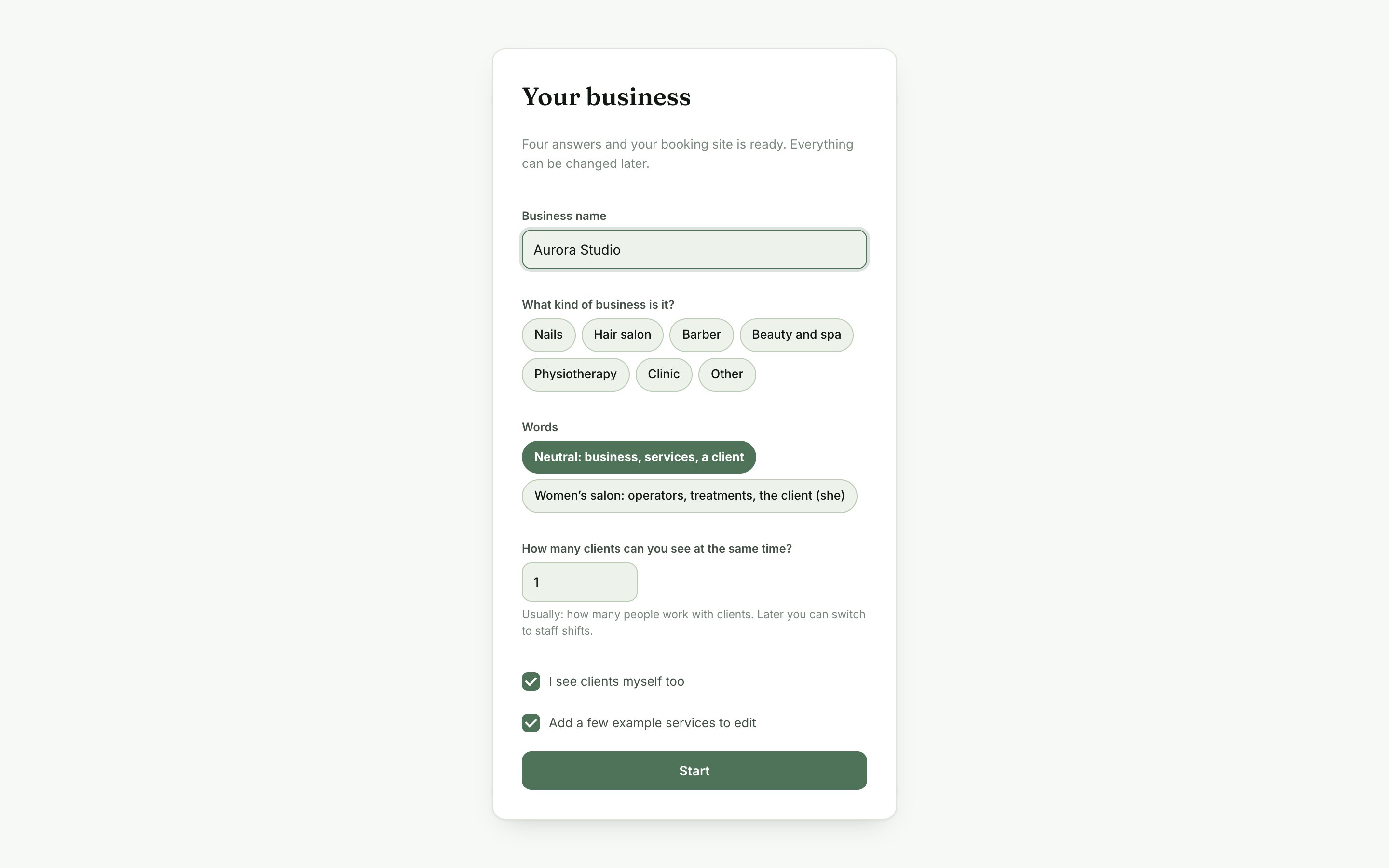
Four answers and you start
What kind of business it is, how many clients you can see at the same time, and whether the owner sees clients too. «Add a few example services to edit» gives you a typical price list to change.
- Hairdresser, barber, beauty studio, nails, physiotherapy, clinic or other
- The number of people can be replaced by staff shifts later
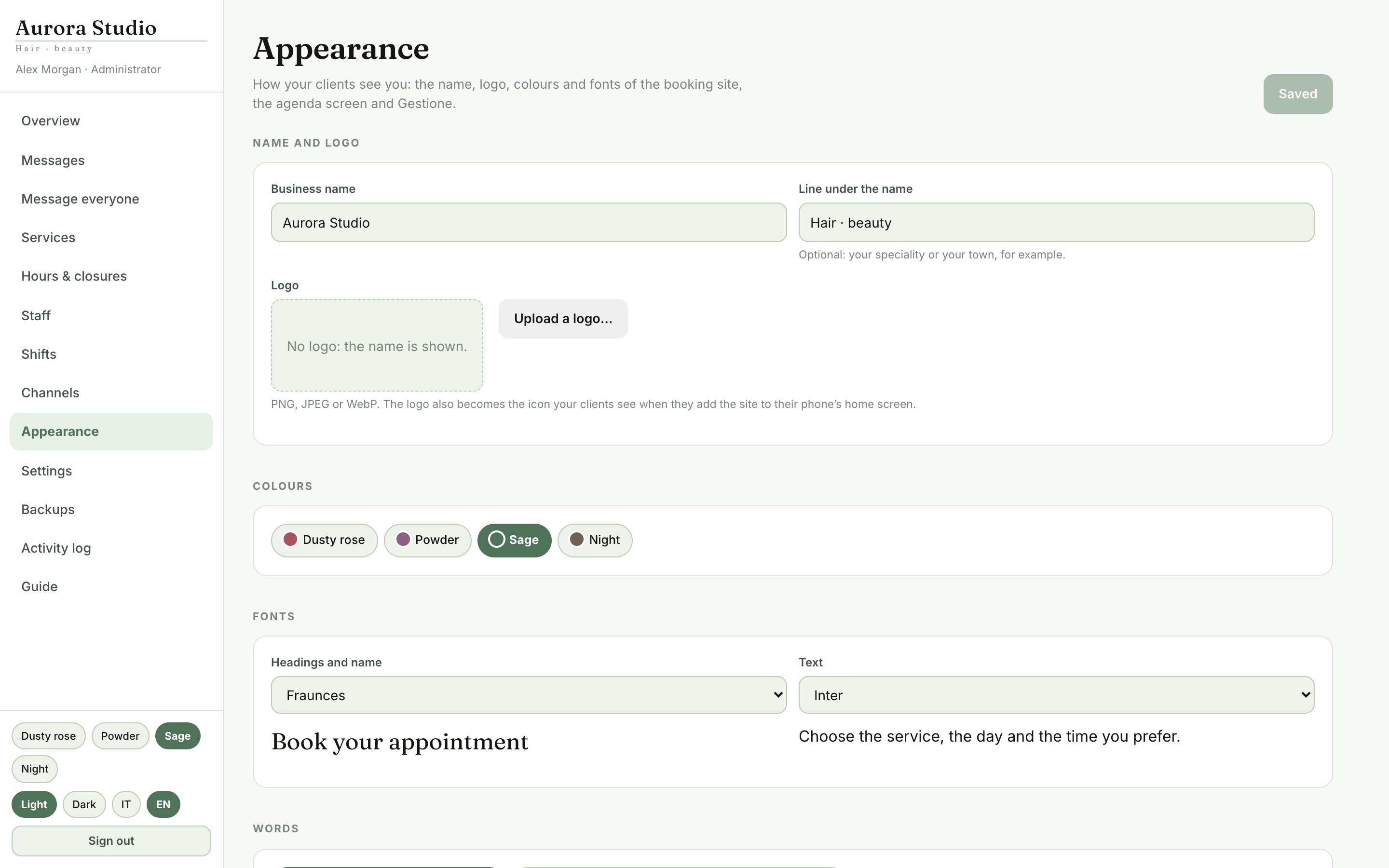
Appearance: the site in your brand
- The business’s name, subtitle and logo
- Colours, fonts and text size, for every screen
- The words: what the site, the agenda screen and the bot call your staff, your services and your clients
- The preview shows your choices at once; the site and the agenda screen take them on their next load
The booking site
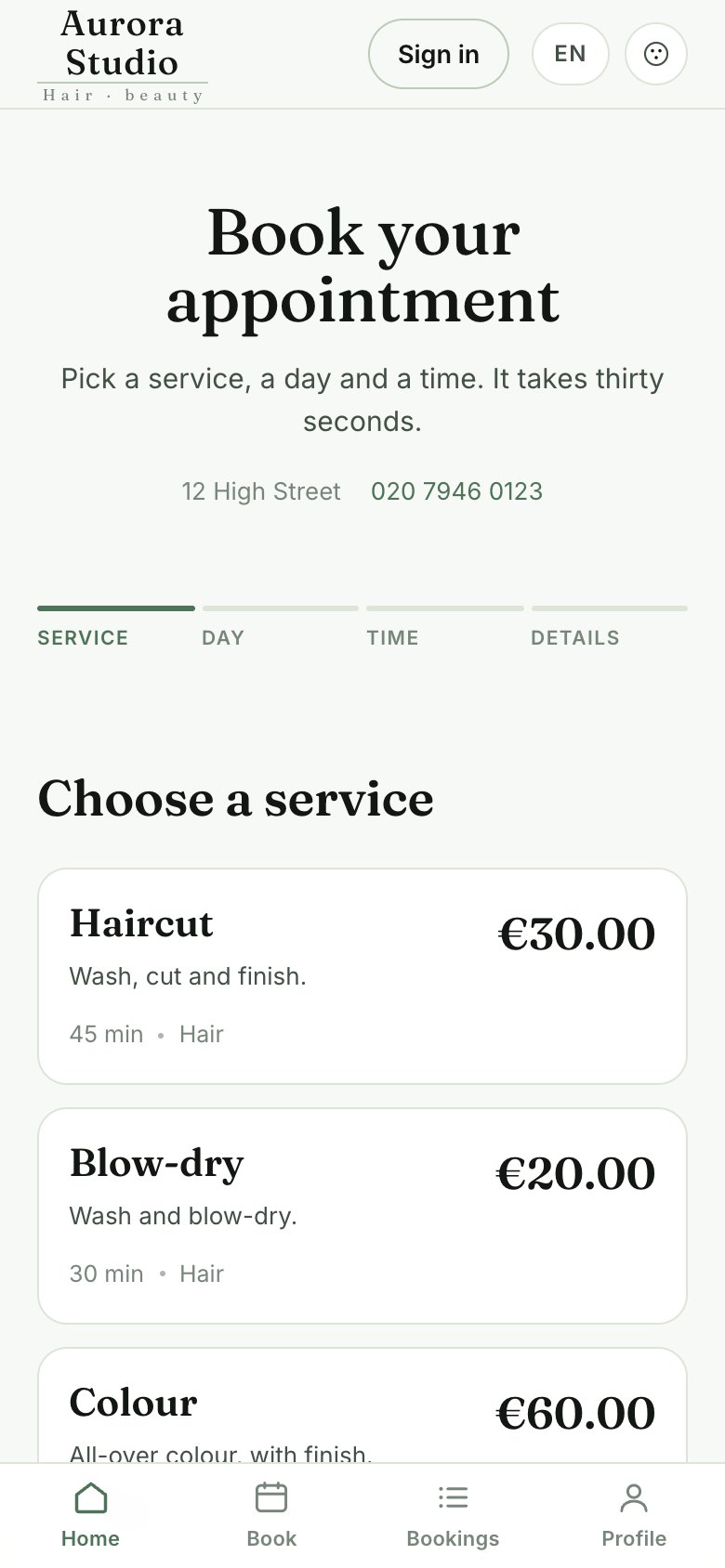
1 · The service
The client opens the site and sees the services, with description, length and price. No account is needed to look: it is asked for only at the end.
- Services, prices and lengths are those in Gestione → Services
- An add-on makes the appointment longer and adds its price to the total
- The summary stays at the bottom: services, length and total
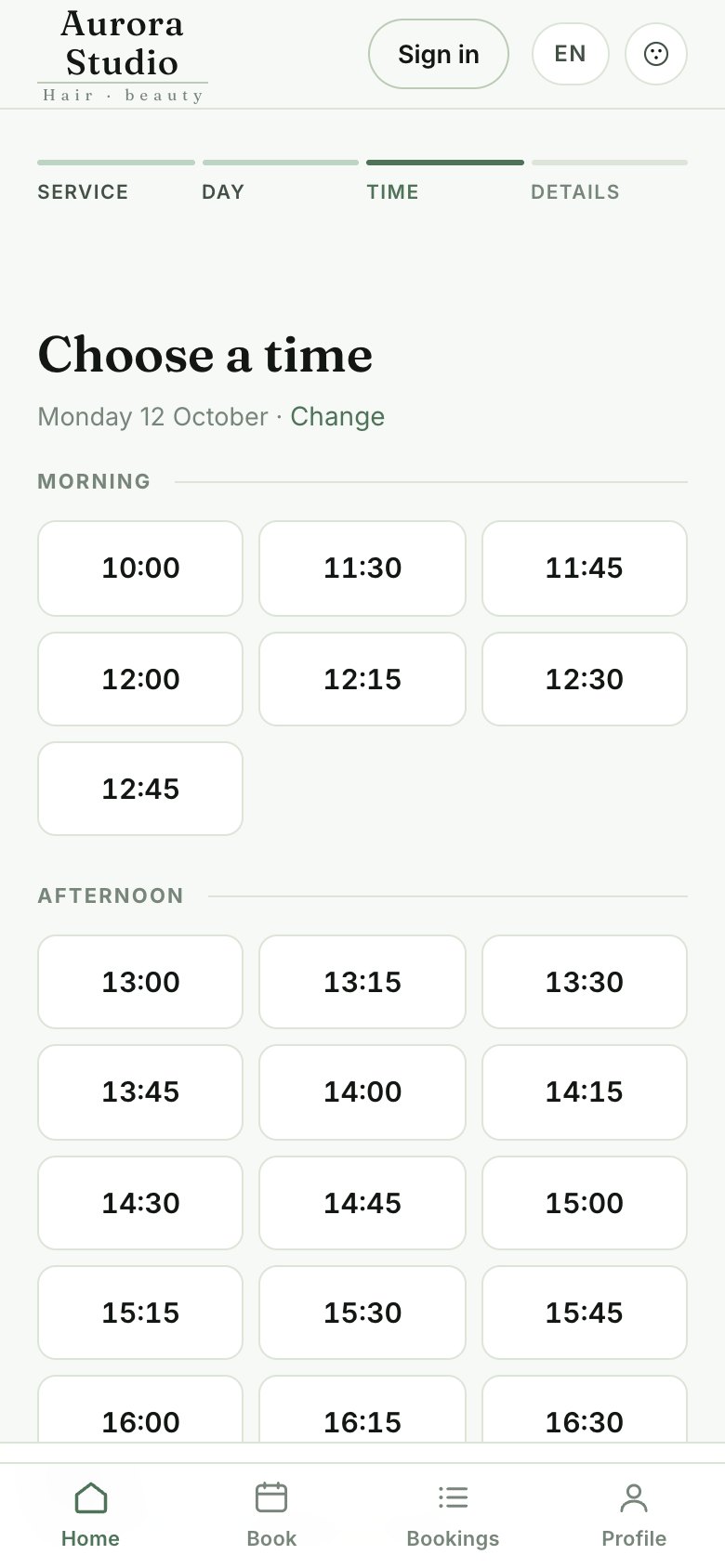
2 · Day and time
The system offers only the days and times that are really free, worked out from the opening hours, the staff’s shifts and the appointments already taken. A double booking cannot happen.
- Closed days and full days are marked as such
- Nobody can book too close to the time: the minimum notice is set in Gestione
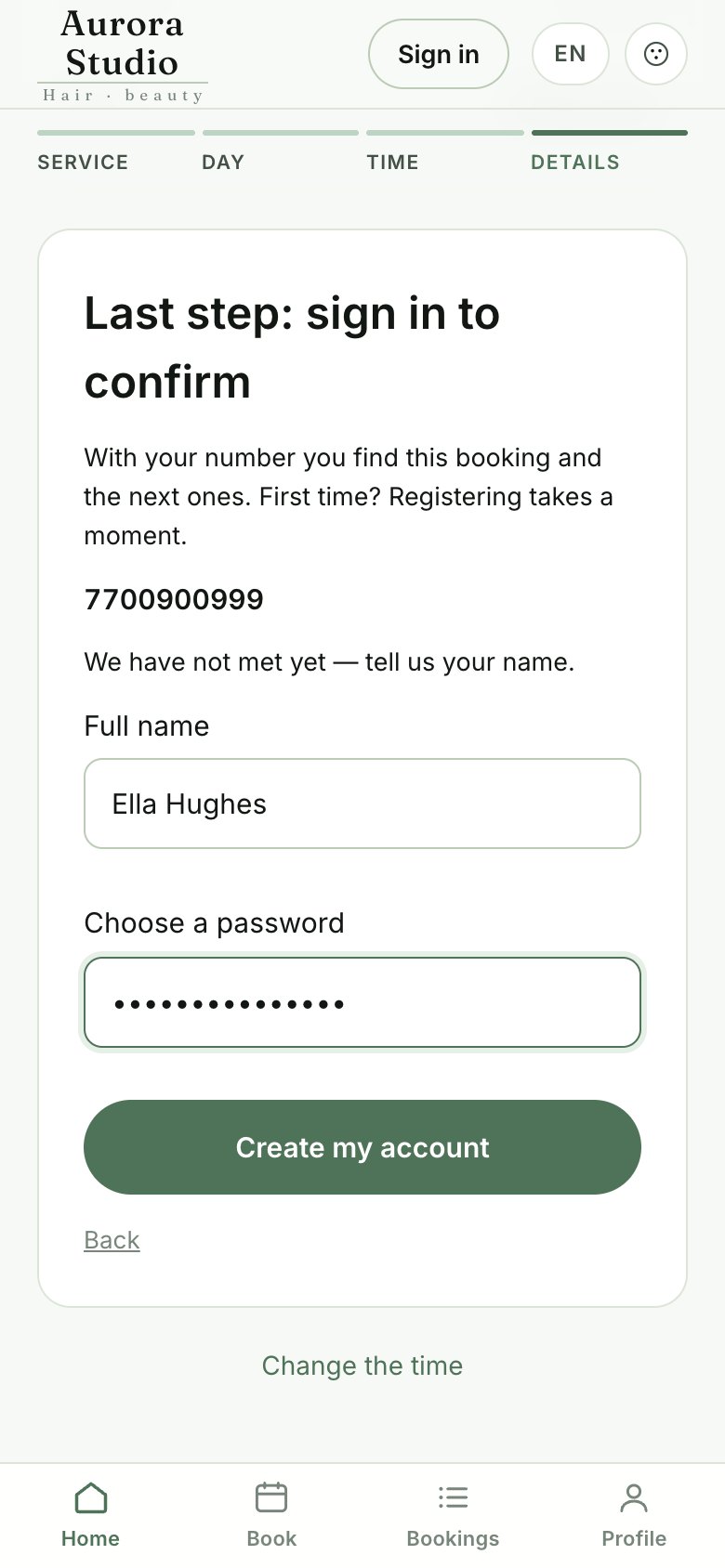
3 · Sign in to confirm
The last step: the client types their number. If they are registered they type their password; if they are new they choose a password and say their name. The time they picked is held for them meanwhile.
- With the same number they find this booking and the next ones
- Two separate consents: one to handle the booking, required, and one for offers and reminders, optional
- Forgotten password: a code arrives on WhatsApp
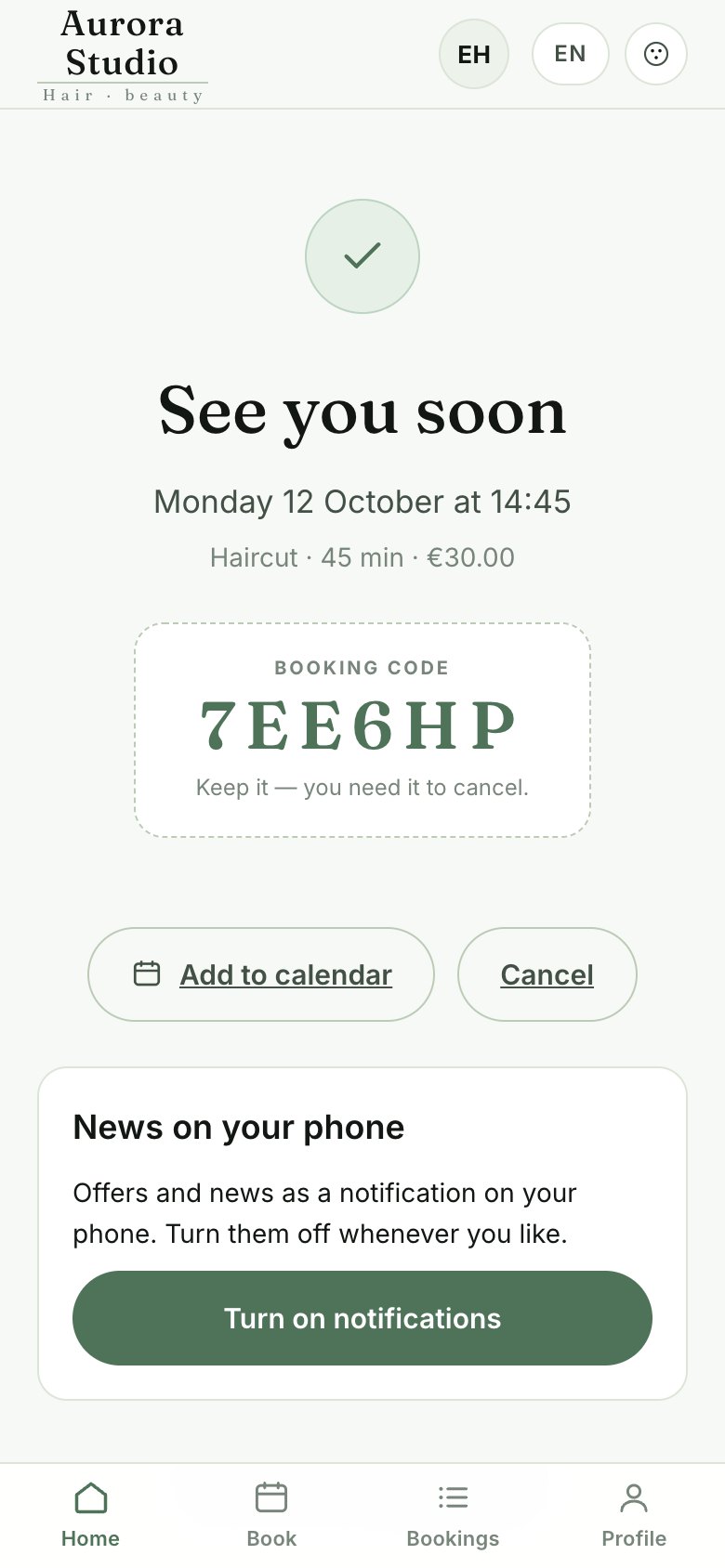
4 · Booking confirmed
- The booking code and «Add to calendar»
- «Cancel» to undo it straight away after a mistake
- With WhatsApp connected, a confirmation arrives and, the day before, a reminder
- «News on your phone»: the client can turn on the business’s notifications
My bookings and the profile
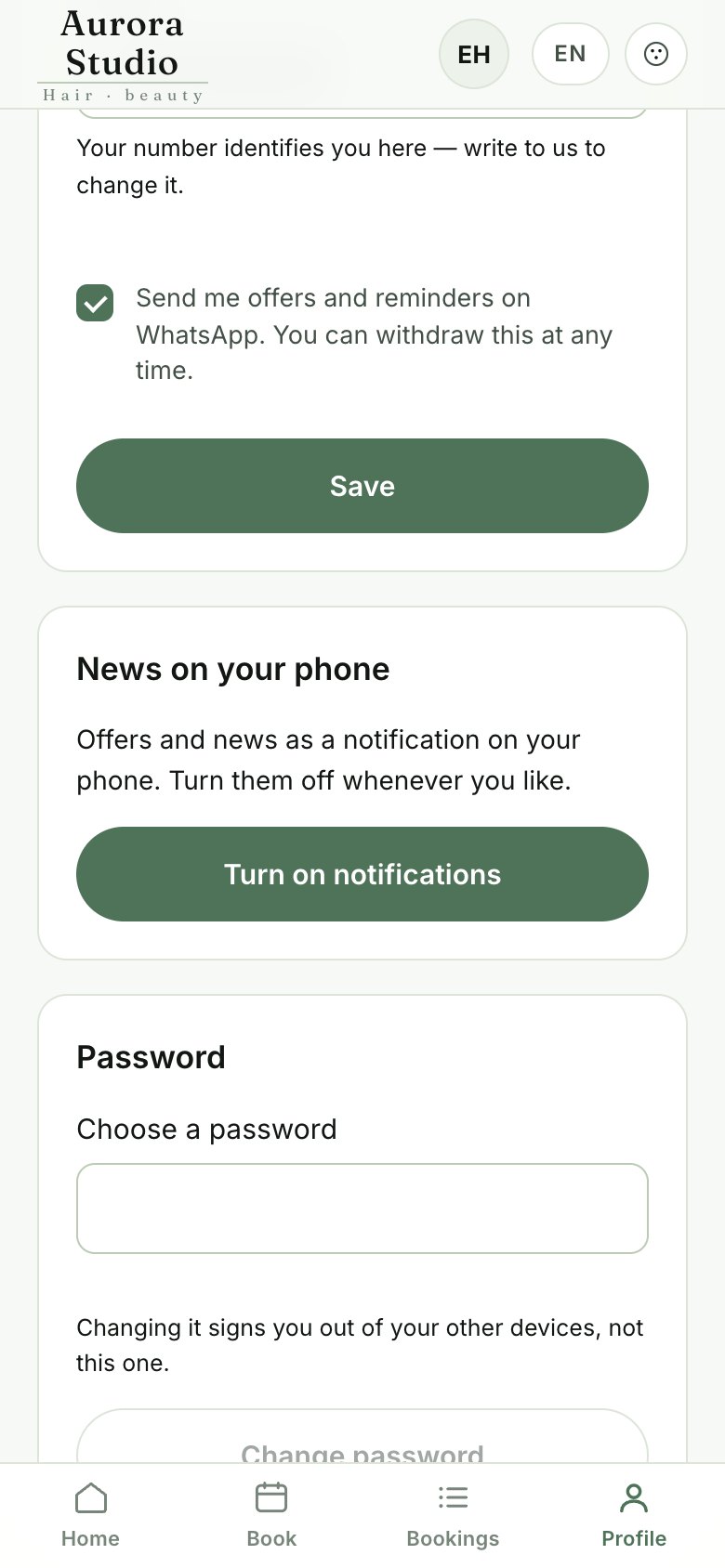
With their account the client sees their next appointments and cancels them up to a few hours before (4, changeable in Gestione). A cancelled time goes back on sale at once.
- In the profile: their details, the password, notifications on the phone and deleting the account
- On iPhone notifications come from the site added to the Home Screen: the profile explains how
- The site is in Italian and English, light or dark
The agenda screen
The day
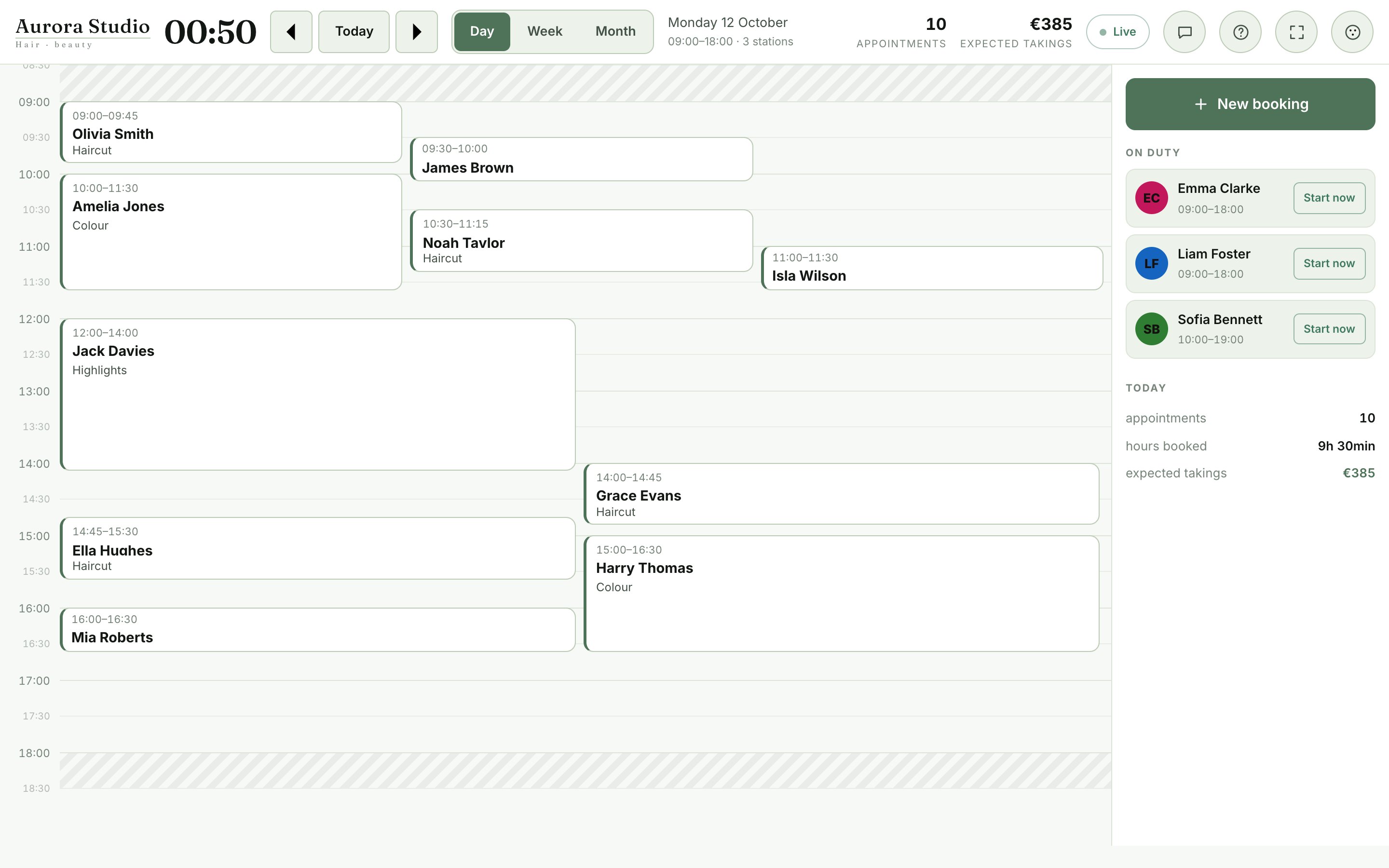
The appointment board, with a column for each person on shift and the line of the current time.
- At the top: the arrows and «Today» to change day, the opening hours, the appointments and the expected takings
- «Live» says the screen is up to date; if the connection drops it says so in red
- On the right: who is on shift and the day’s summary
The appointment card
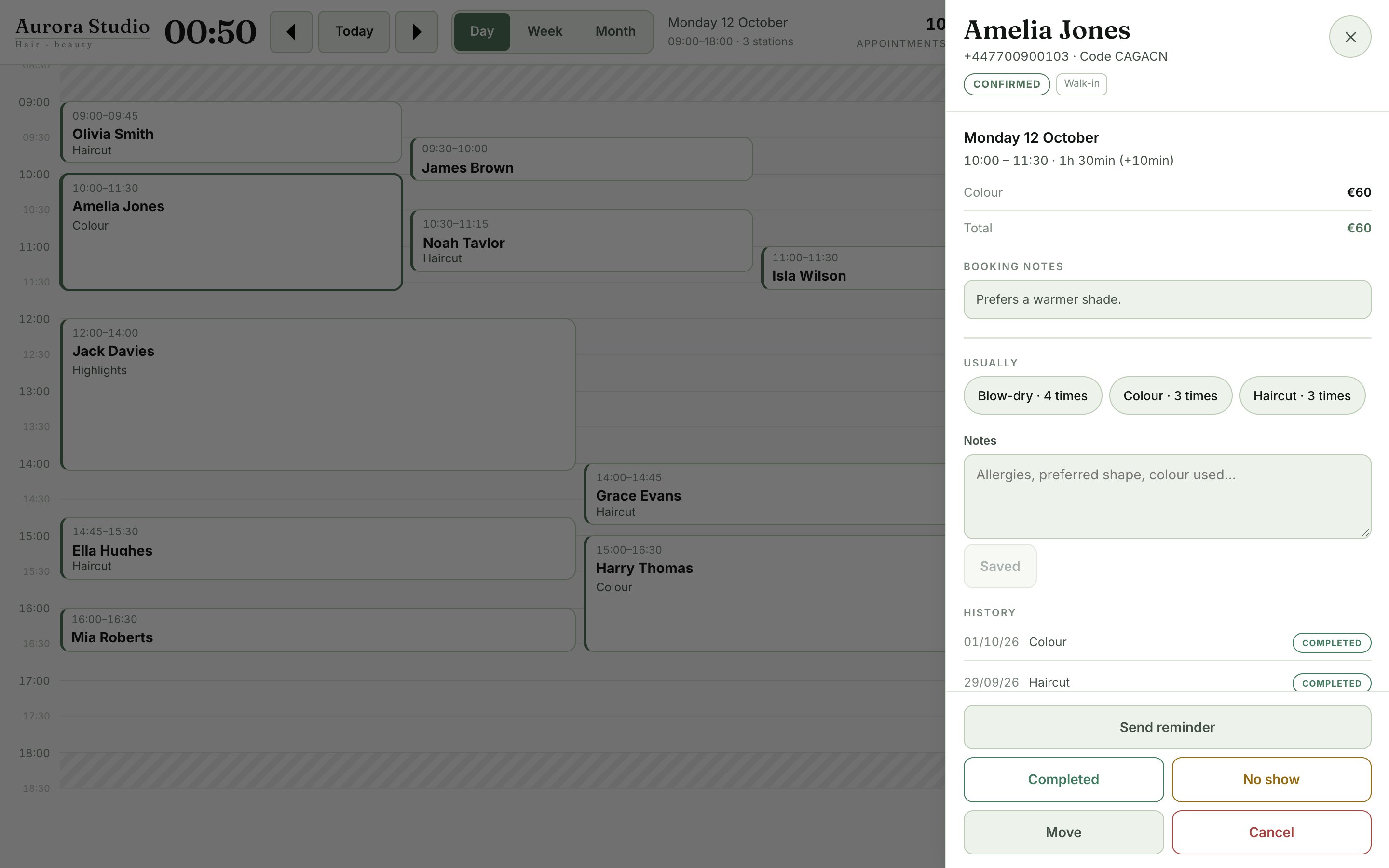
Tap an appointment to open its card, with the services, the total and everything about the client.
- Visits, spending, no-shows and last visit; the booking’s notes and the client’s lasting notes
- «Send reminder»: a ready-written WhatsApp message to the client. It opens WhatsApp on the device, or goes from the business’s number through the WhatsApp API: chosen in Gestione → Channels
- «Completed» or «No show» when the appointment ends: they count for takings and statistics
- «Move»: tap the new time on the board · «Cancel»: frees the time
A new booking at the desk or by phone
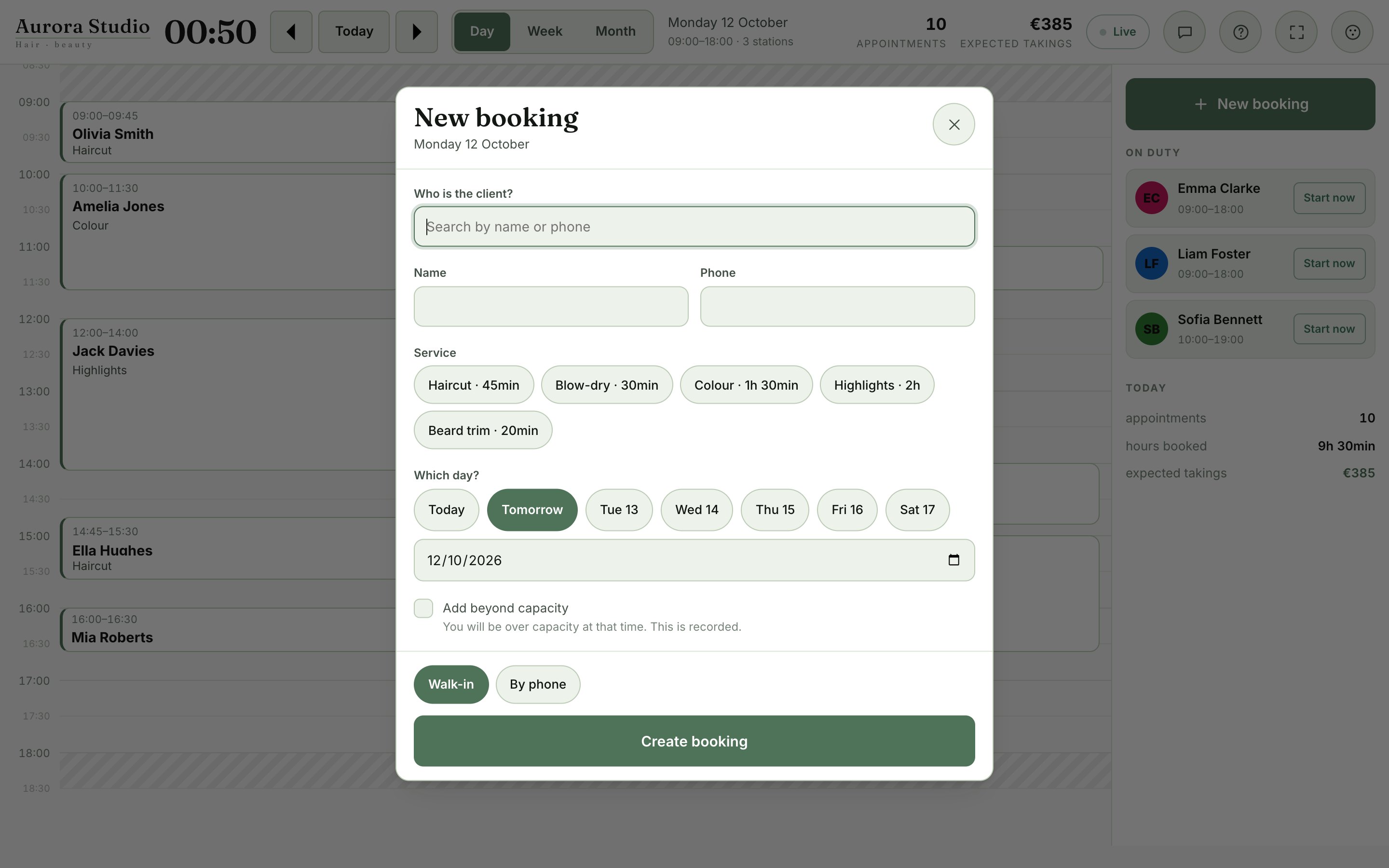
Who the client is
Search by name or phone; for someone new, type name and phone.
Service and time
Pick the service, any add-ons and a free time.
Where it comes from
«Walk-in» or «By phone», then «Create booking».
Gestione
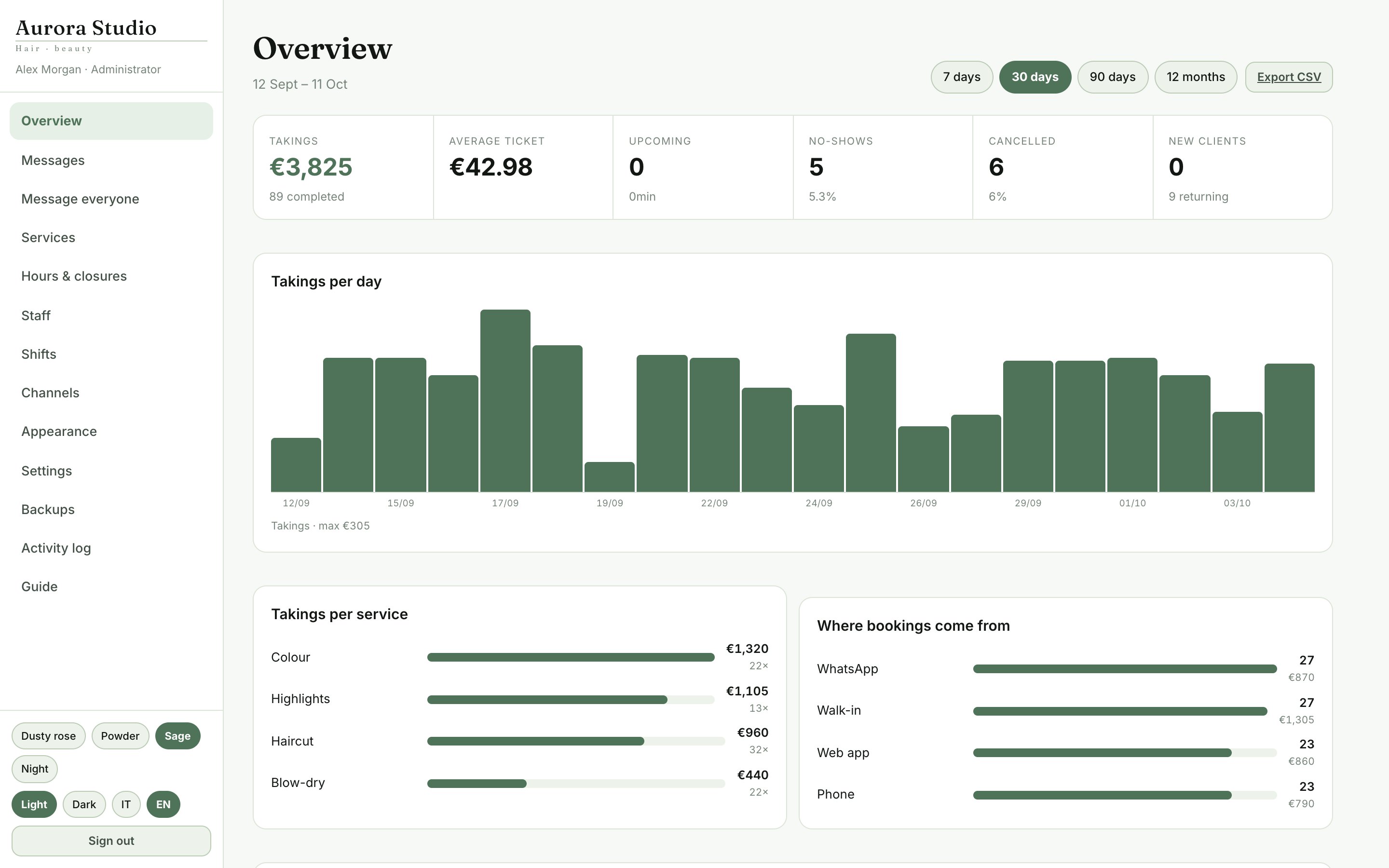
Overview
How the business is doing, over 7 days, 30 days, 90 days or 12 months.
- Takings, average ticket, upcoming appointments, no-shows, cancellations, new and returning clients
- Takings by day and by service, busiest hours, where bookings come from
- «Export CSV» for your accountant or a spreadsheet
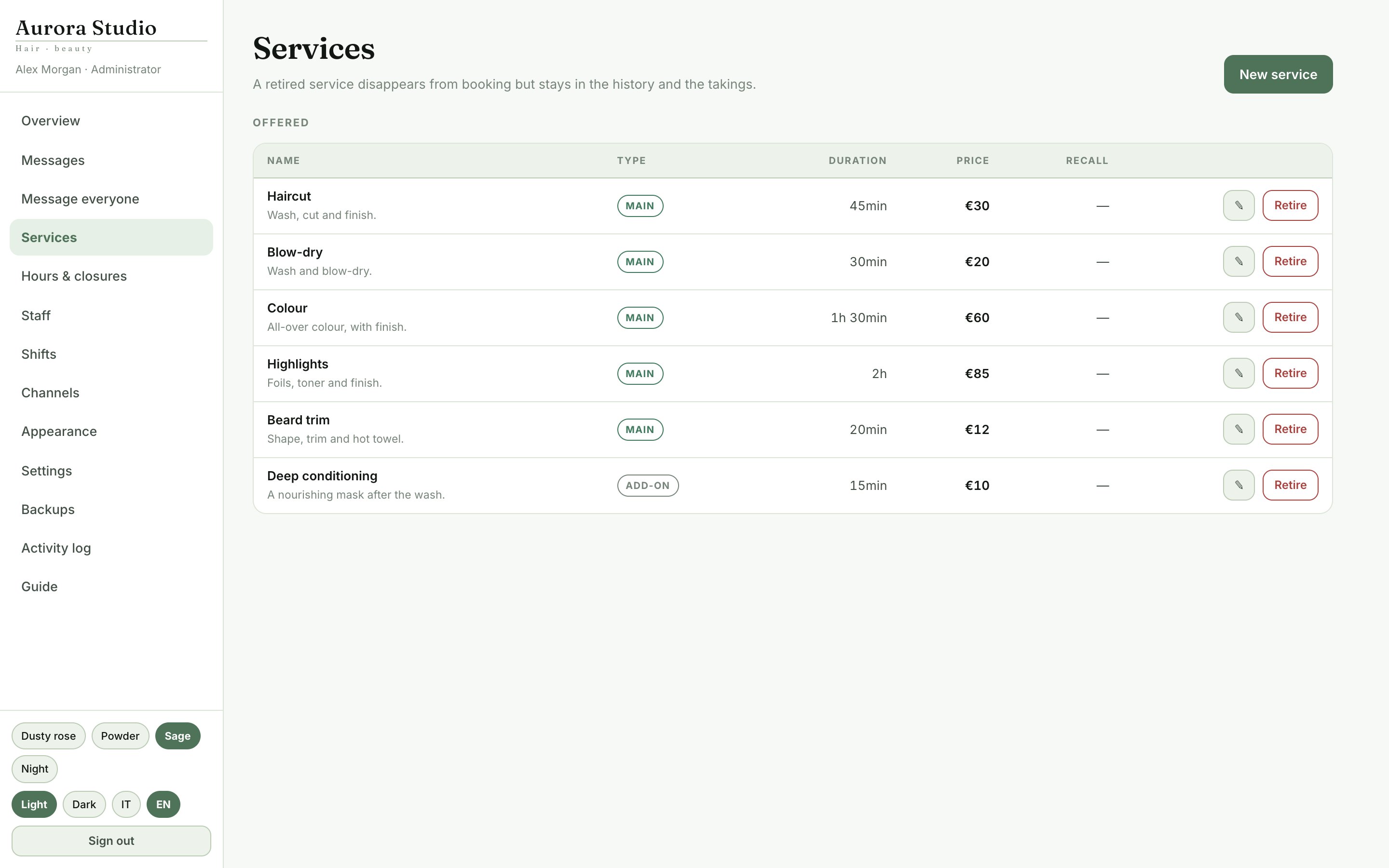
Services
- Name, description, category, price and length
- Cleanup: the minutes after the service before the next appointment
- Kind: main service or «Add-on» (added to a service)
- Recall: after how many days to invite the client to book again
- «Retire»: the service leaves the booking site but stays in the history and the takings
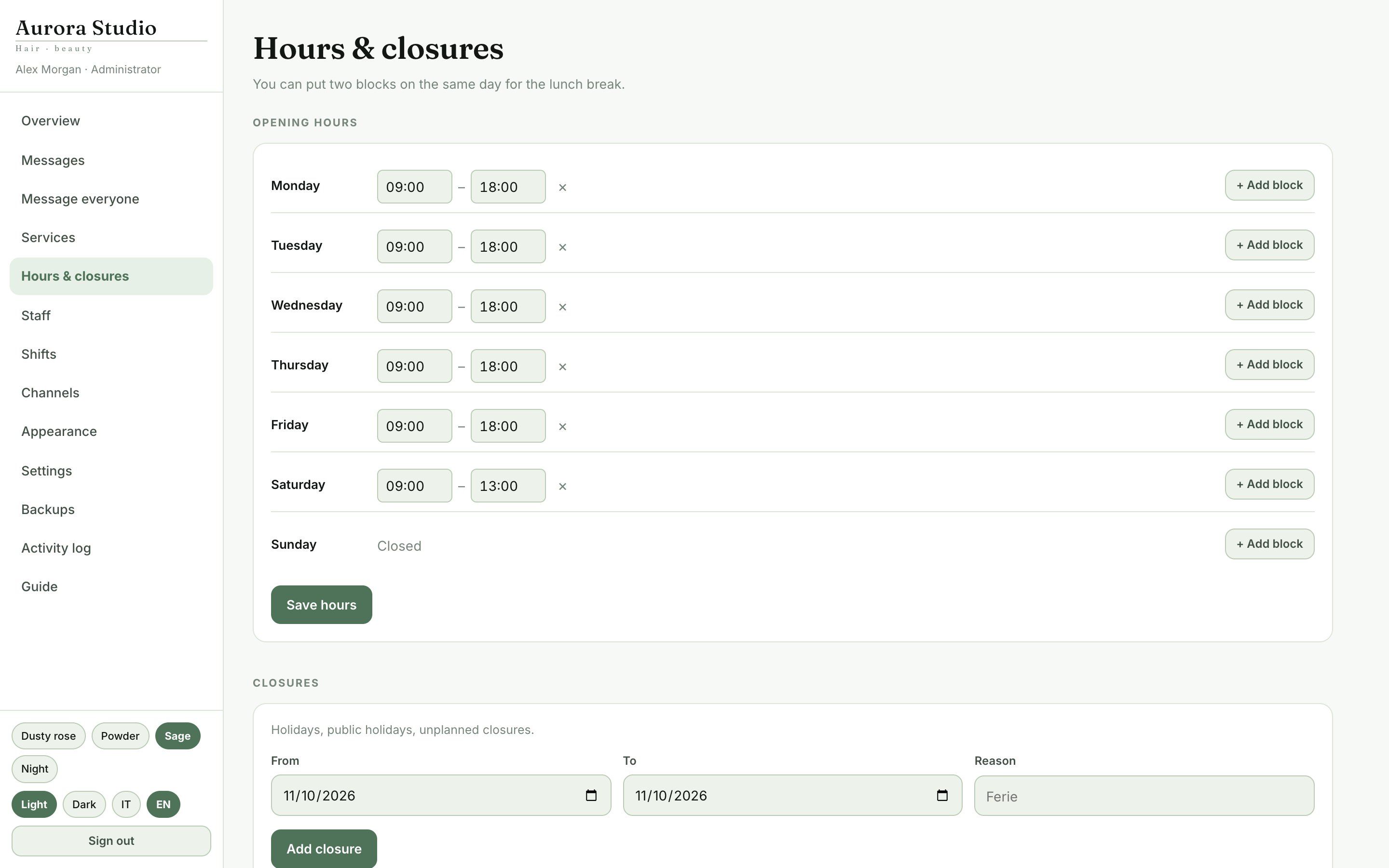
Hours & closures
- One or two time bands a day, for a lunch break; «Closed» when there are none
- Closures: holidays, bank holidays and one-off closures, with the reason
- Appointments already in a closure are counted and left alone: nothing is cancelled by itself
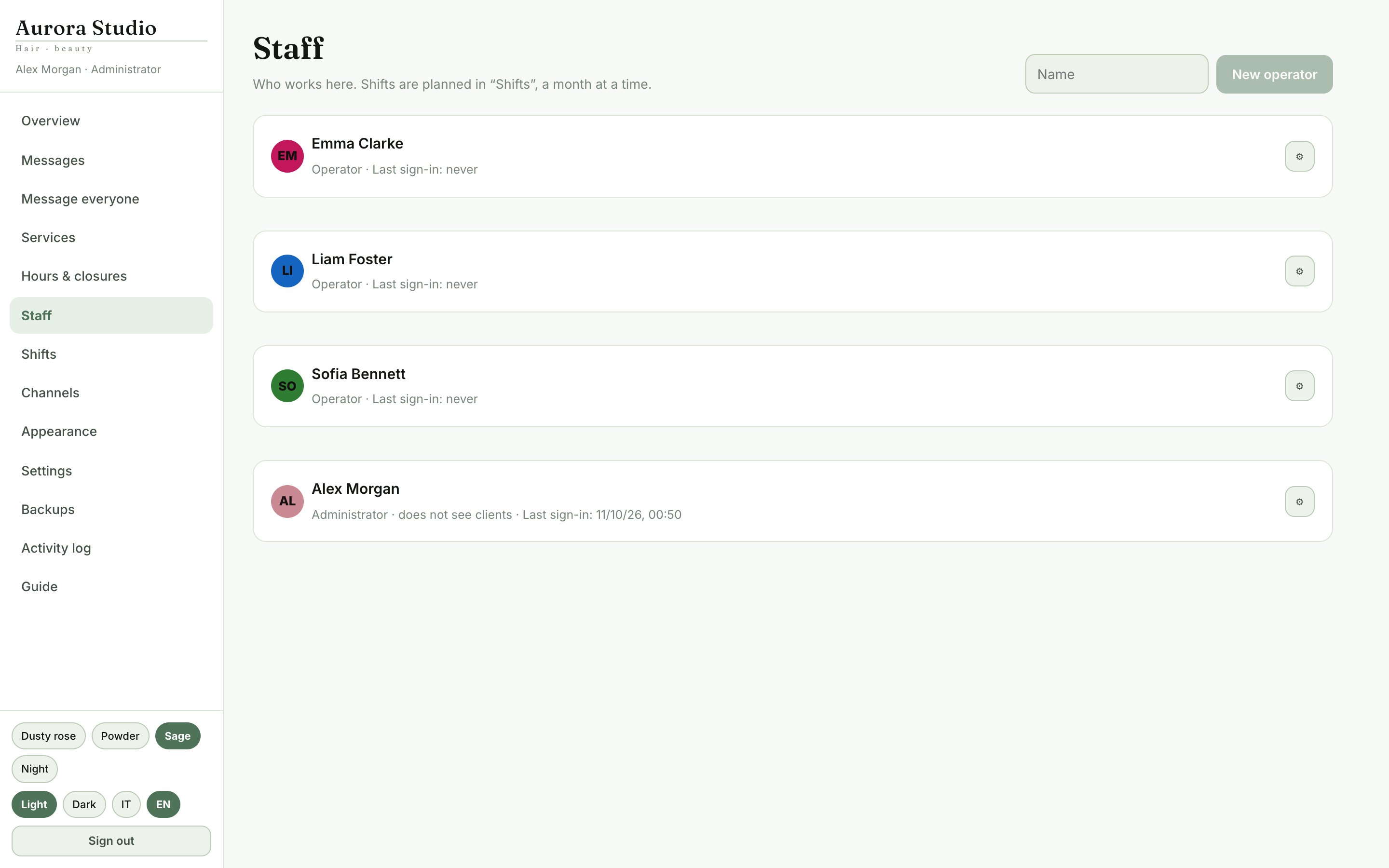
Staff
- Name, phone and colour of each person
- Agenda screen sign-in: username and password; changing the password signs that person out everywhere
- «Sees clients»: untick it for someone who works at the business but does not see clients
- Absences: someone absent does not count towards availability
- WhatsApp alerts: every new booking, and the day’s agenda each morning
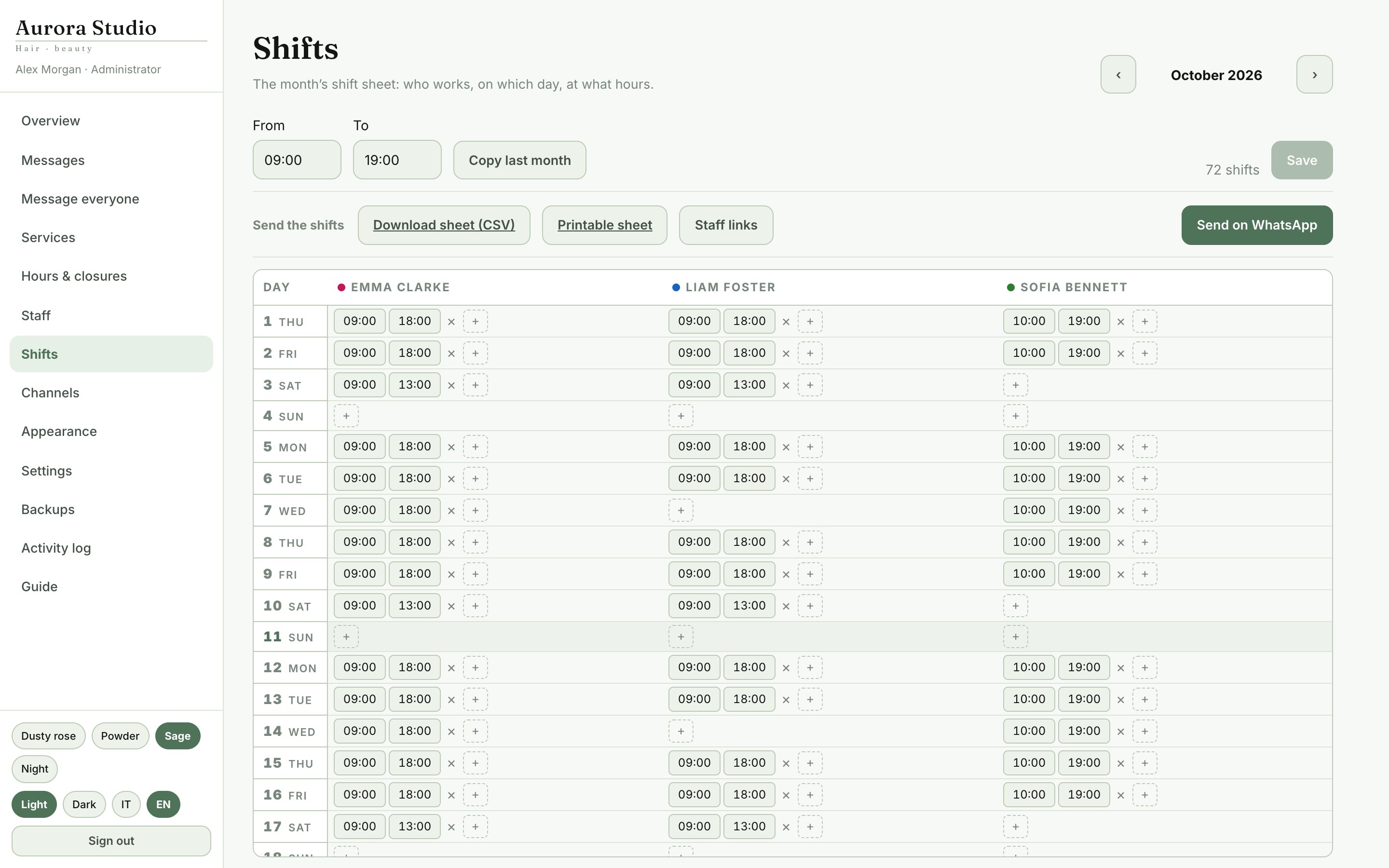
Shifts
The month’s shift sheet: a row per day, a column per person. The agenda screen opens and closes shifts following this sheet.
- «Copy last month» fills the month for you to correct
- An empty month is not a closed month: it is a month not done yet, and the site will offer no times. The sheet says so in red
- «Send on WhatsApp» sends everyone their days and a private link to the sheet, always up to date
- «Download sheet (CSV)» and «Printable sheet»
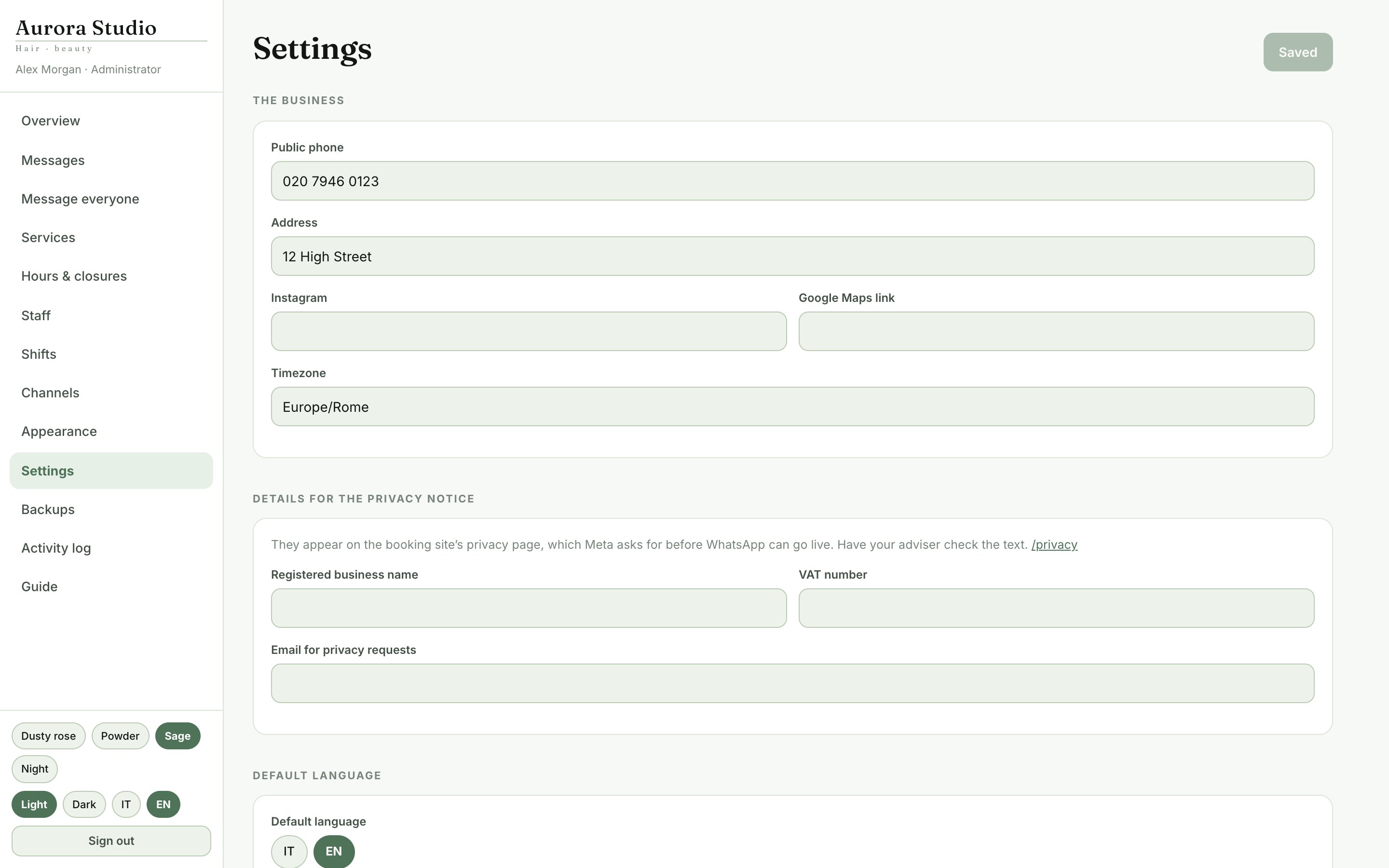
Settings
- The business: public phone, address, Instagram, Google Maps link, time zone
- Booking rules: time steps, minimum notice, how far ahead, until when clients can cancel online
- Capacity: from the staff’s shifts, or a fixed number
- Details for the privacy notice: company name, VAT number, email
- Signed-in devices: see who is signed in and sign a device out
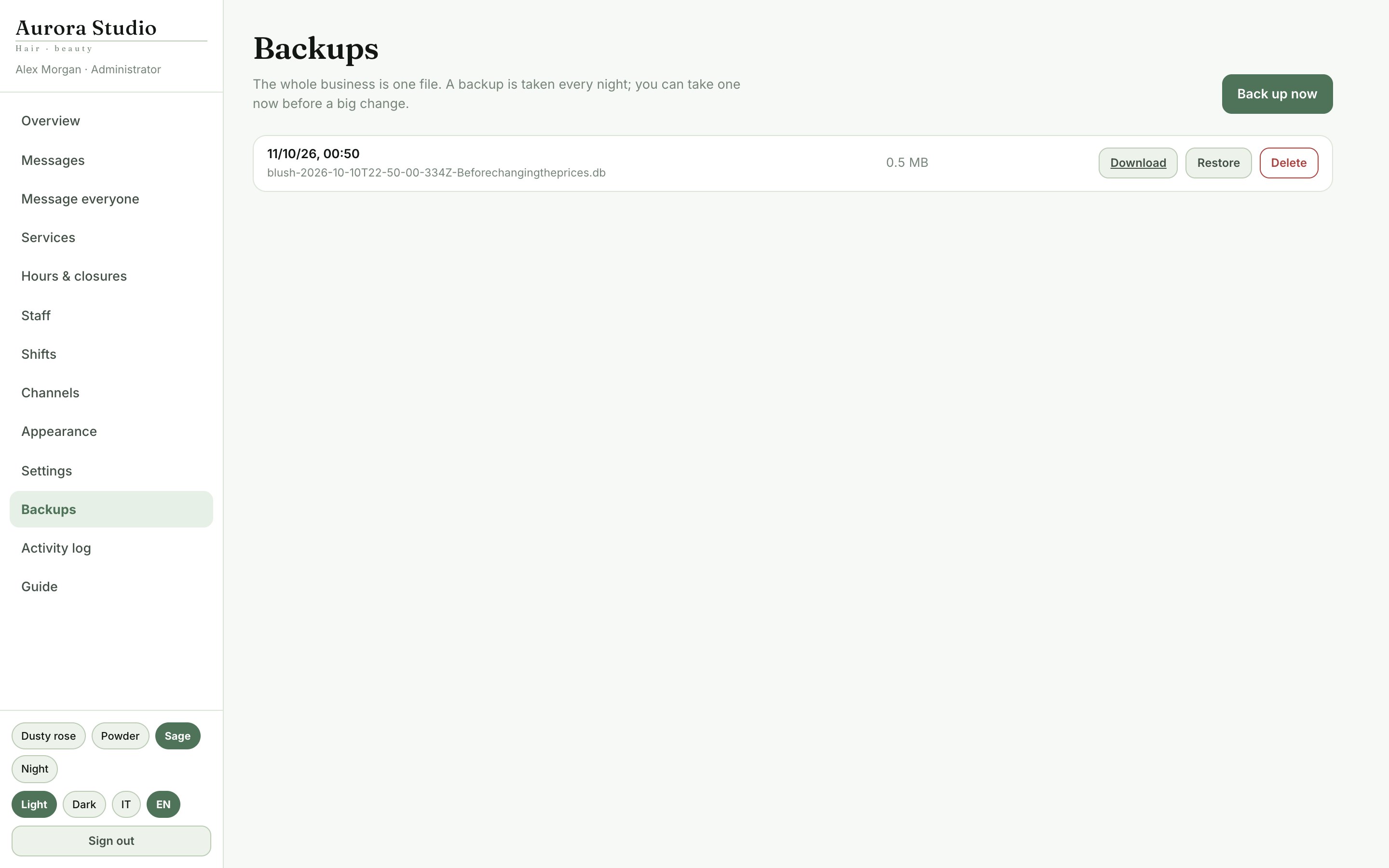
Backups and the activity log
The whole business is one file. The system copies it every night, and you can make a copy whenever you like.
- «Download» saves a copy to a USB stick or another computer
- «Restore»: the current database is set aside and replaced at the next server restart; until then you can cancel
- The activity log says who changed what, and when: bookings, shifts, prices, settings, backups
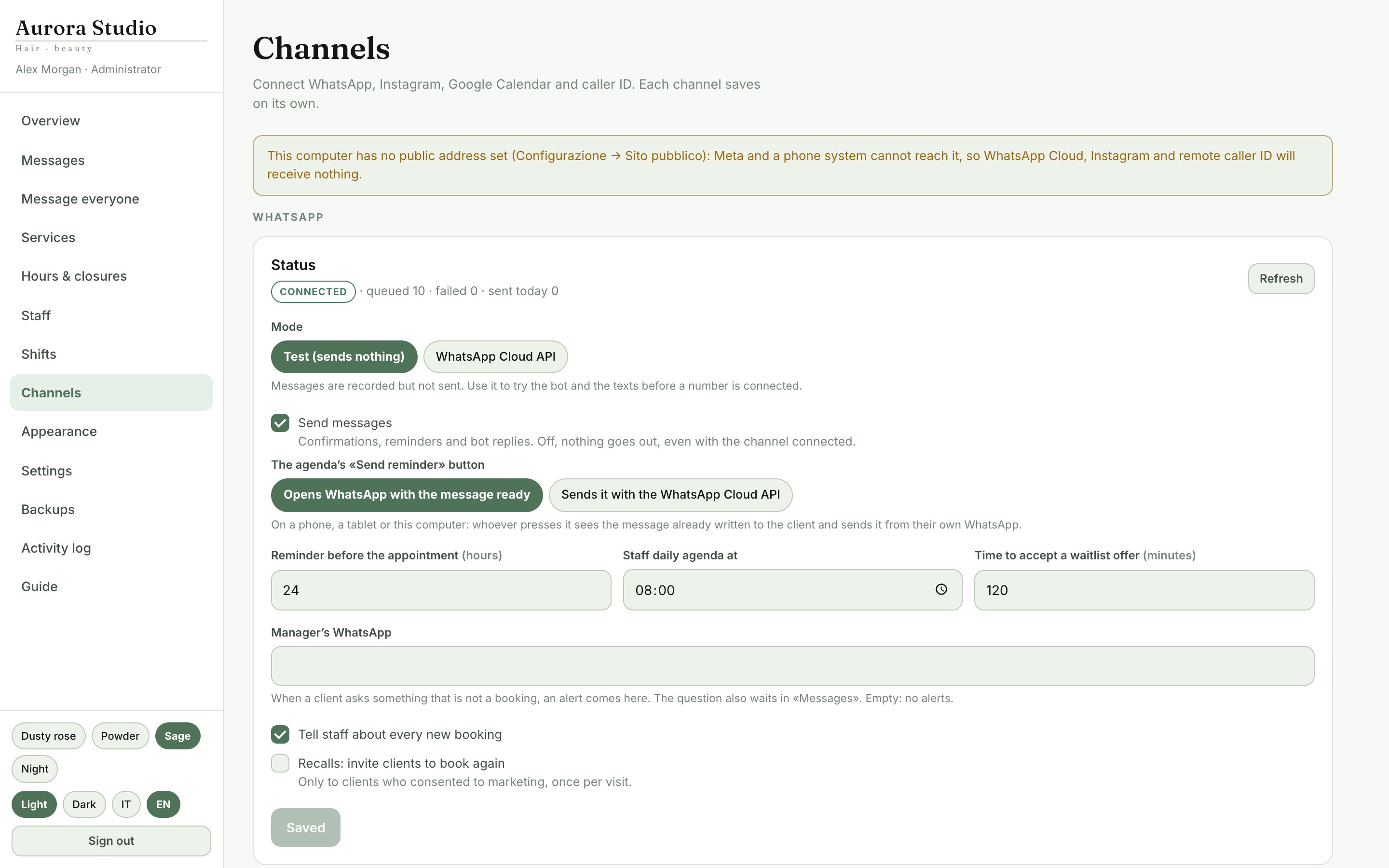
WhatsApp, notifications and other channels
WhatsApp: the two modes
- Test mode: messages are logged, not sent. Use it to try the bot and the texts before connecting a number
- WhatsApp Cloud API: Meta’s official API, with no risk of the number being blocked. Meta charges for conversations on its own price list and requires a verified business
- Reminders 24 hours before, the day’s agenda to staff, new-booking alerts
- The agenda’s «Send reminder» button: opens the WhatsApp app with the message ready, or sends it from the business’s number
Message everyone
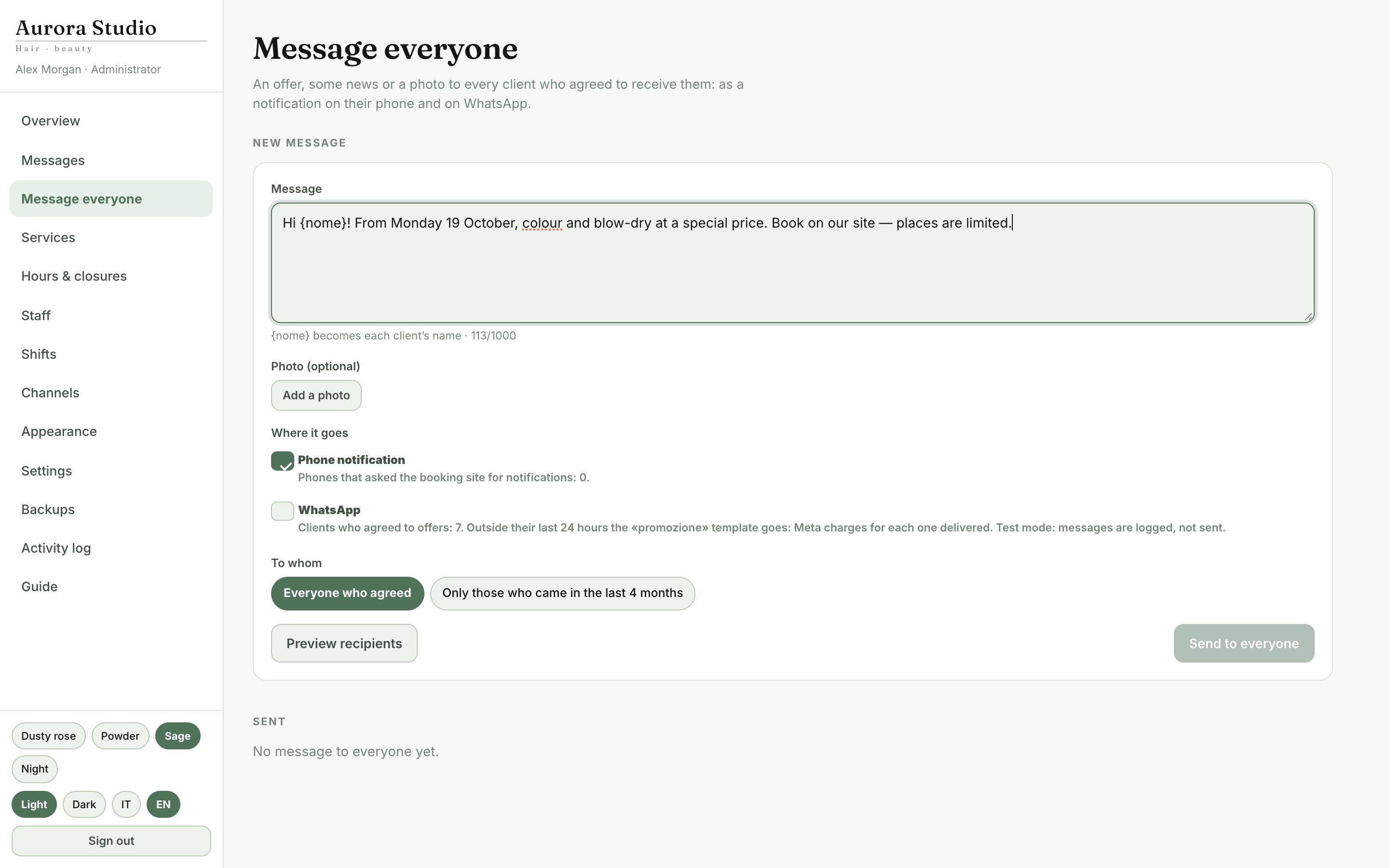
An offer, some news or a photo to every client who agreed to receive them: on WhatsApp and as a notification on their phone.
- Write the text; {nome} becomes each client’s name. You can add a photo
- Choose where it goes (notification, WhatsApp) and to whom (everyone, or only those who came in the last 4 months)
- «Preview recipients» says how many will get it before anything is sent
- On WhatsApp it goes as the «promozione» template (or «promozione_foto»), which Meta must have approved and which Meta charges for each one delivered
- Every message says how to stop them: whoever answers STOP gets no more offers
Data and updates
If something goes wrong
මේ ඇප් එක ගැන ප්රශ්න තියෙනවද?
දැන්ම අපිත් එක්ක චැට් කරන්න, නැත්නම් විමසීමක් යවන්න — ඒක වැඩ කරවගන්න අපි උදව් කරනවා.